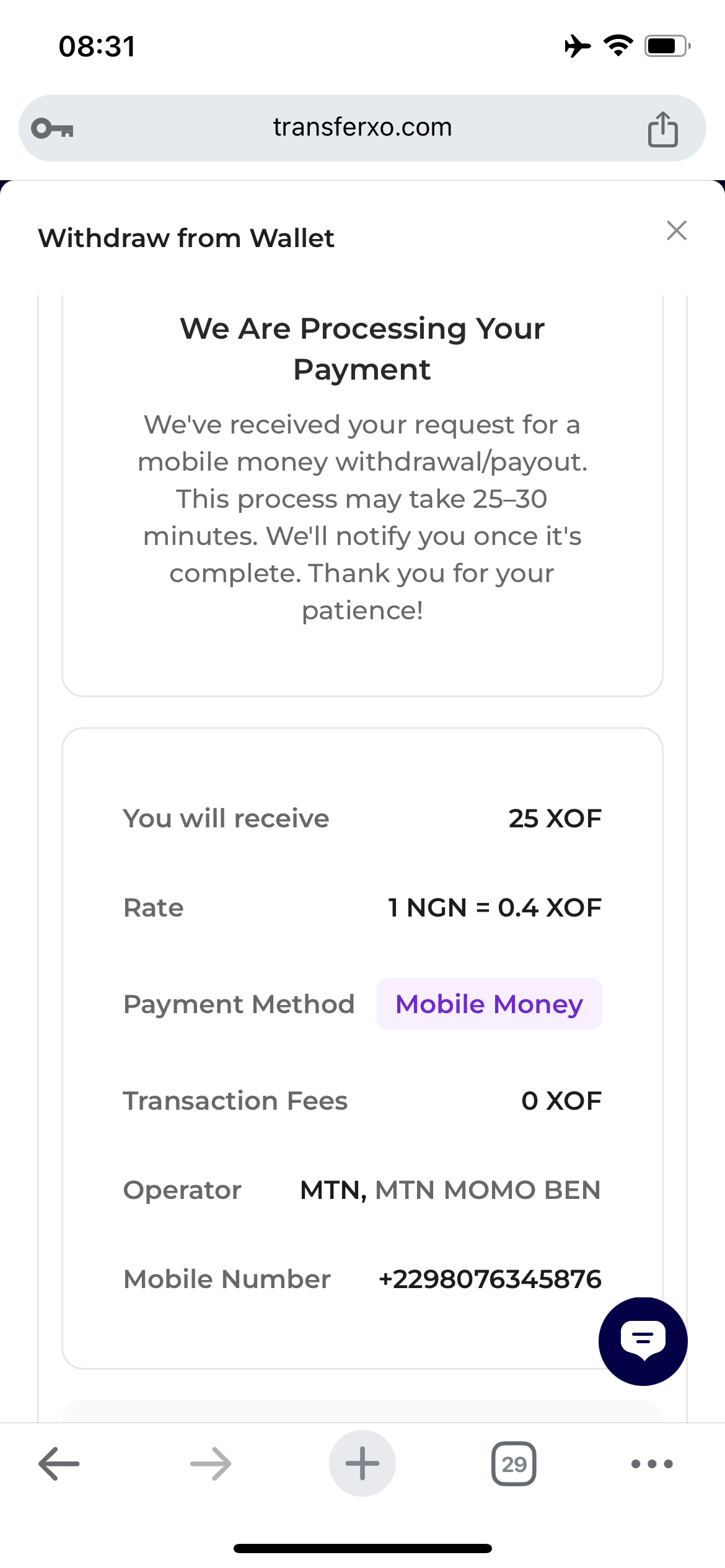


Step 1: Authentication
Open your mobile browser and go to transferxo.com. Tap the Menu icon at the top right, select Login, and enter your credentials.
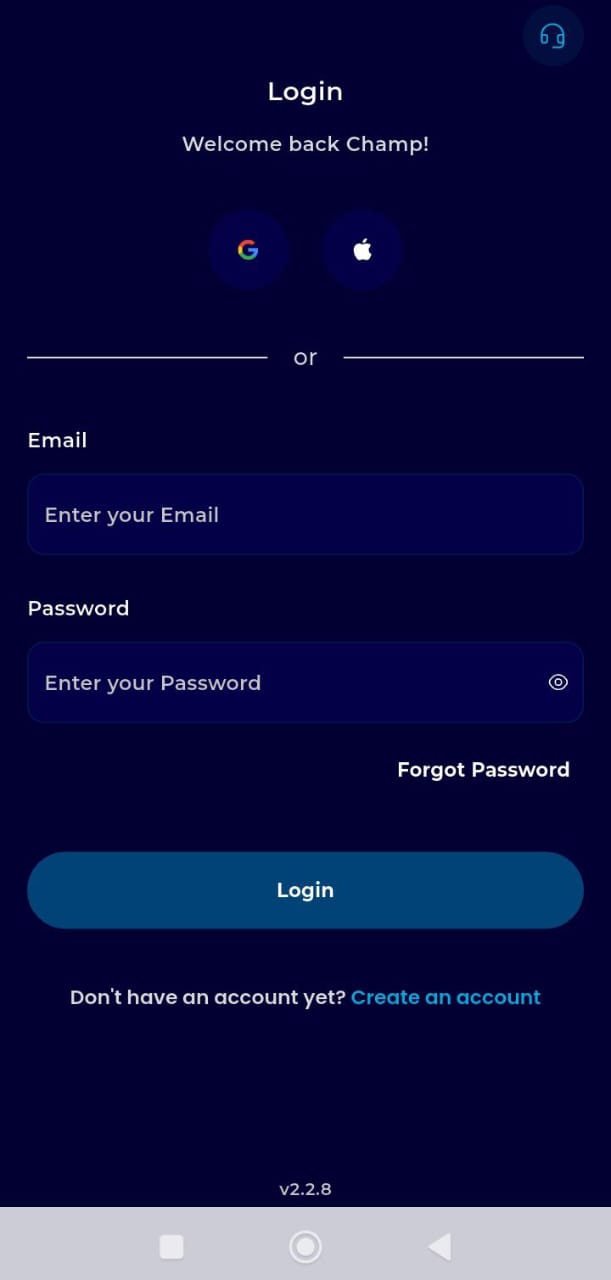
Step 2: Navigate to Wallet
Locate the fixed navigation bar at the bottom of your screen. Tap the Wallet icon
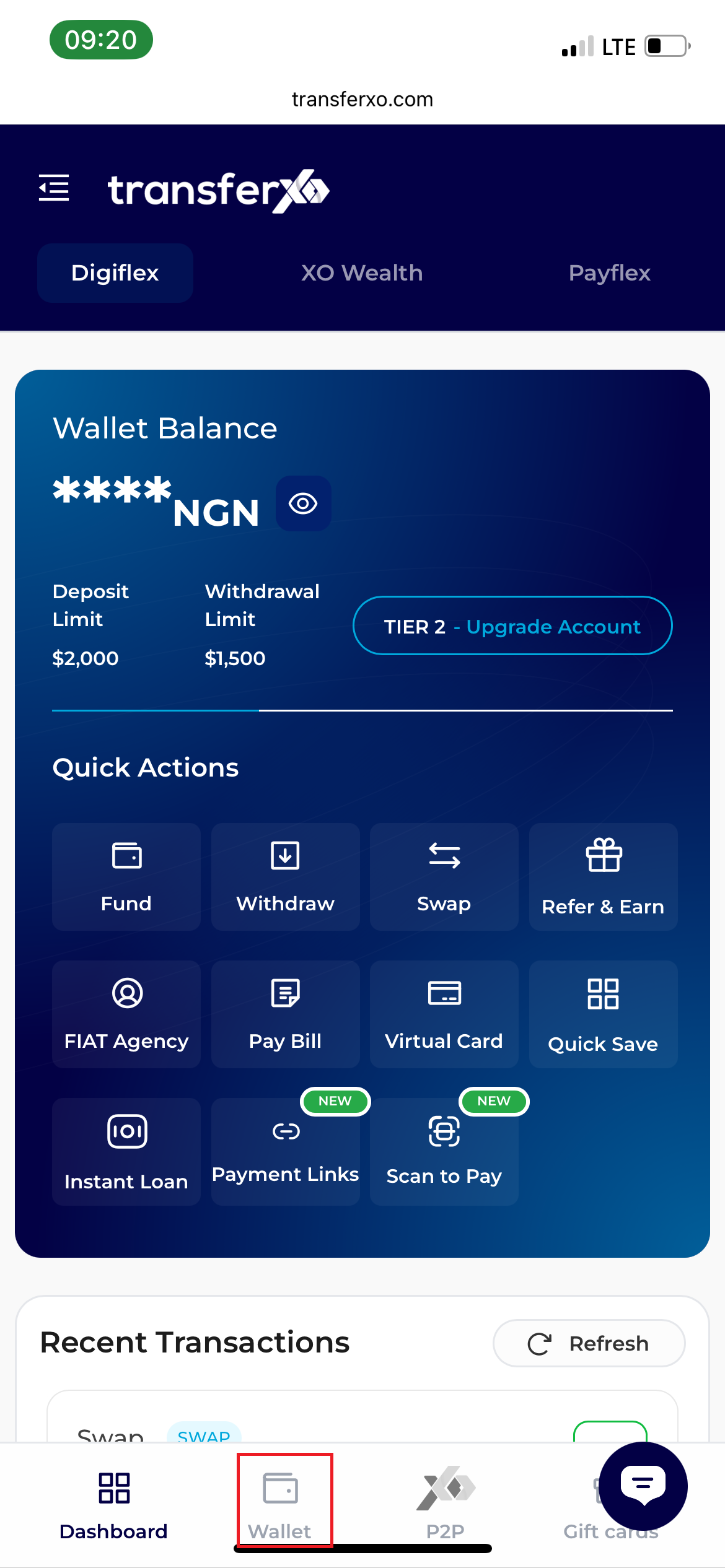
Step 3: Select Asset
From the list of assets (Crypto/Fiat), Select NGN Fiat Wallet
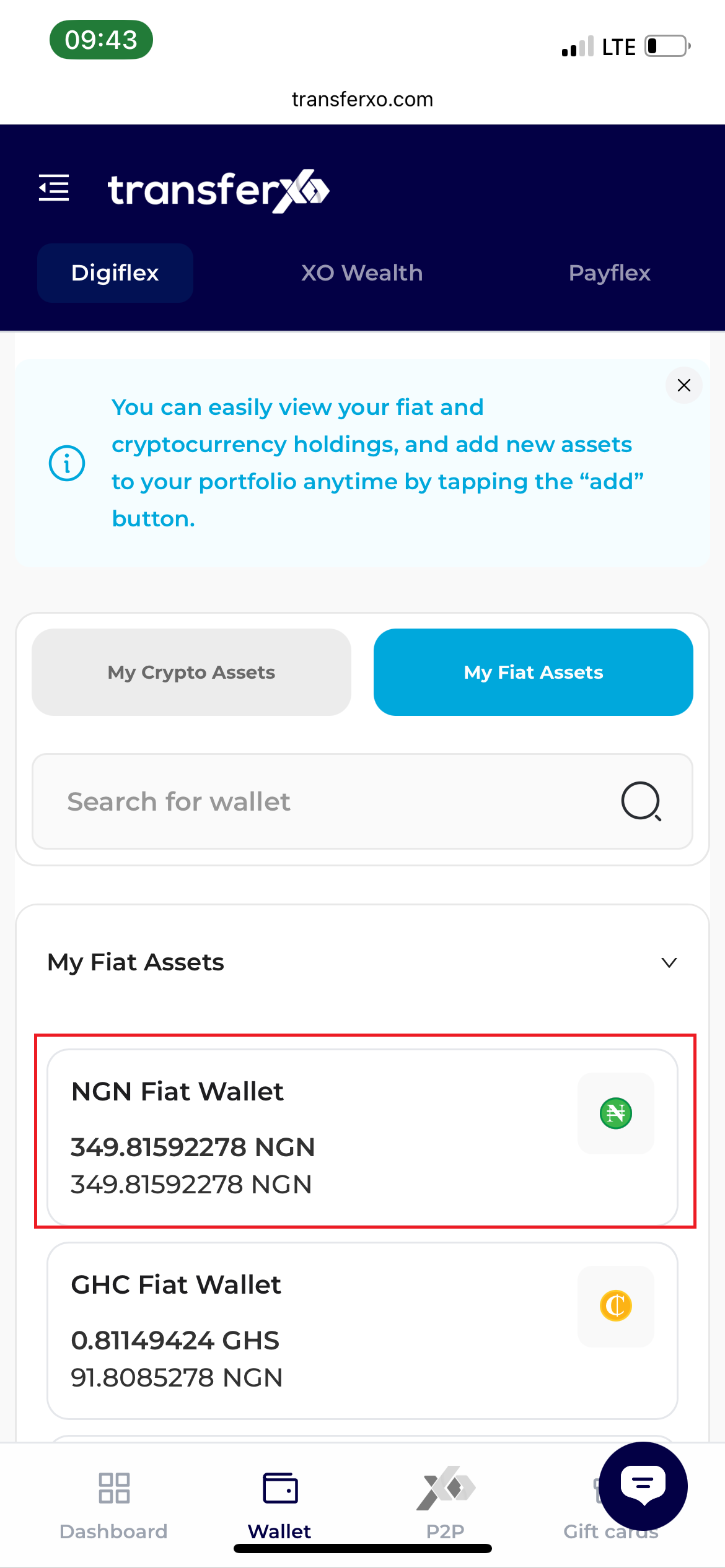
Step 4: Access Options
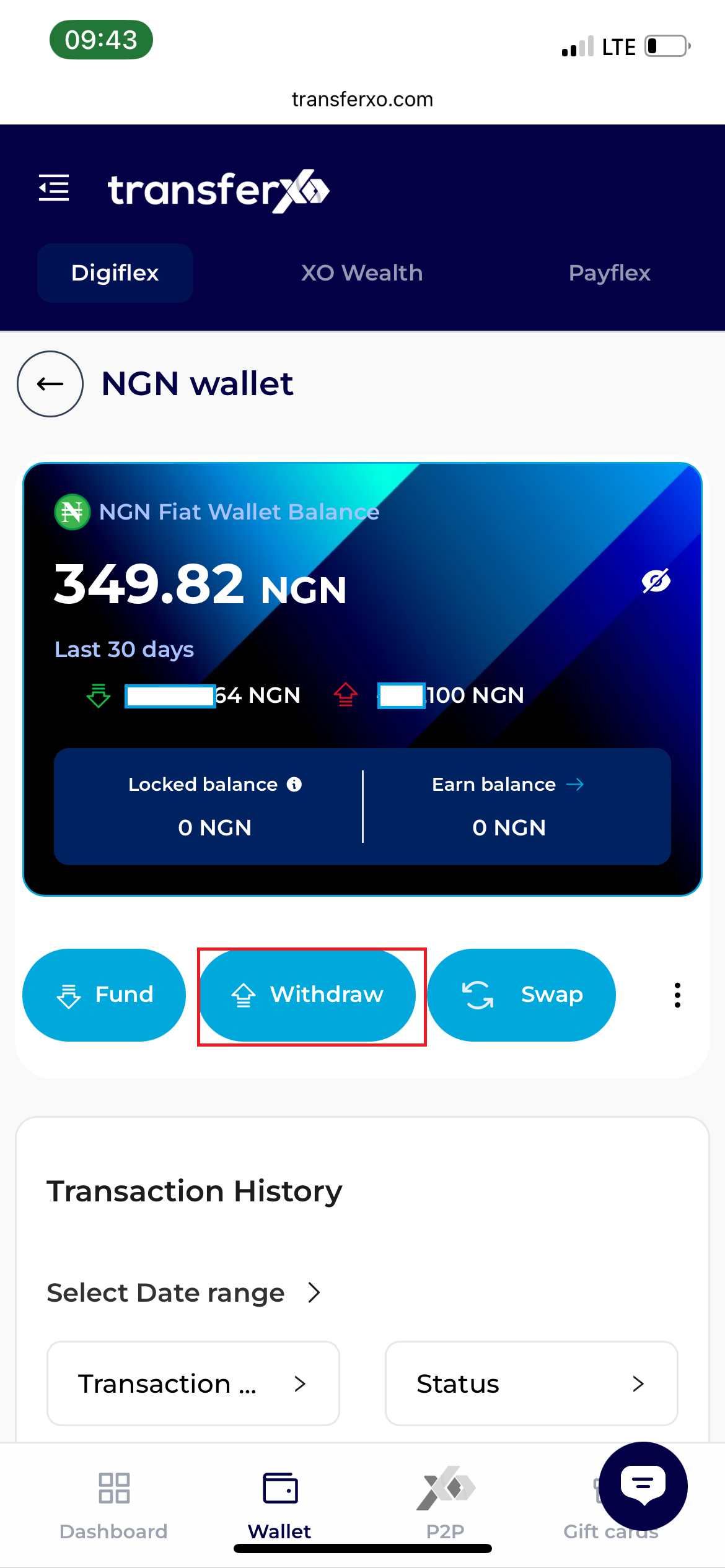
Once inside the NGN wallet view, tap the Withdraw button located directly beneath your balance display.
Step 5: Select Method
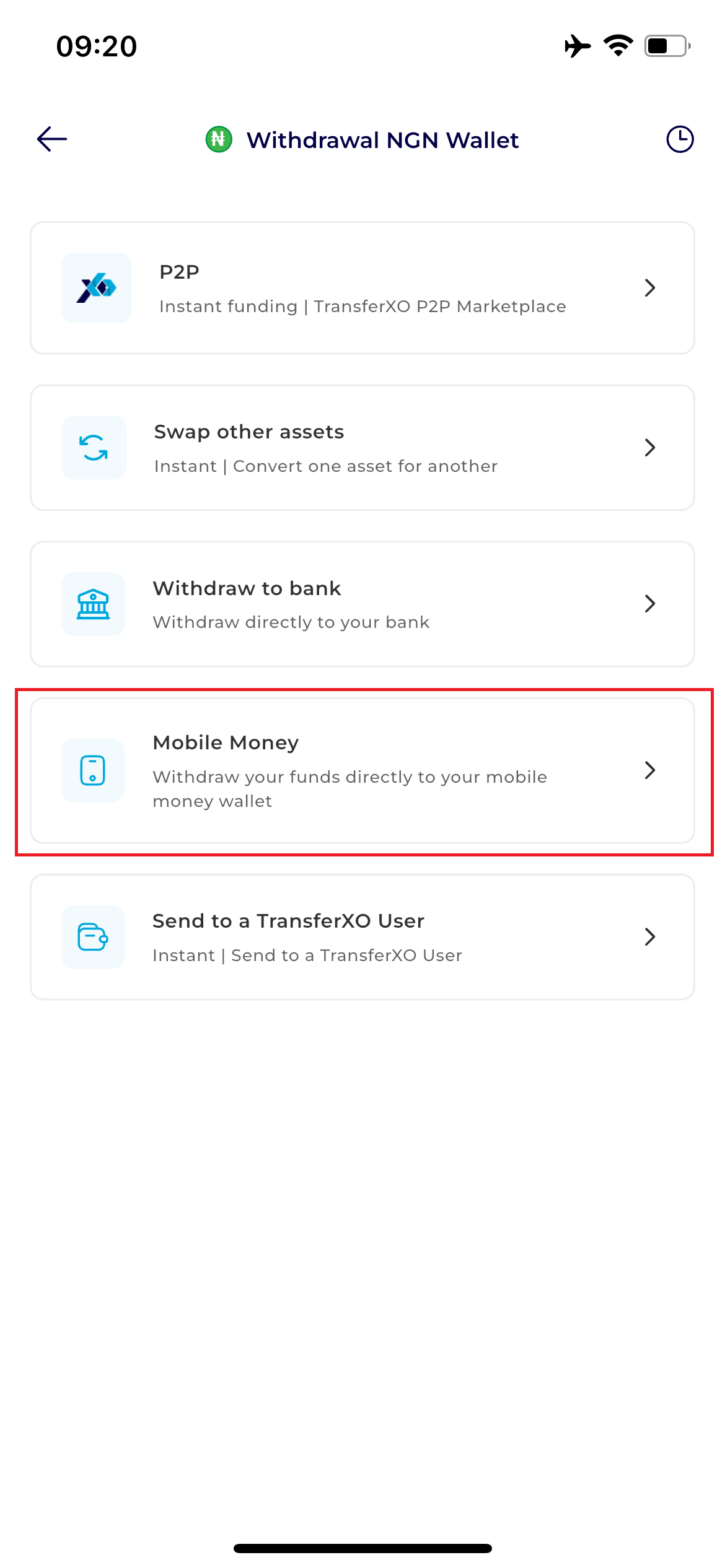
From the "Withdrawal Method" menu, select [Withdraw to Bank]. This option is specifically for transfers to local commercial bank accounts.
Step 6: Enter Transaction Details
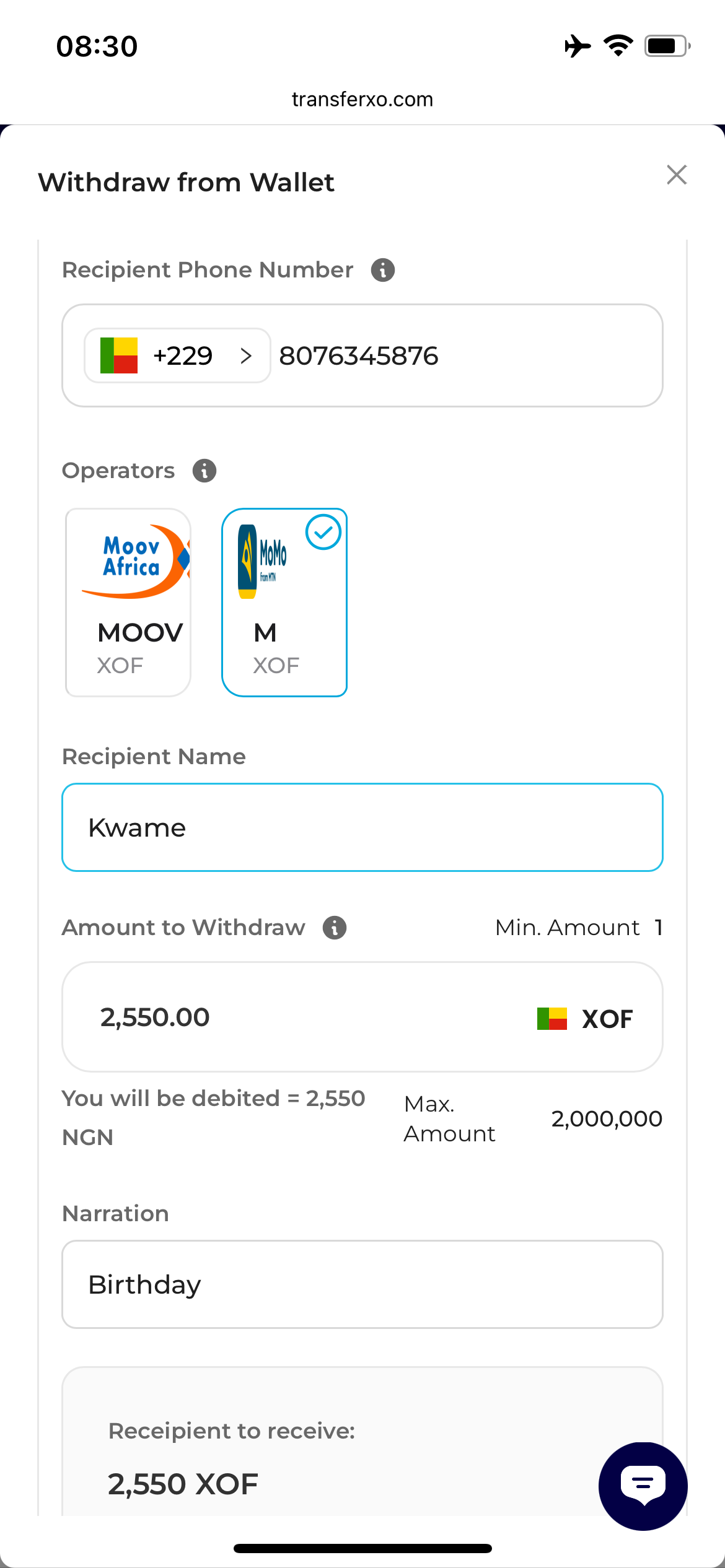
- Enter Recipient Phone Number
- Select Operator
- Enter recipient Name
- Amount to Withdraw
- Add Narration
Step 7: Security Authorization
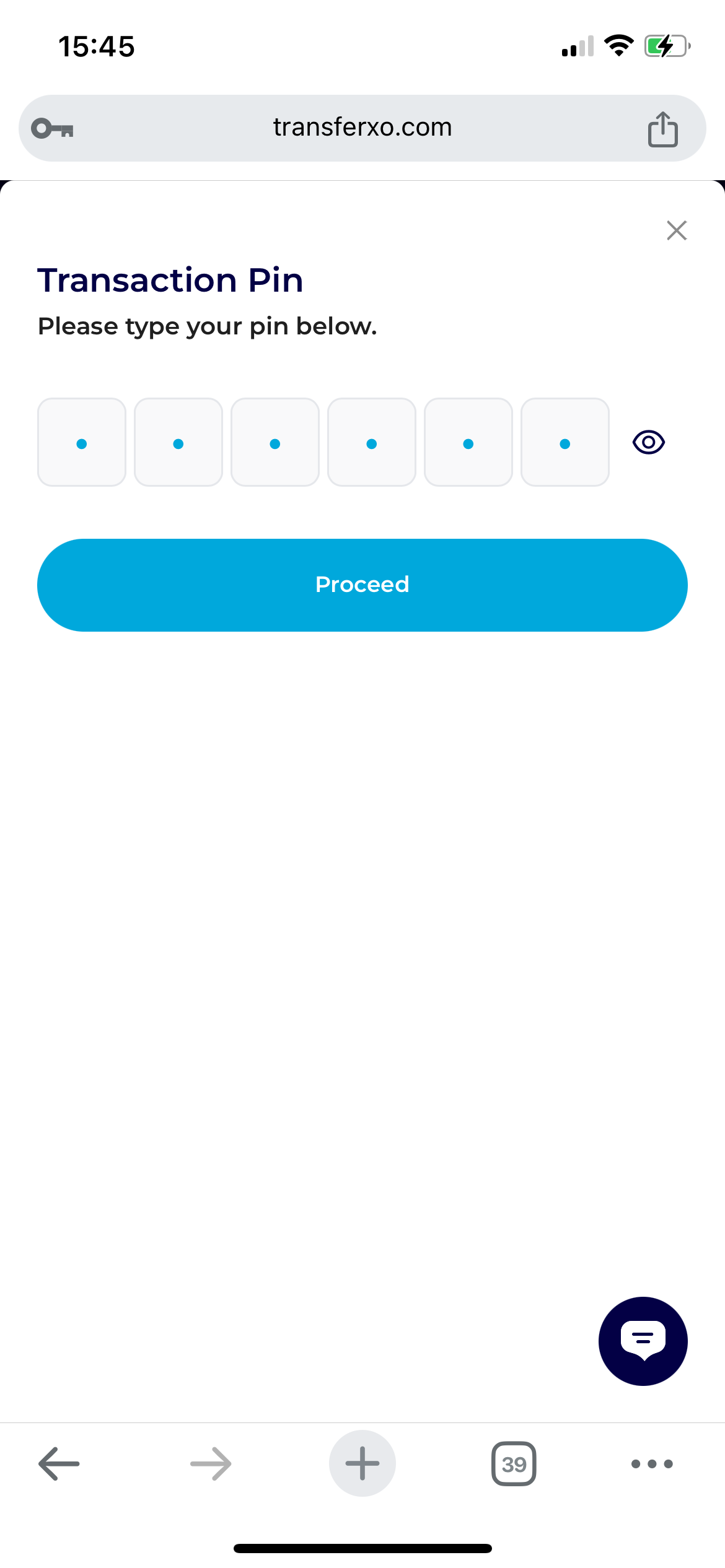
A prompt will appear asking for your 6-digit Transaction PIN.
Step 8: Payment Processing Window
Your payment will be processed within the time frame shown