


This guide walks you through how to access the QR code associated with a payment link so it can be shared or displayed for quick payments.
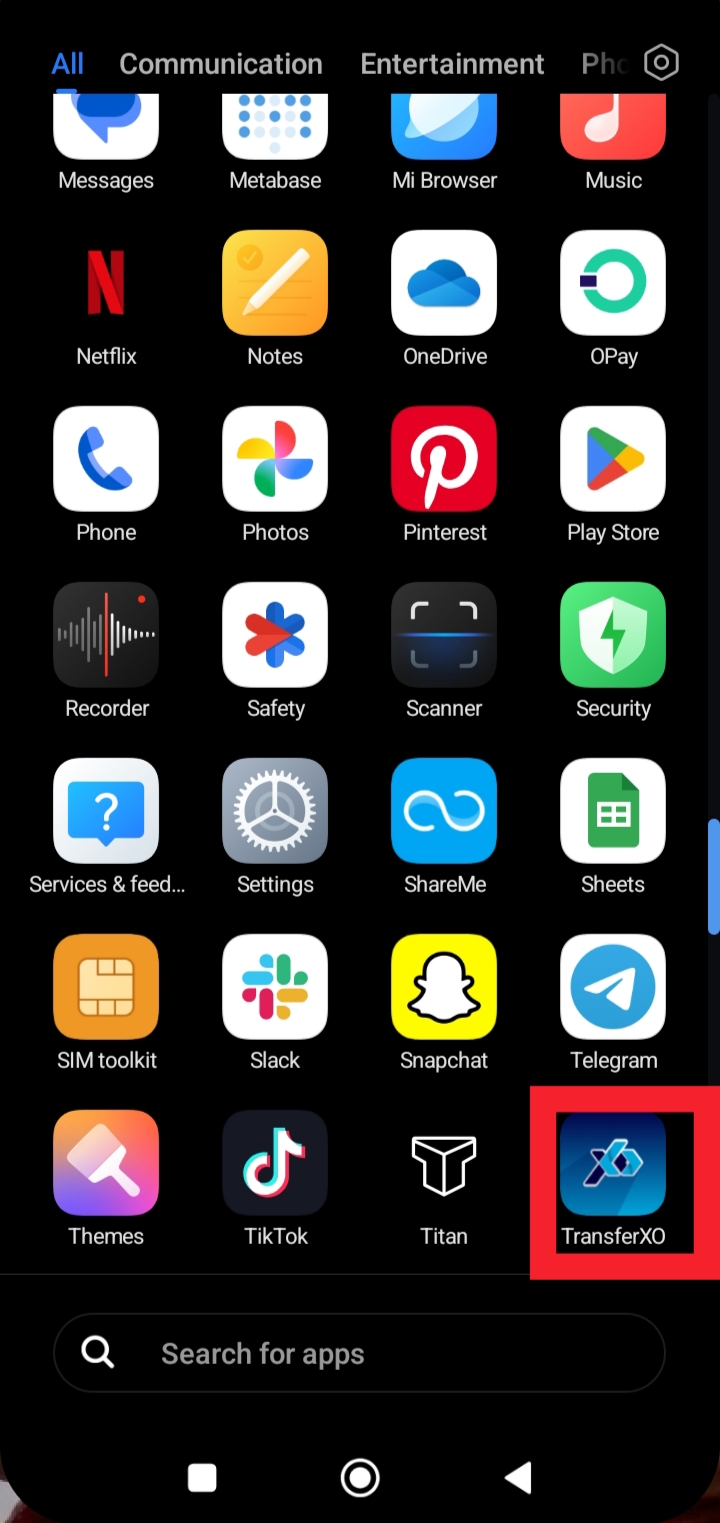
Step 1: Launch the TransferXO app on your mobile device.
Open the app to access your account and manage your payment links.
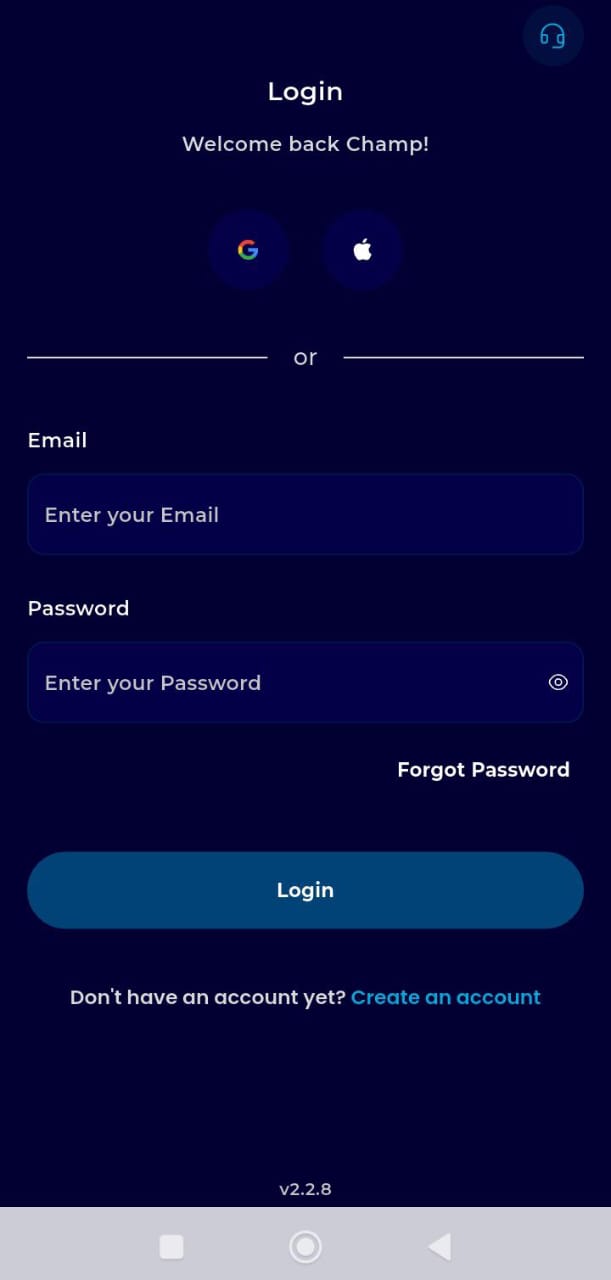
Step 2: Log in to your account.
Enter your email/username and password to securely access your dashboard.
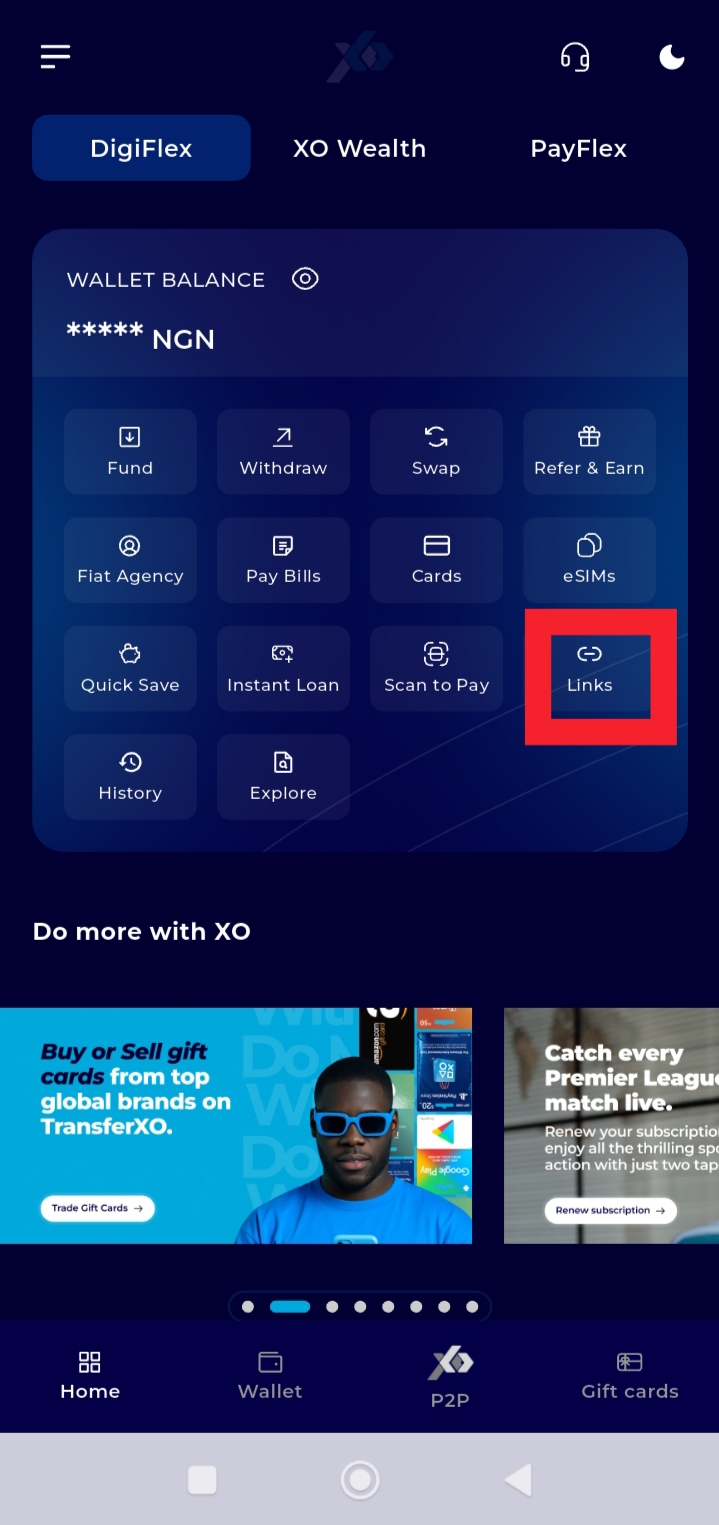
Step 3: Tap Links on your Dashboard.
This opens the section where all the payment links you have created are stored.
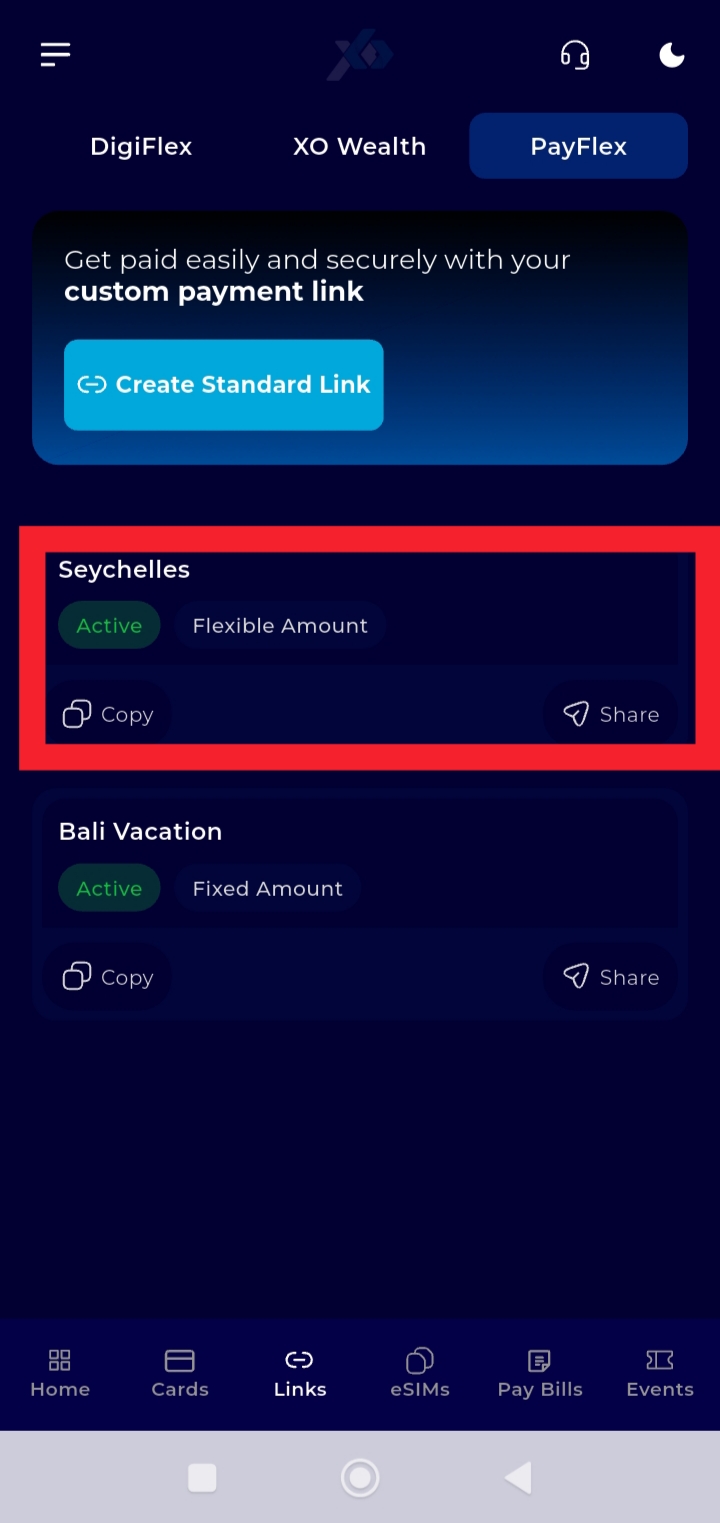
Step 4: Select the payment link whose QR code you want to access.
Tap the specific payment link to open its details page.
Step 5: Tap Share.
This opens the sharing options for the payment link.
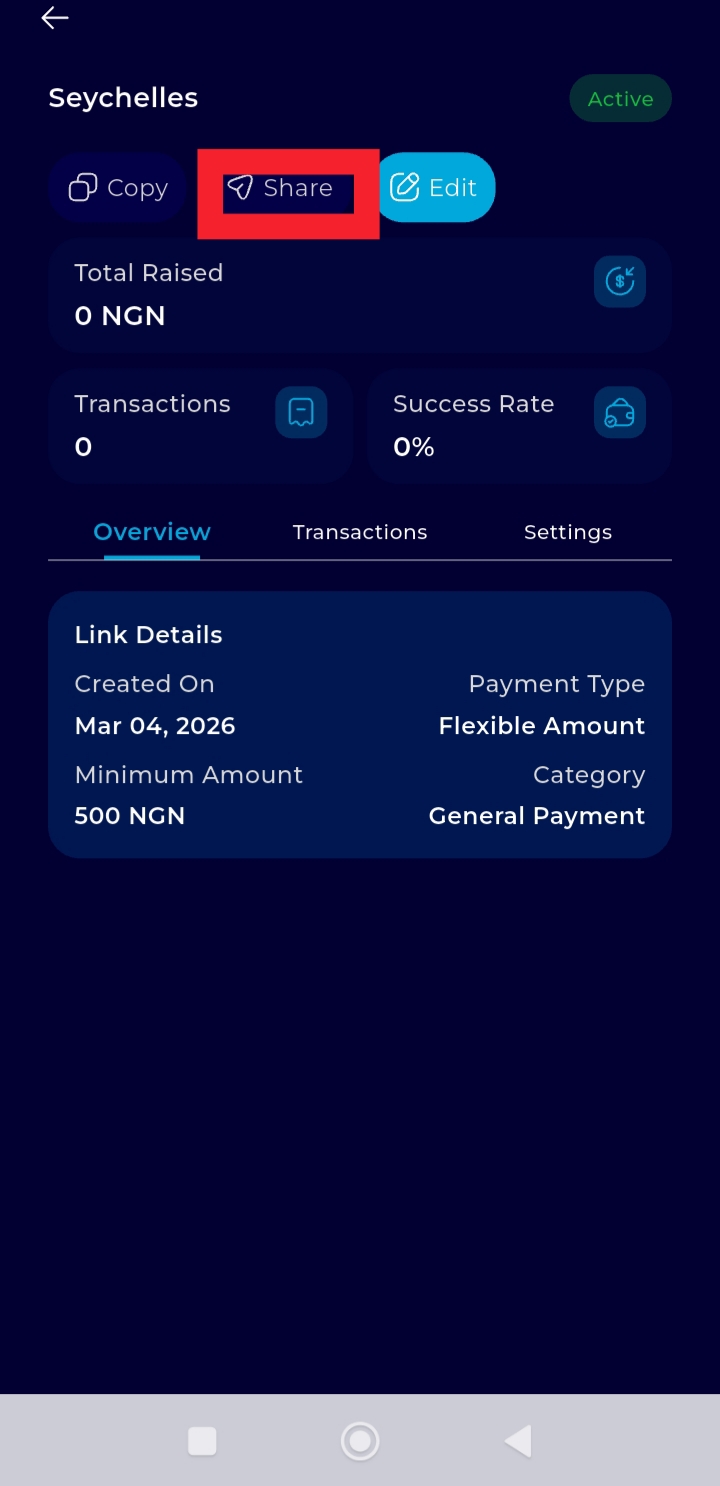
Step 6: View and Save the QR Code.
The payment link and QR code linked to the payment link will be displayed. Take a screenshot of the QR code to save it on your device to share or display for clients to scan and make payments.
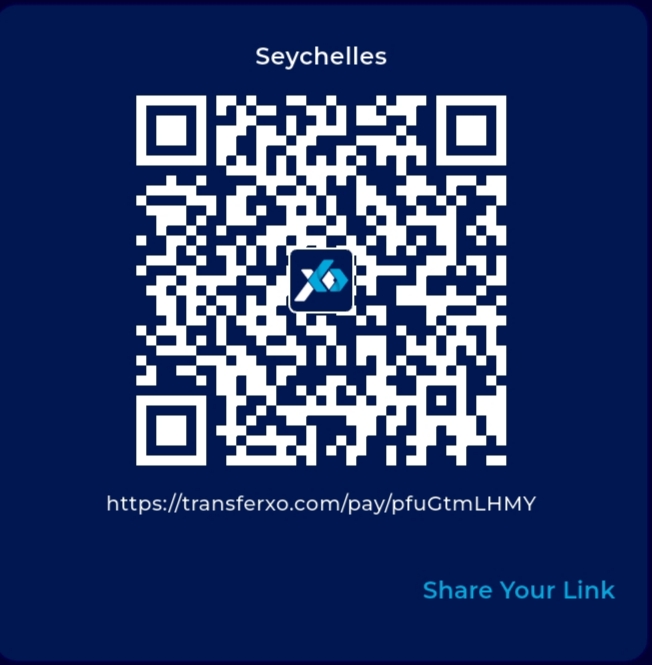
Ensure the full QR code is visible and clear in the screenshot so it can be scanned successfully.