


This guide walks you through the steps to deactivate a payment link from the desktop website.
Step 1: Visit TransferXO.com and click on the Hamburger menu.
This opens the navigation menu where you can access the login option.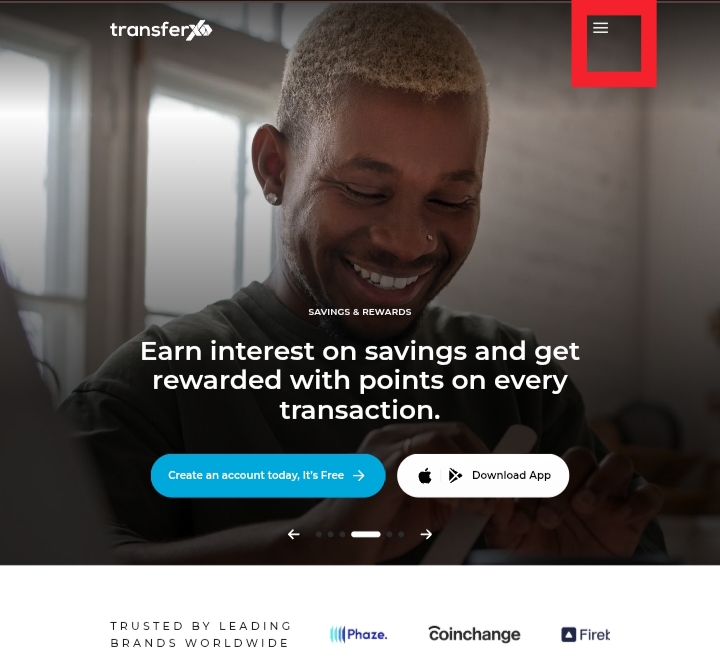
Step 2: Login to your account to access your Dashboard.
Enter your username and password to sign in.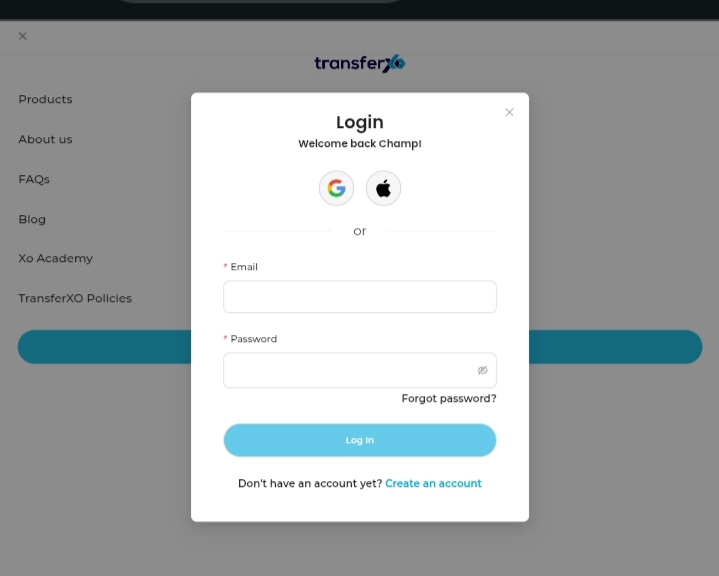
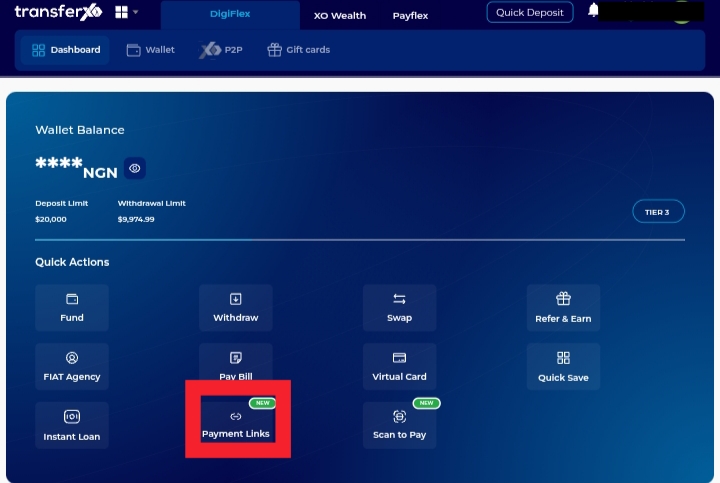
Step 3: On your Dashboard, click on Payment Links.
This takes you to the payment link management section.
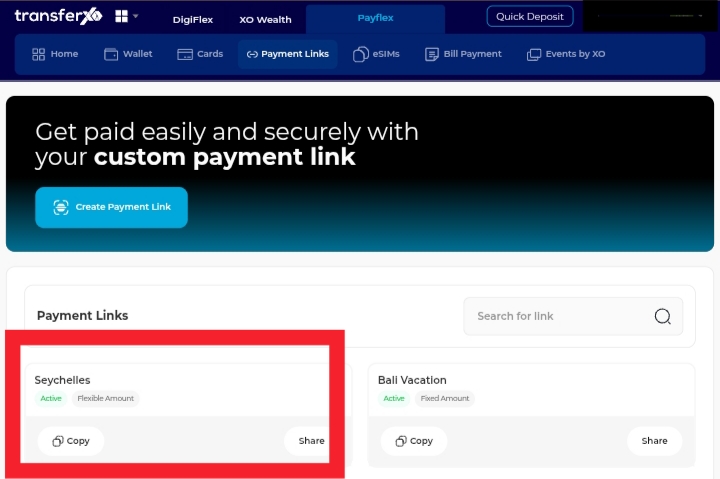
Step 4: Click on the payment link you want to disable.
Select the link to open its details.
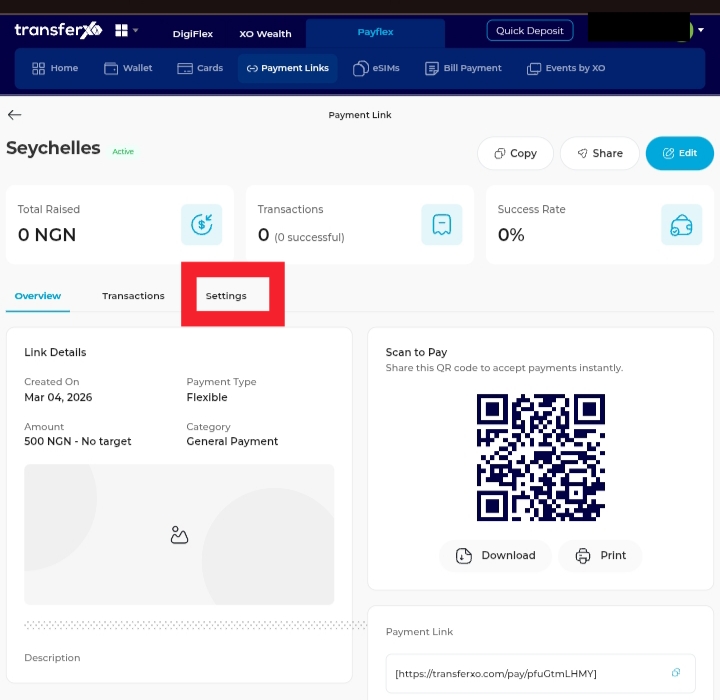
Step 5: Click on Settings
This displays more options available for managing the selected payment link.
Step 6: Tap Disable Link and confirm action.
This option allows you to deactivate the selected payment link.
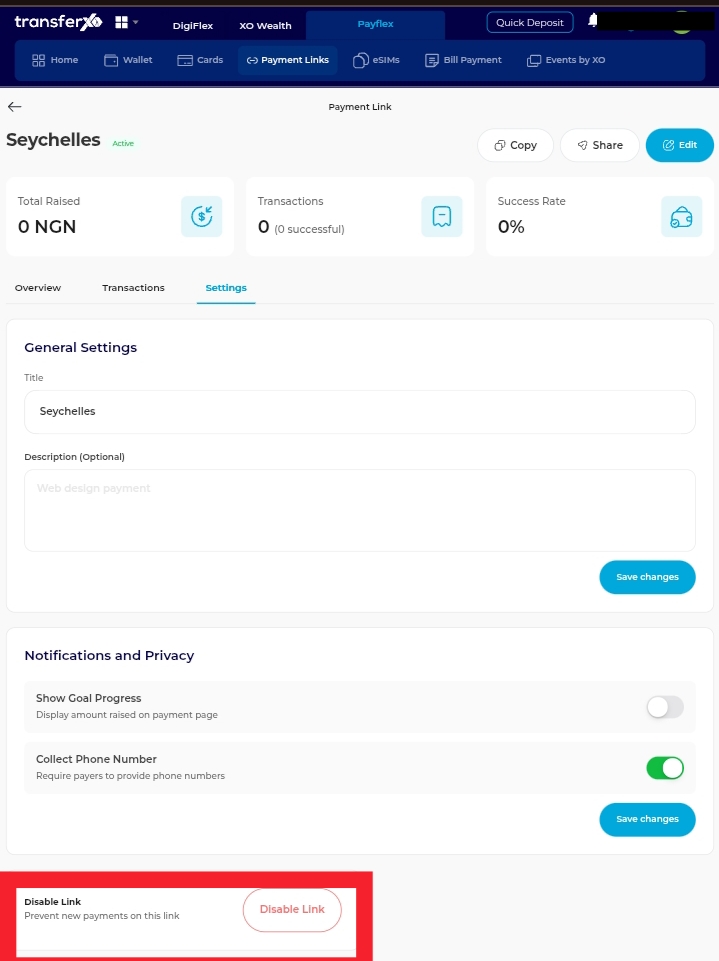
Once confirmed, the payment link will no longer accept payments.