


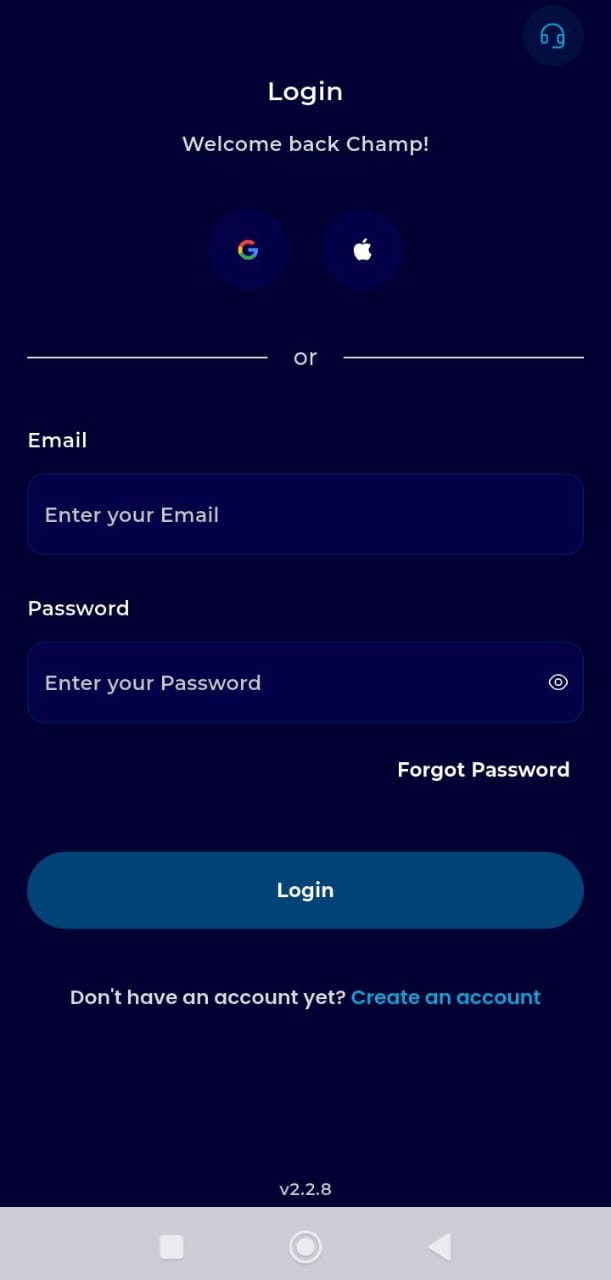
Step 1: Authentication
Open the app, enter your credentials, and log in to reach your DigiFlex dashboard.
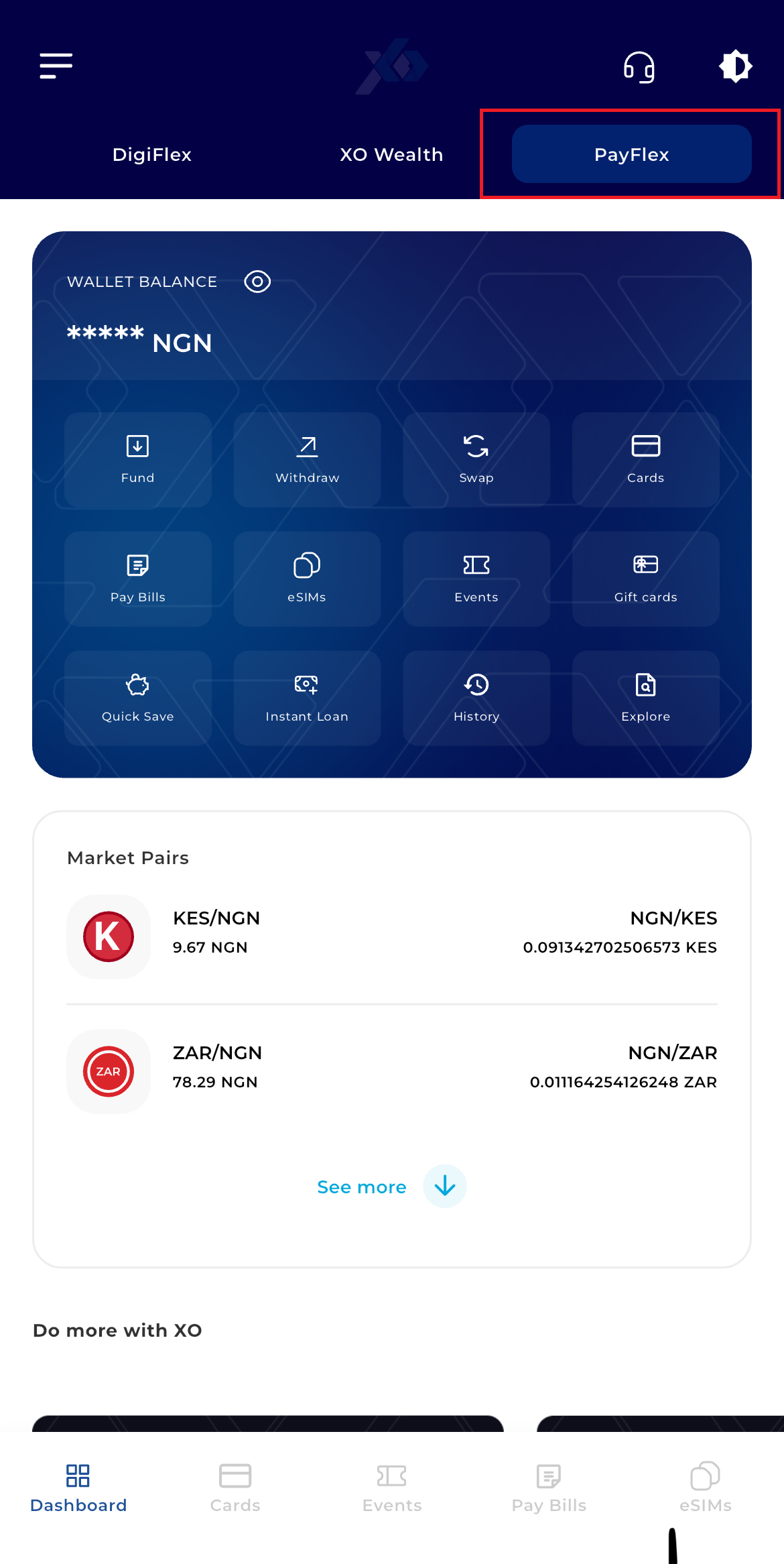
Step 2: Access PayFlex
Locate the Key Offering Panel (the row of icons at the top-left). Tap on PayFlex.
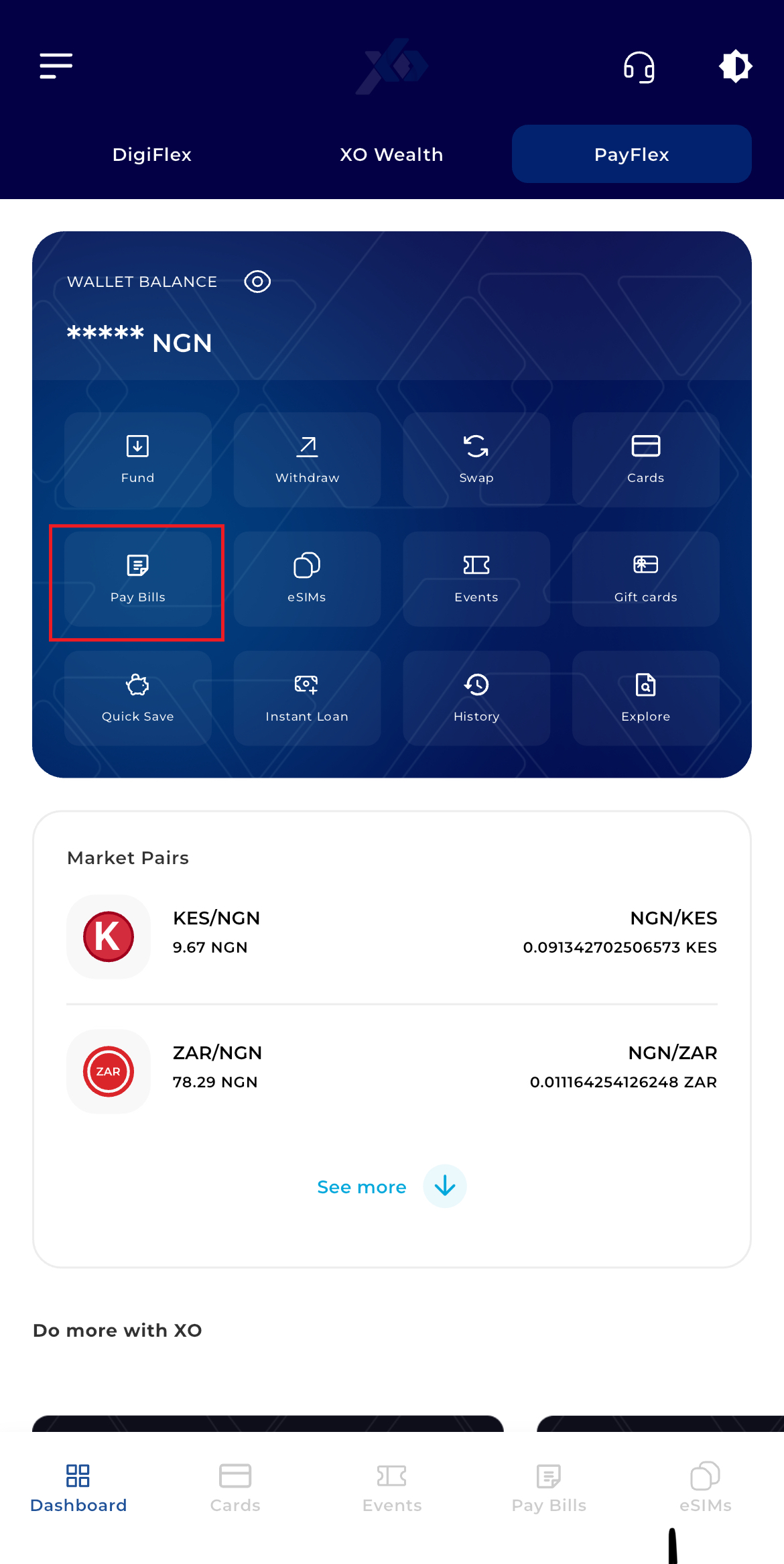
Step 3: Navigate to Bills
On the PayFlex dashboard, tap the Pay Bills tab at the bottom of the screen.
Step 4: Select Category
Choose your Country, then tap on the Mobile Data category.
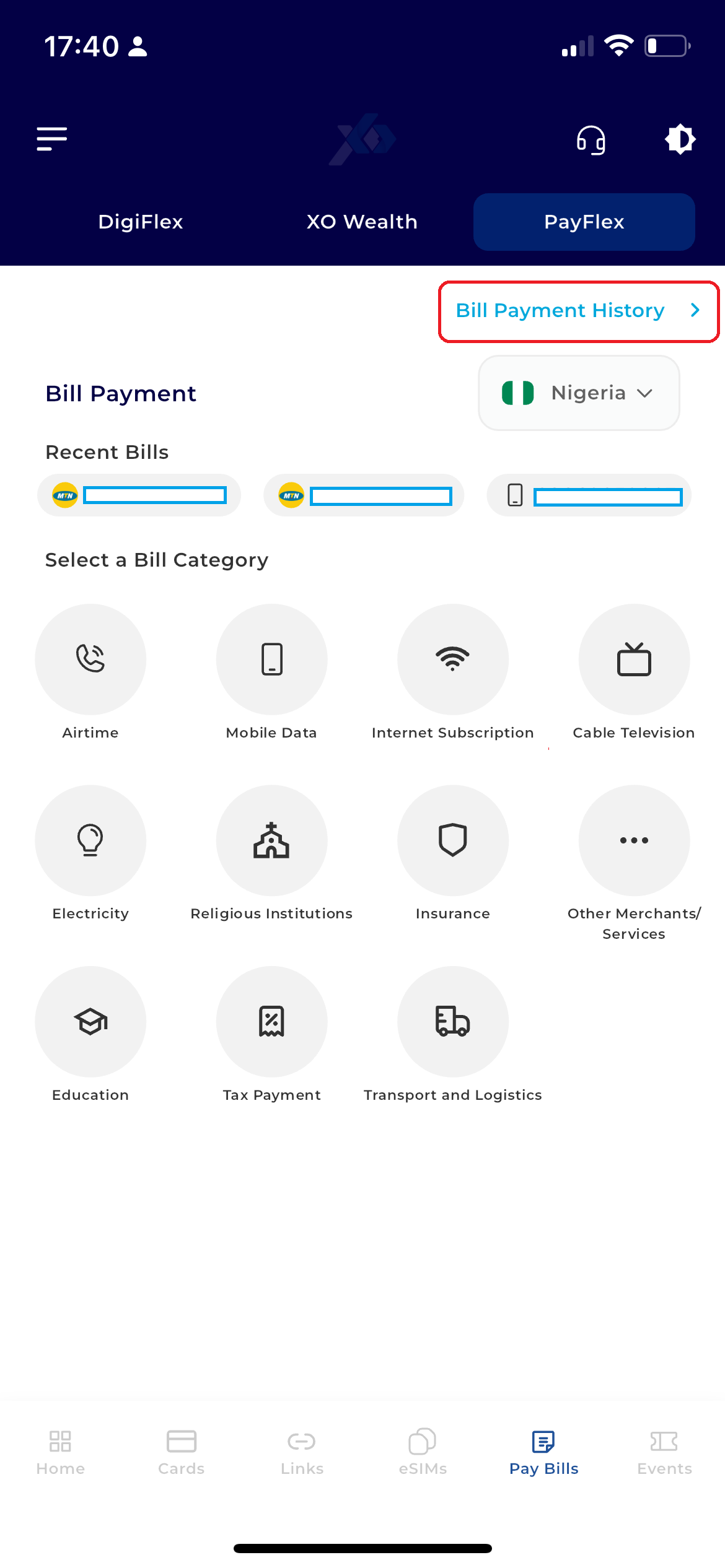
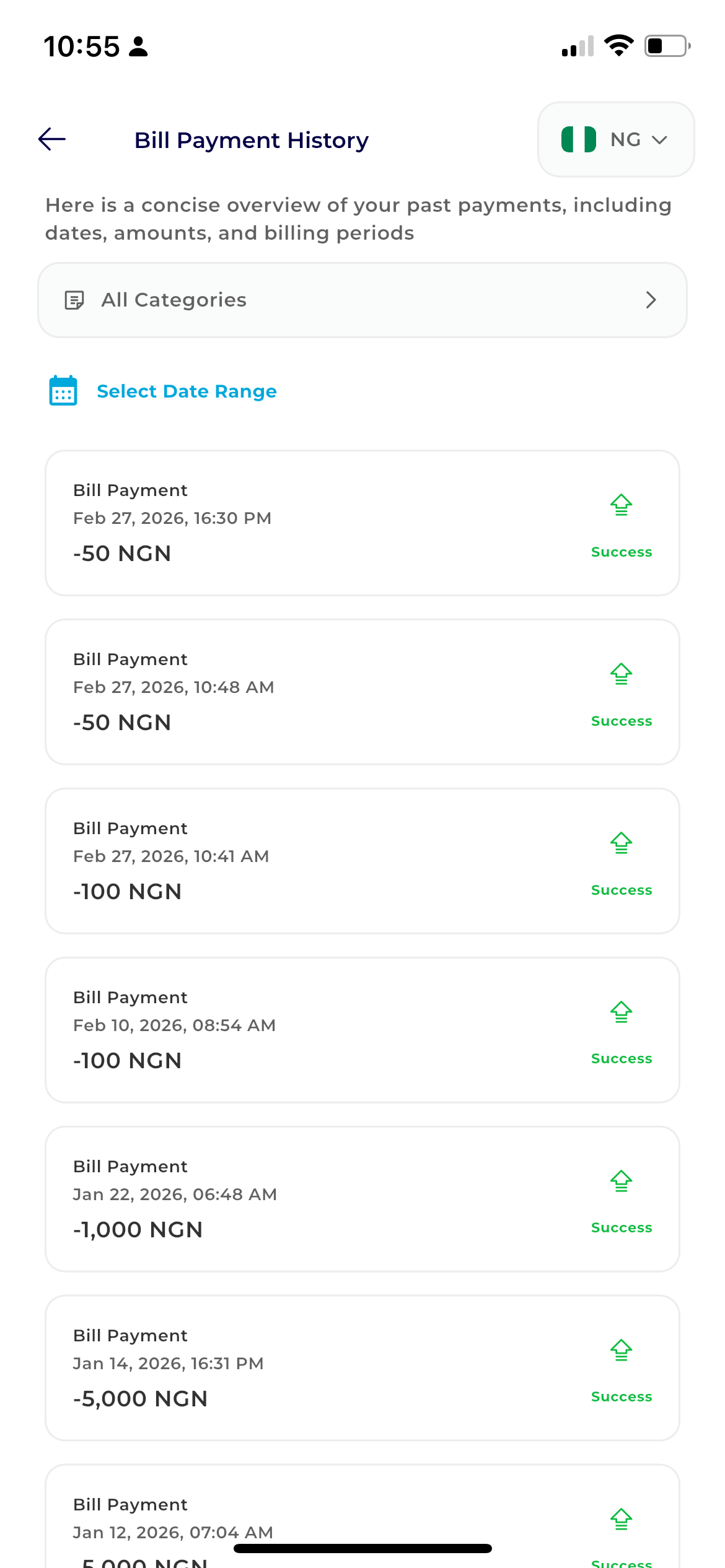
Step 5: Bill Payment History
This whre you view your bill payment history and the filters available; based on payment type and date range
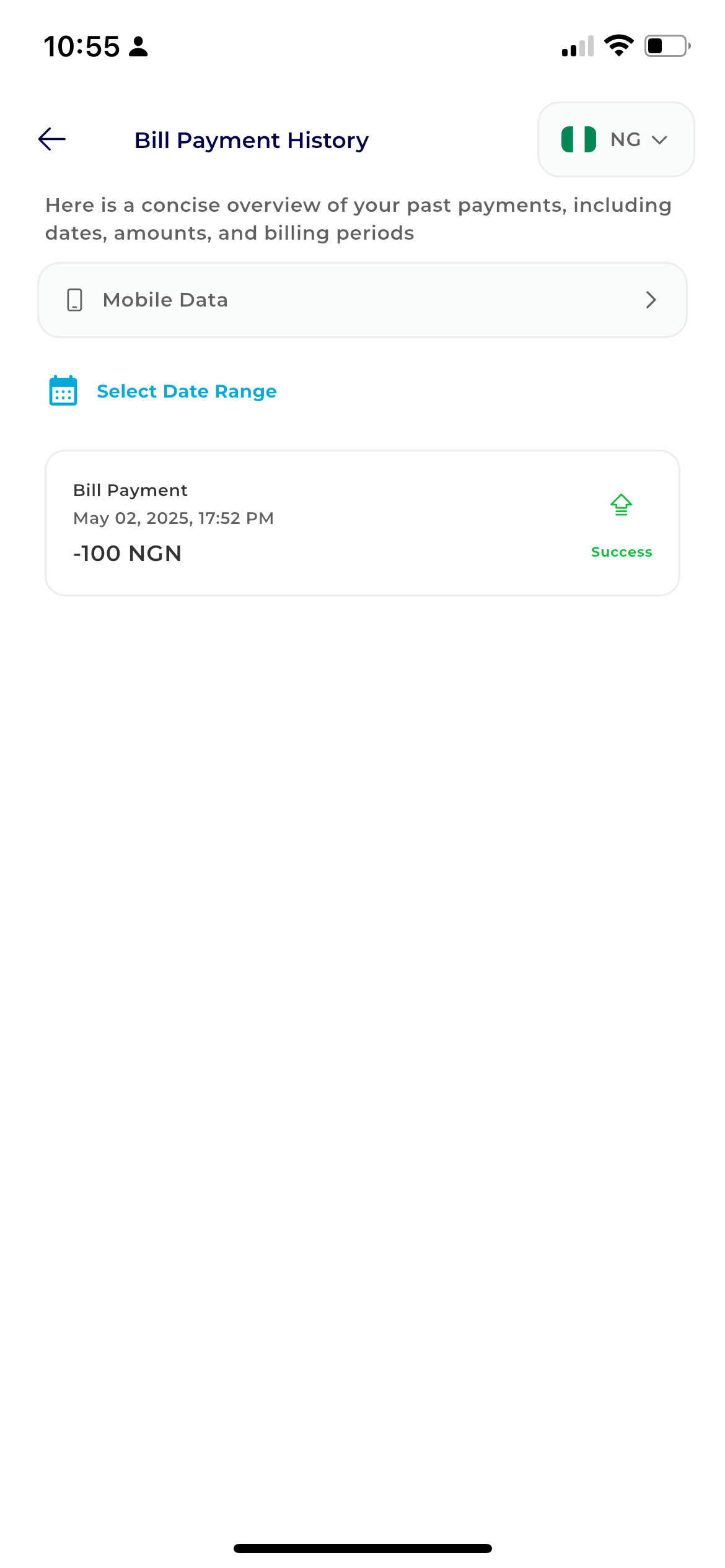
Step 6: Filter By Payment Type
This options allows you filter based on payment type like mobile data
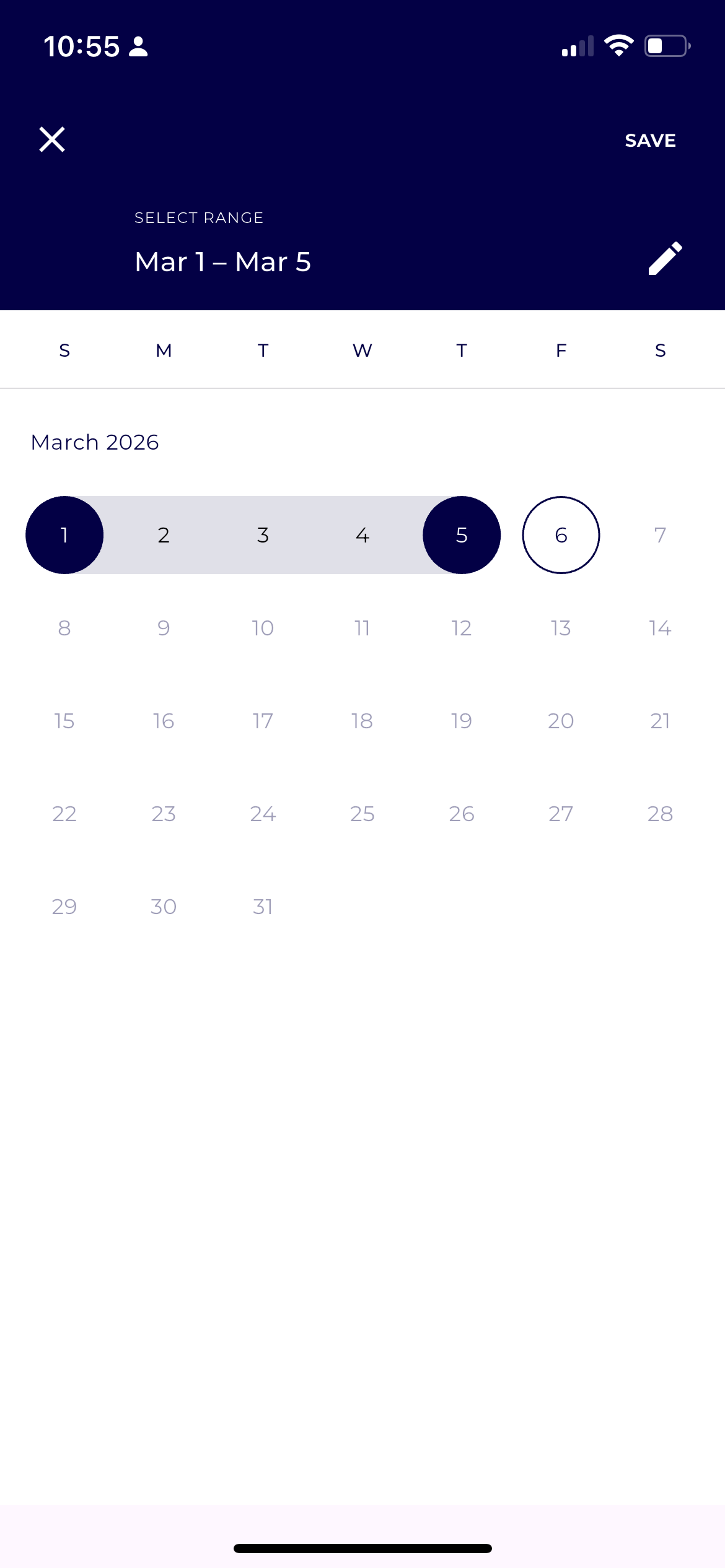
Step 7: Filter By Date Range
To Authorize, enter your 6-digit Transaction PIN, and tap Complete.
Congratulations, you have successfully viewed your payment history on TransferXO