


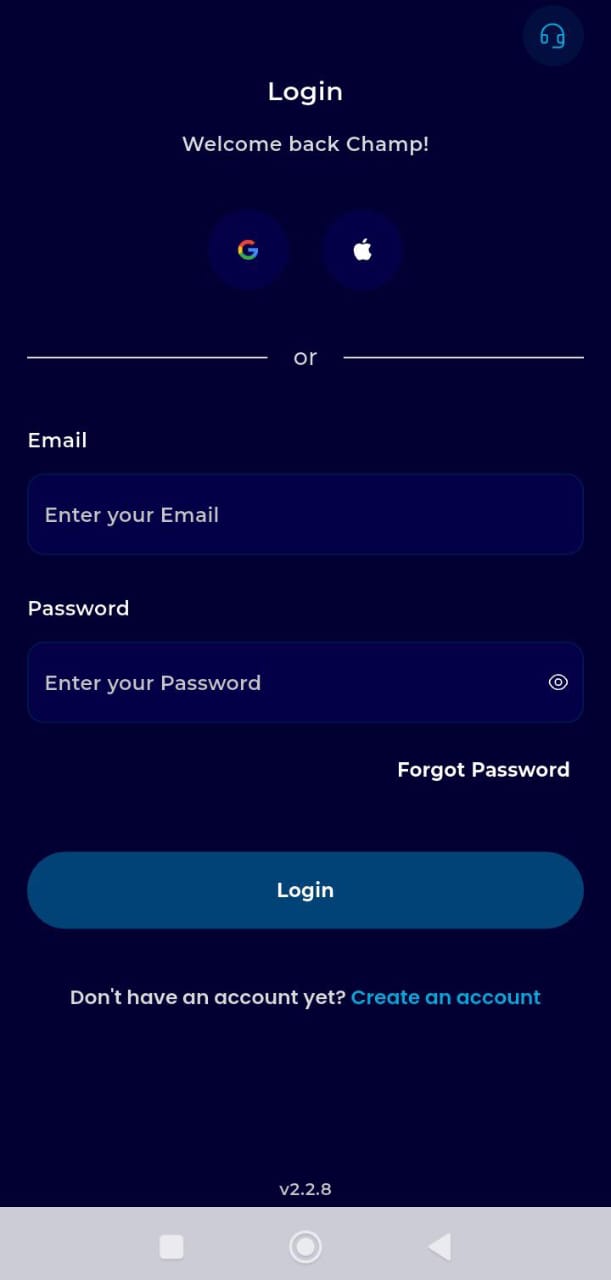
Step 1: Log in & Authorization
Log in to TransferXO via your mobile browser.
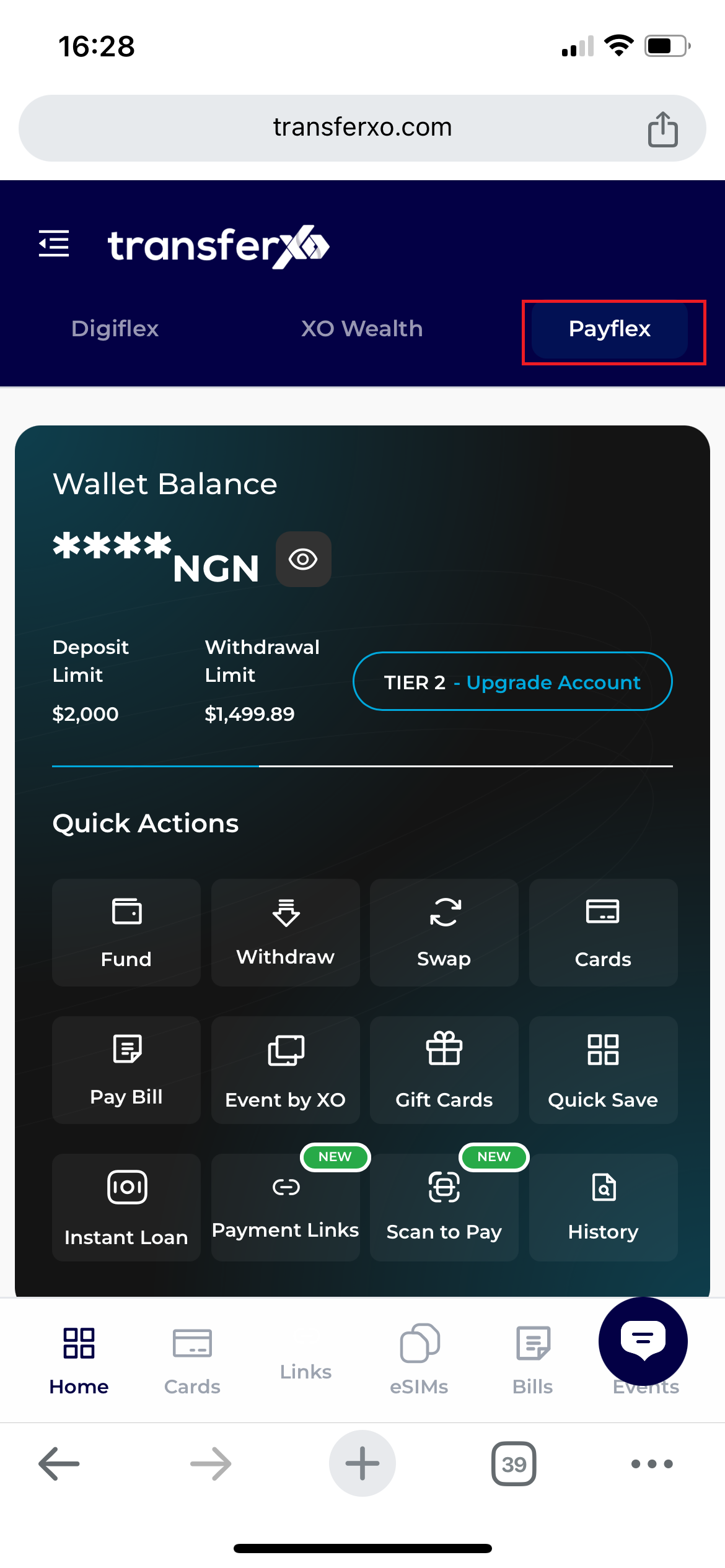
Step 2: Find PayFlex
On the dashboard, tap the PayFlex icon within the Key Offering section.
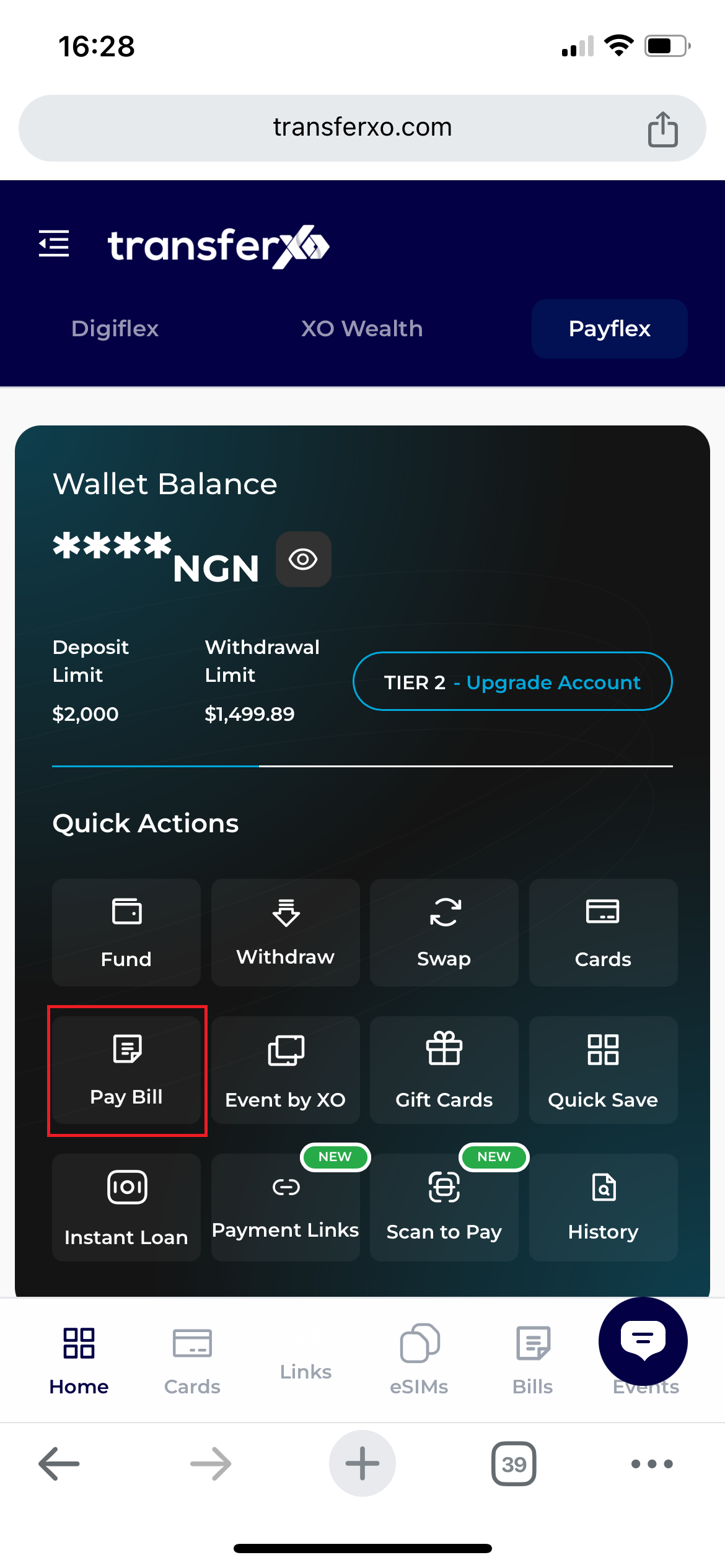
Step 3: Bill Tab
Tap the Pay Bill tab located at the bottom of the PayFlex interface.
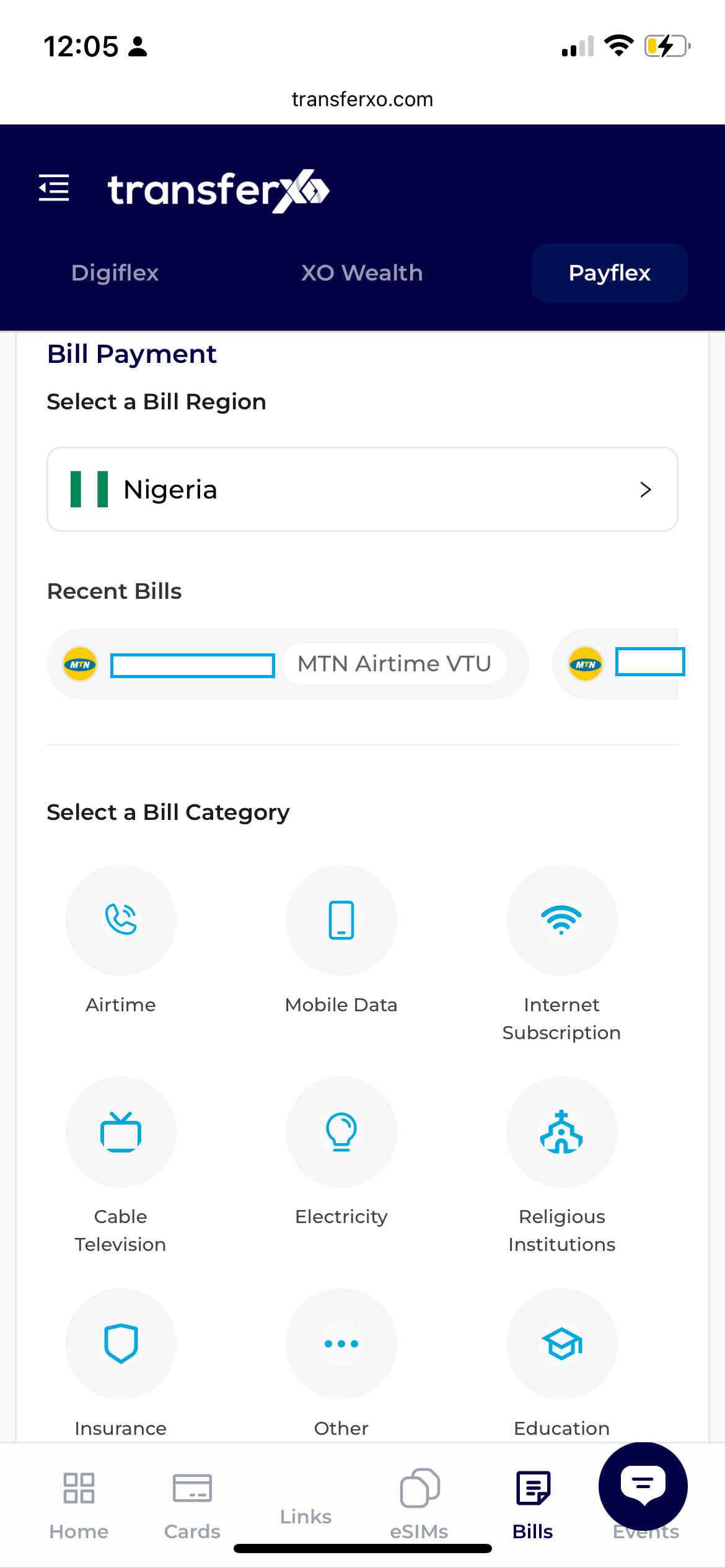
Step 4: The Bill Payment Page
After clicking the pay bill icon, the bill payment page appears. You will need to scroll up to see the bill payment history section
Step 5: Bill Payment History Section
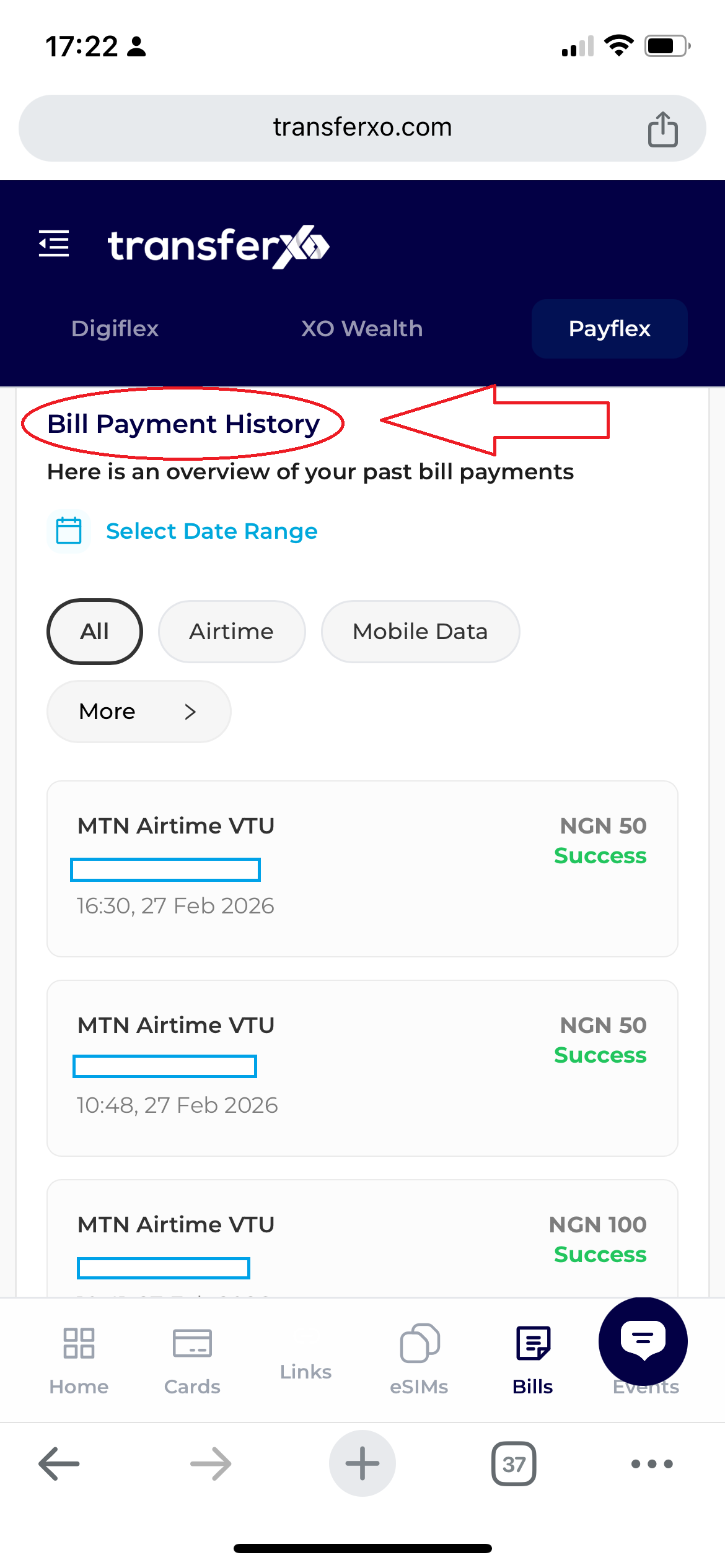
- This is where you see the history of your bills paid using TransferXO
Step 6: Filter By Bill Type
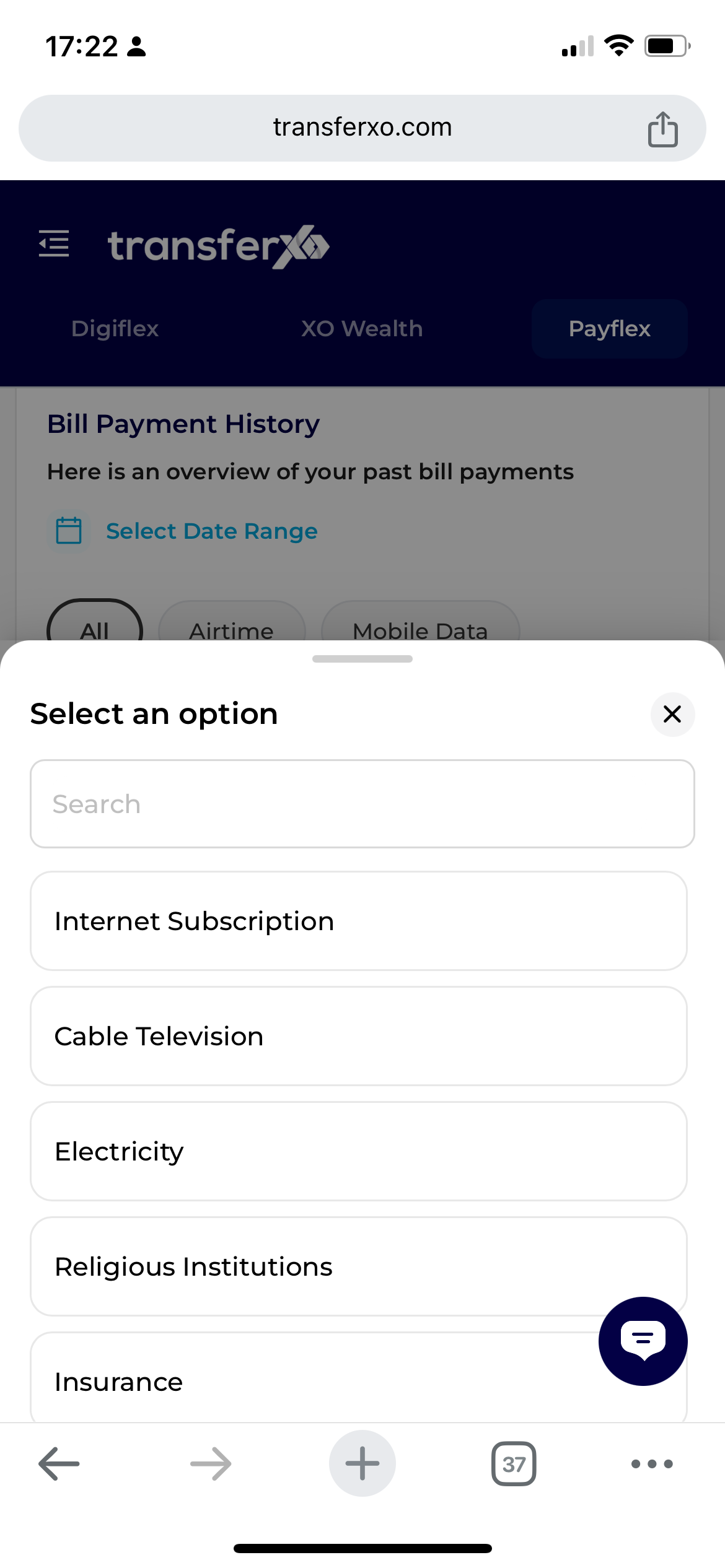
You can filter your payment history by picking the particular bill you paid. For example, cable tv, airtime
Step 6: Filter By Date
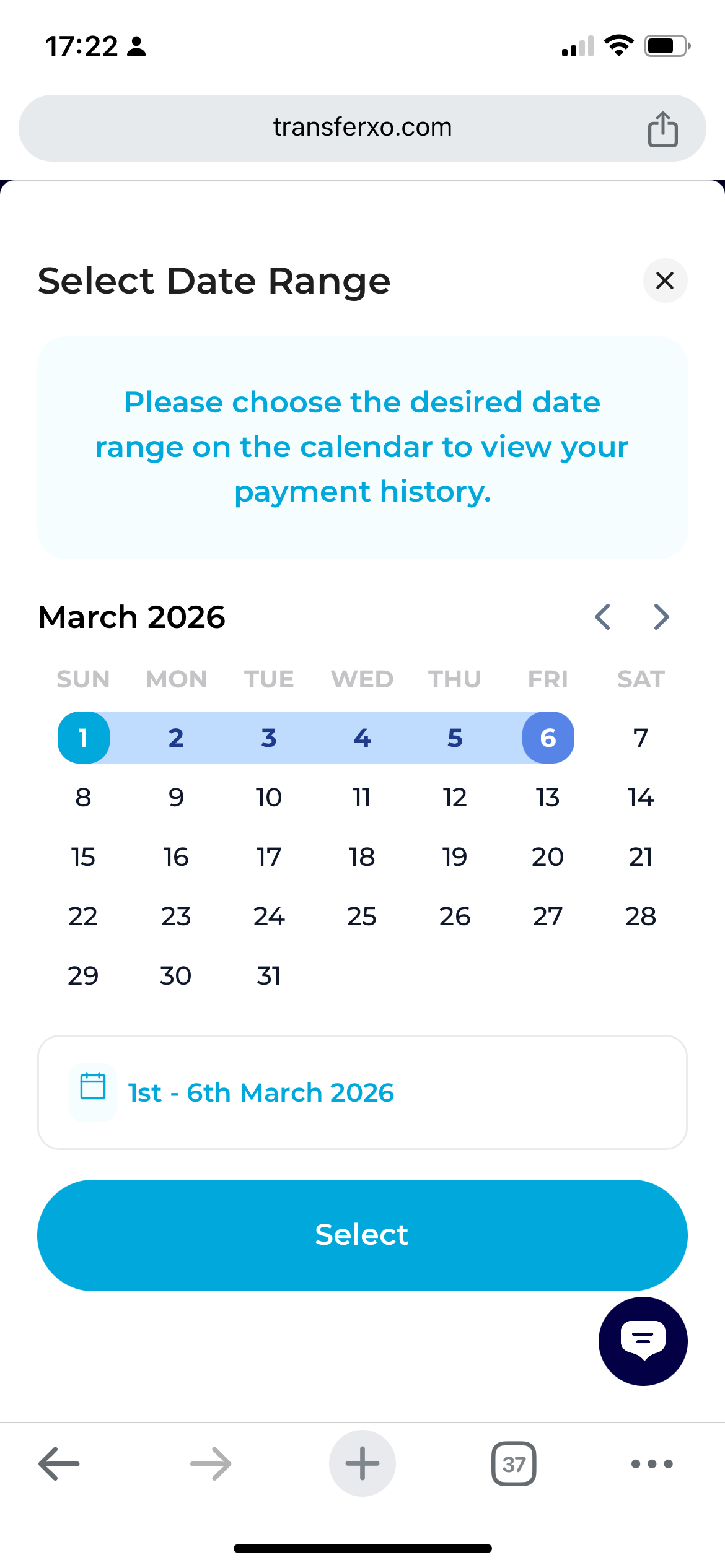
TrnasferXO also allows you to filter payments by date
Congratulations, you have successfully viewed your payment history on TransferXO