


Follow the steps below to freeze your card using TransferXO via your mobile browser.
Step 1: Open the TransferXO Mobile Web App
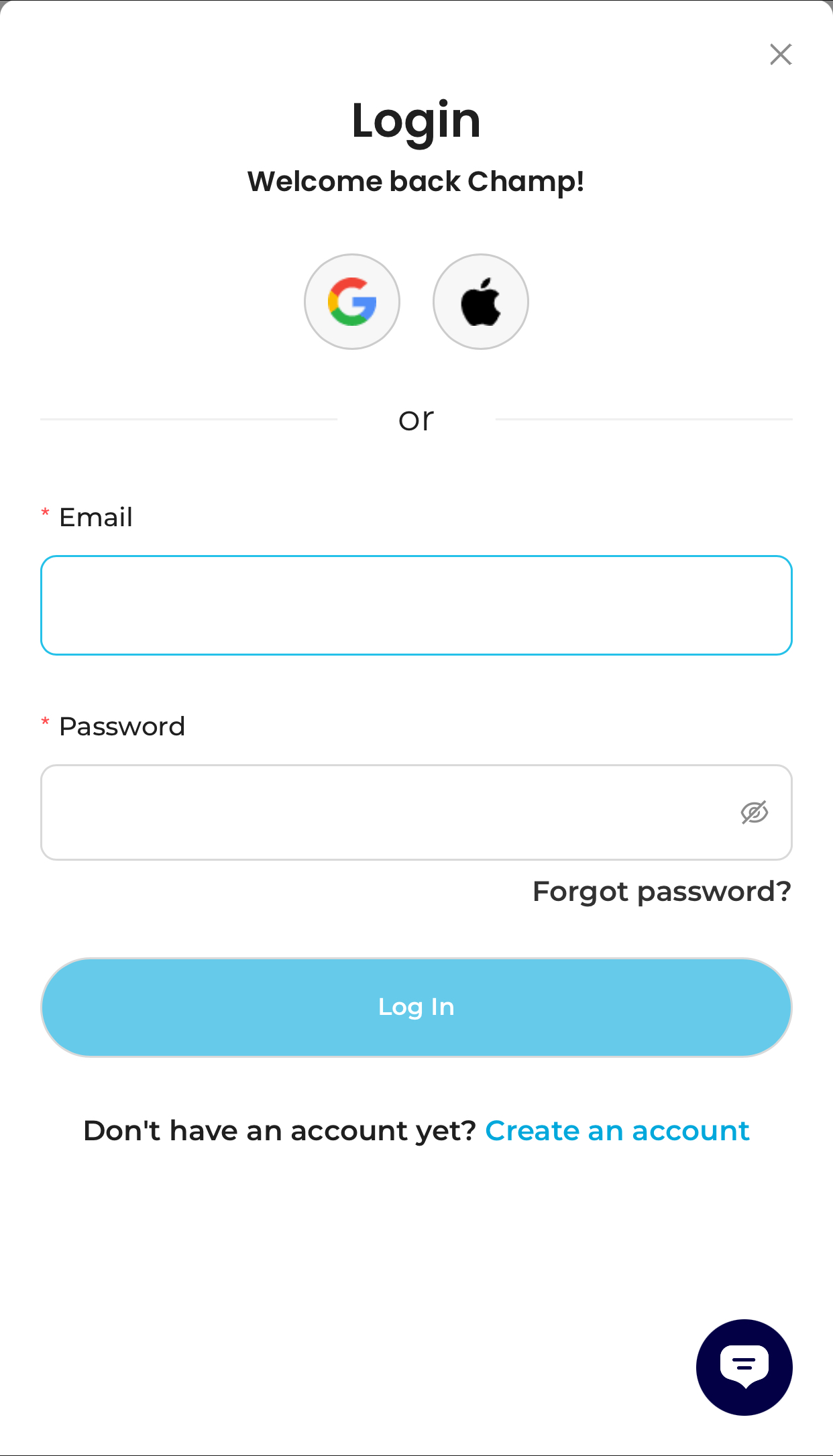
Open your mobile browser and log in to your TransferXO account.
- Enter your email address and password.
- If you registered using Gmail or Apple ID, select the corresponding option to log in.
Step 2: Go to Your Dashboard
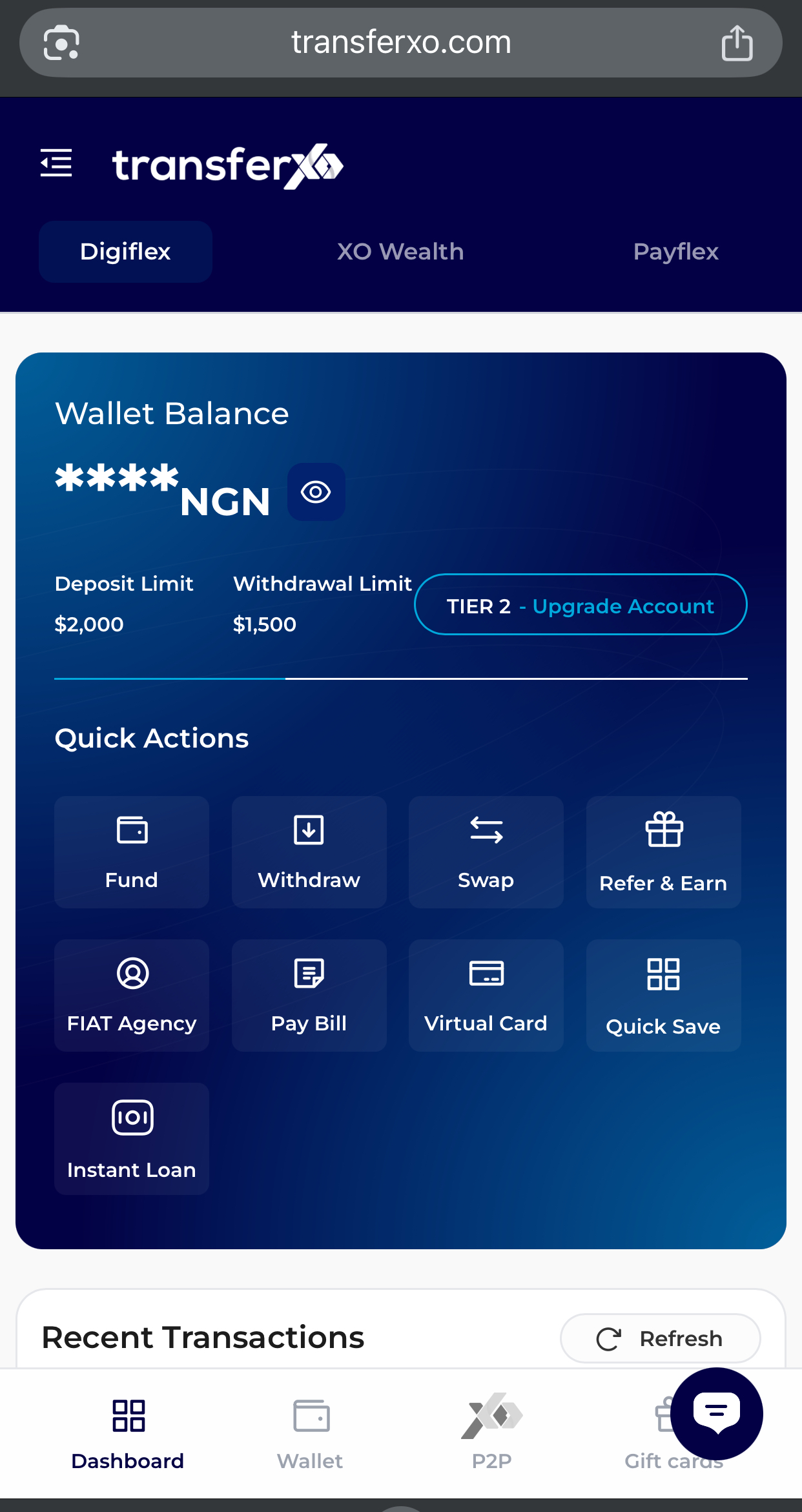
Once logged in, you’ll be directed to your dashboard.
Step 3: Select Card
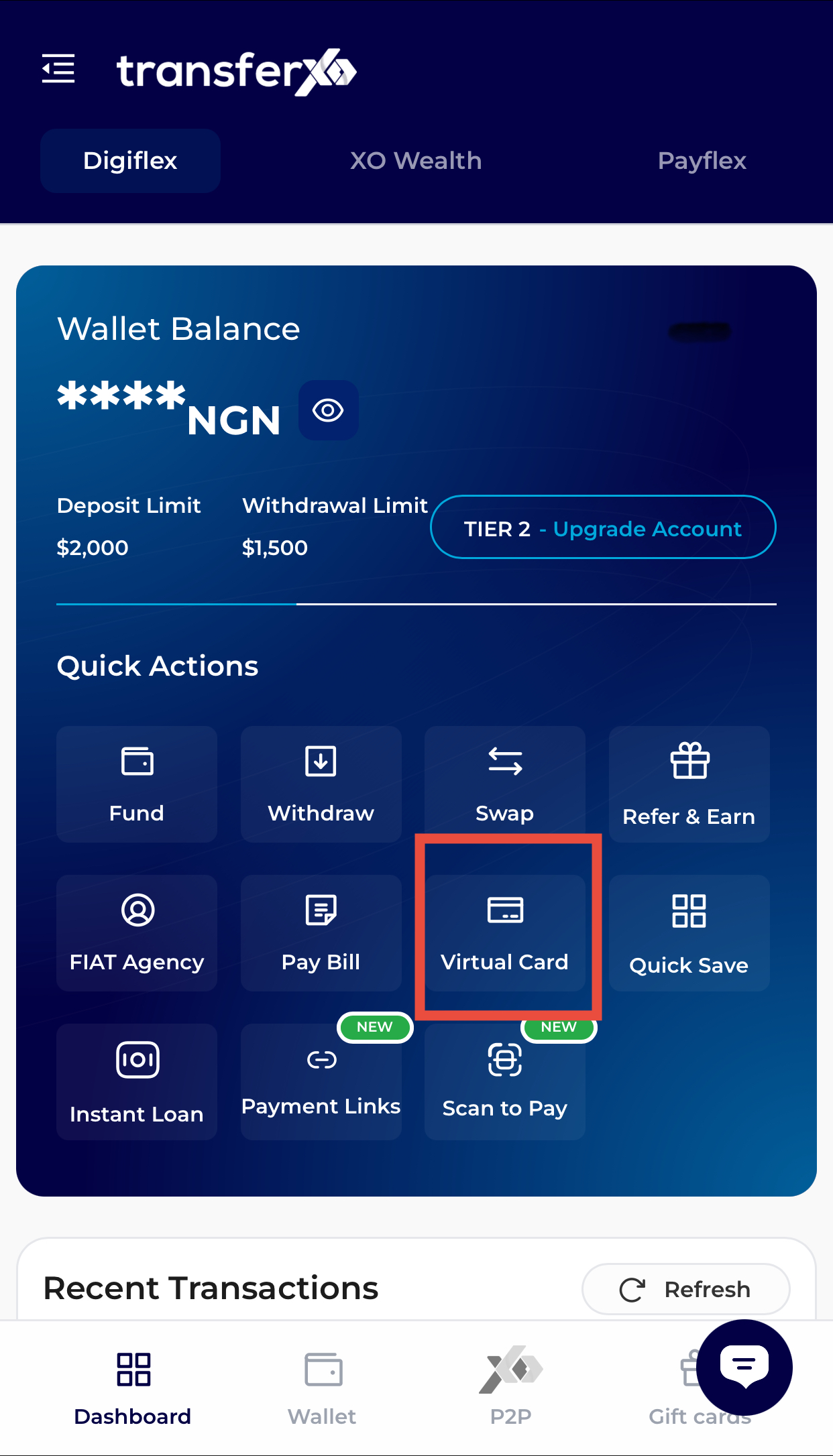
Tap Virtual Card on the dashboard
OR
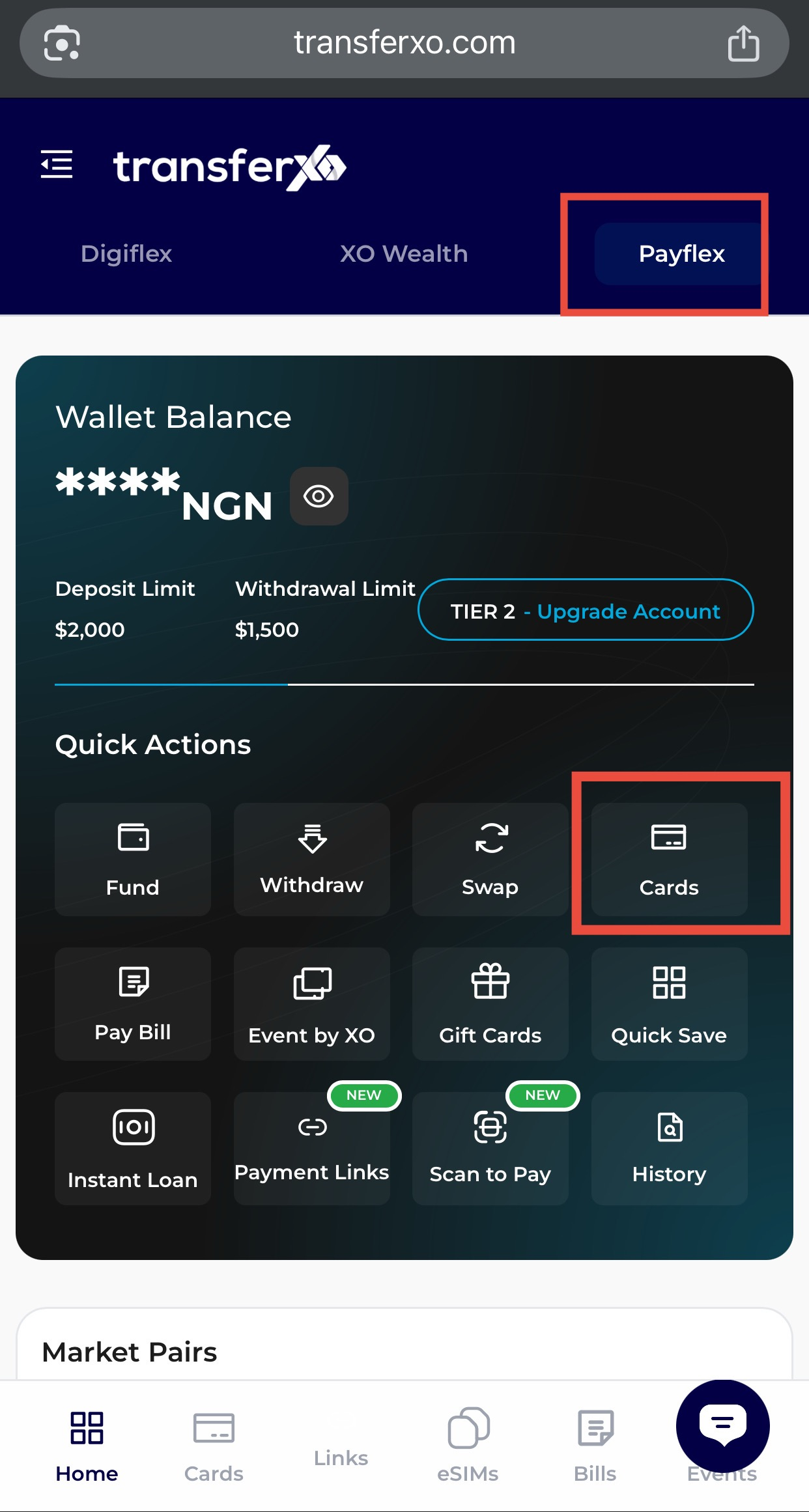
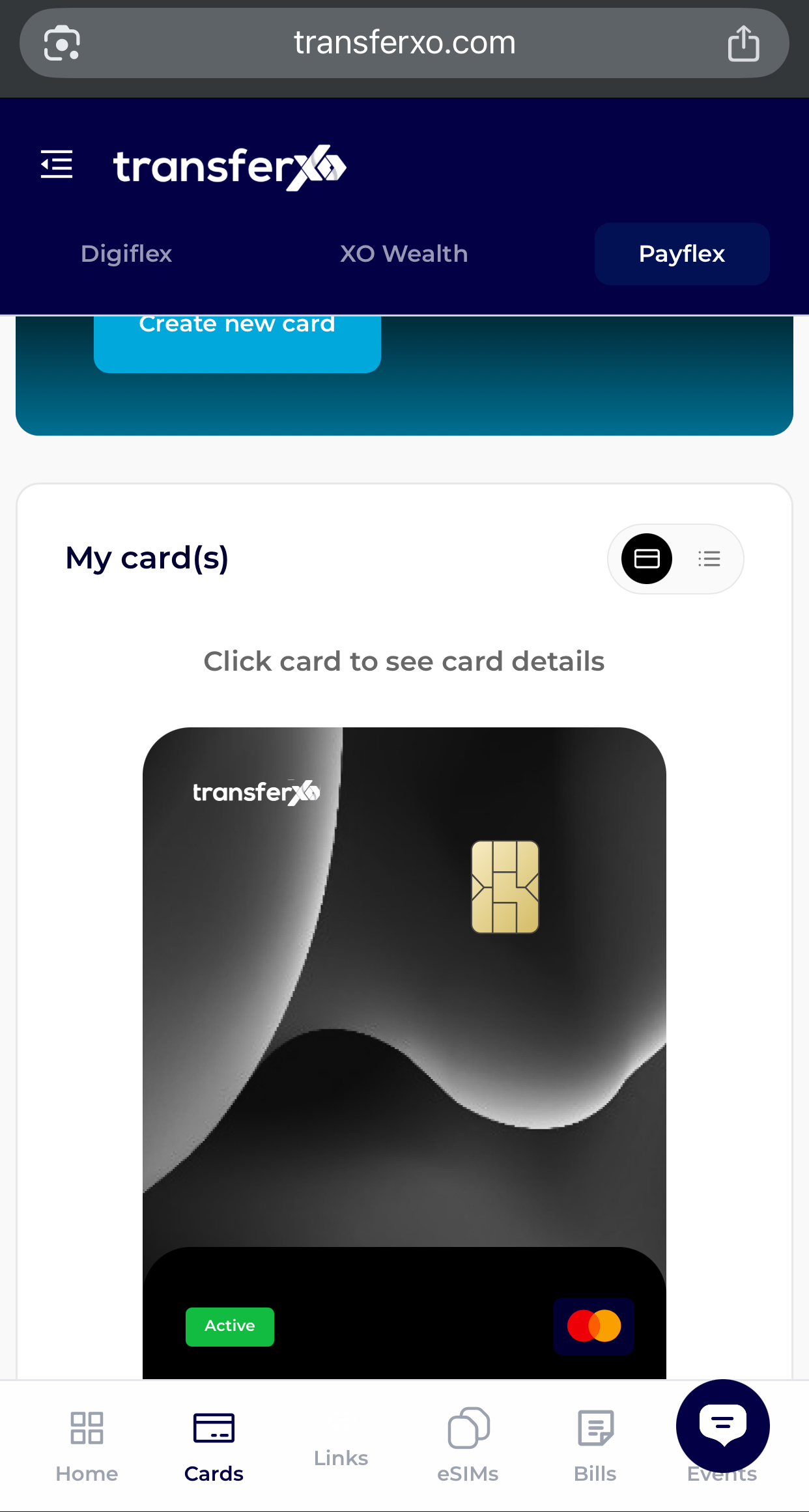
Navigate to PayFlex and select Cards from the menu.
Step 4: Select the Card
Tap the card you want to manage to view its details.
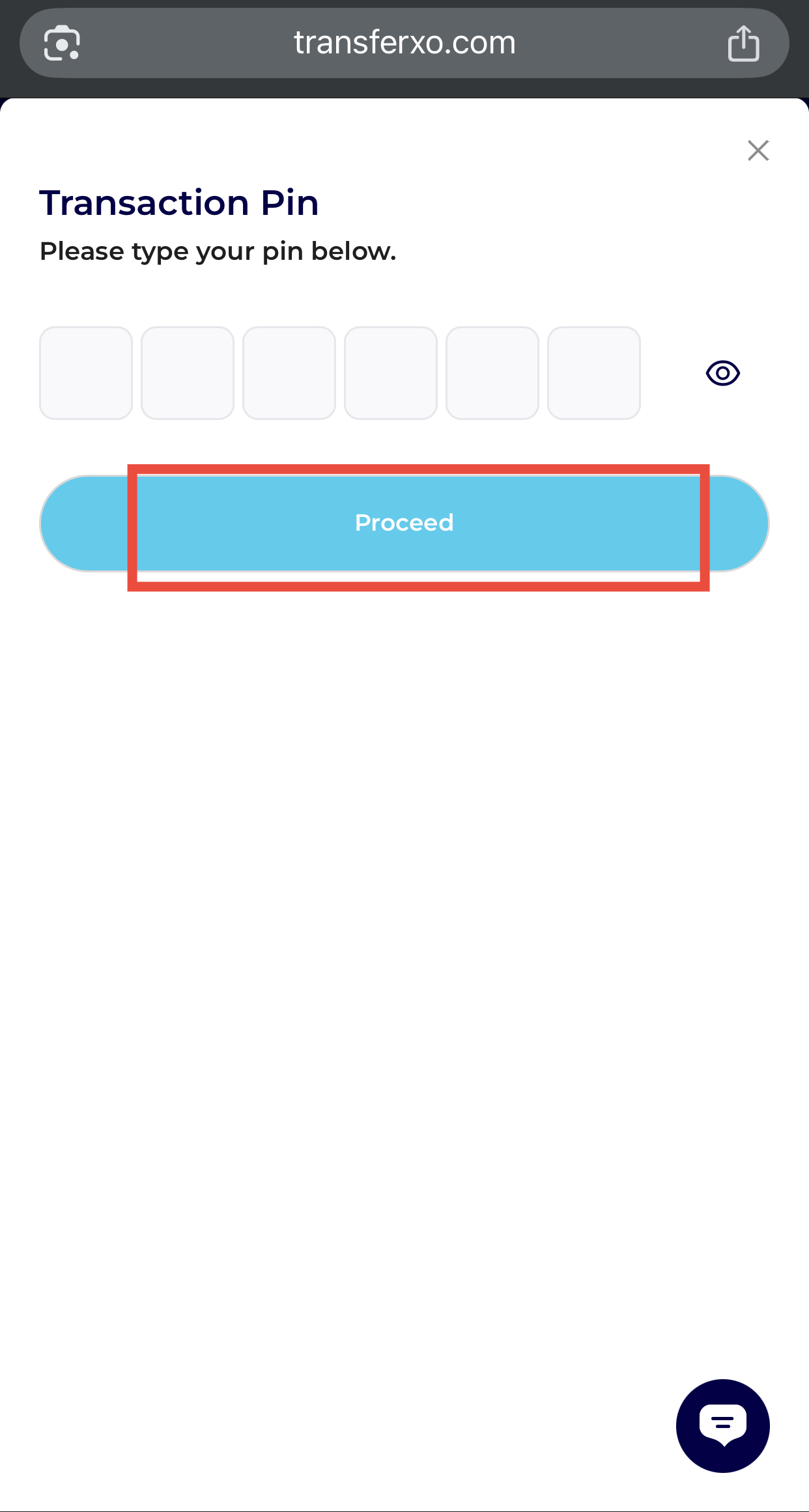
Step 5: Enter Your Transaction PIN
Input your Transaction PIN to access card controls.
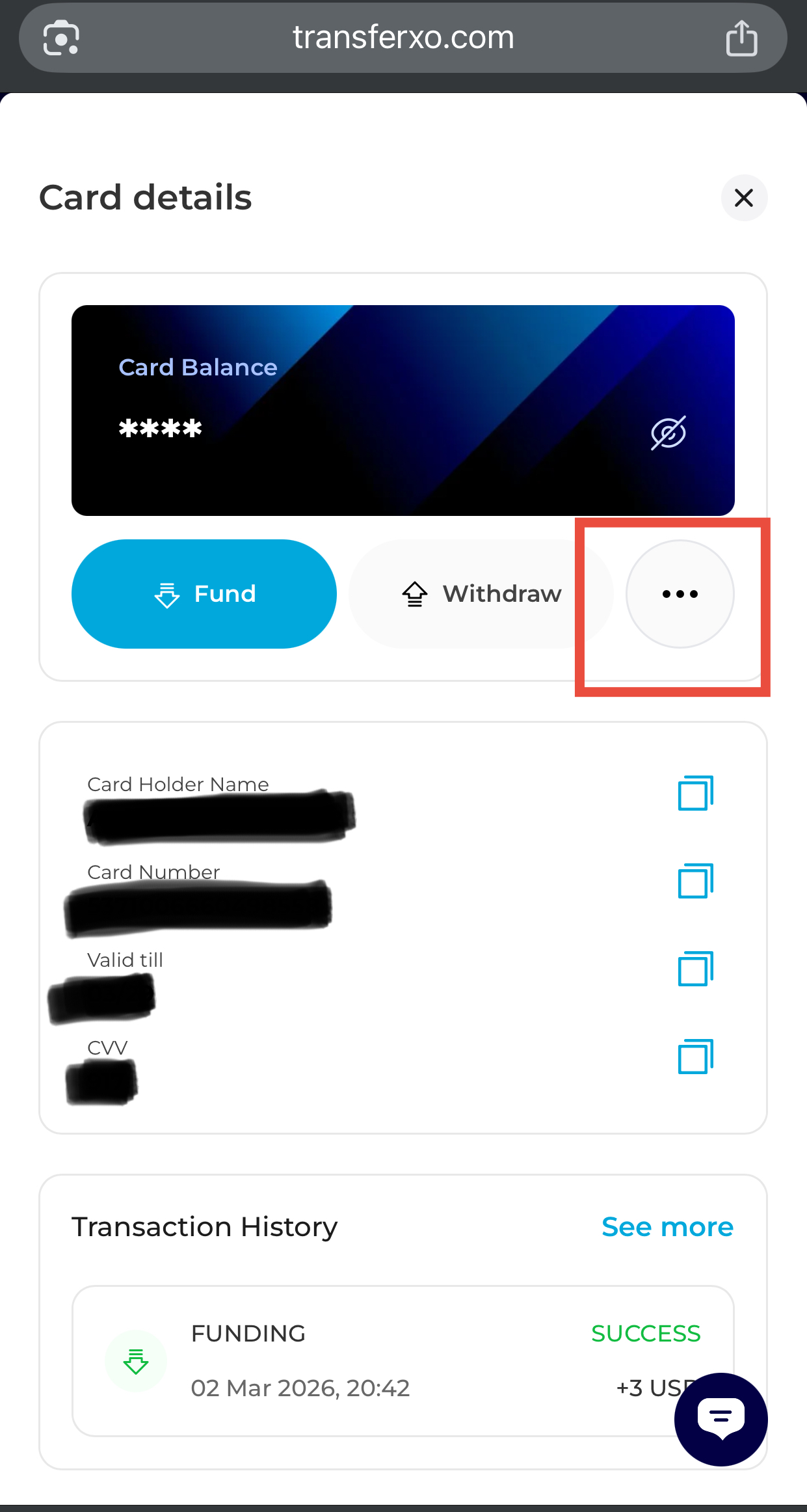
Step 6: Open Card Options
Tap the three horizontal dots on the right side to see available options.
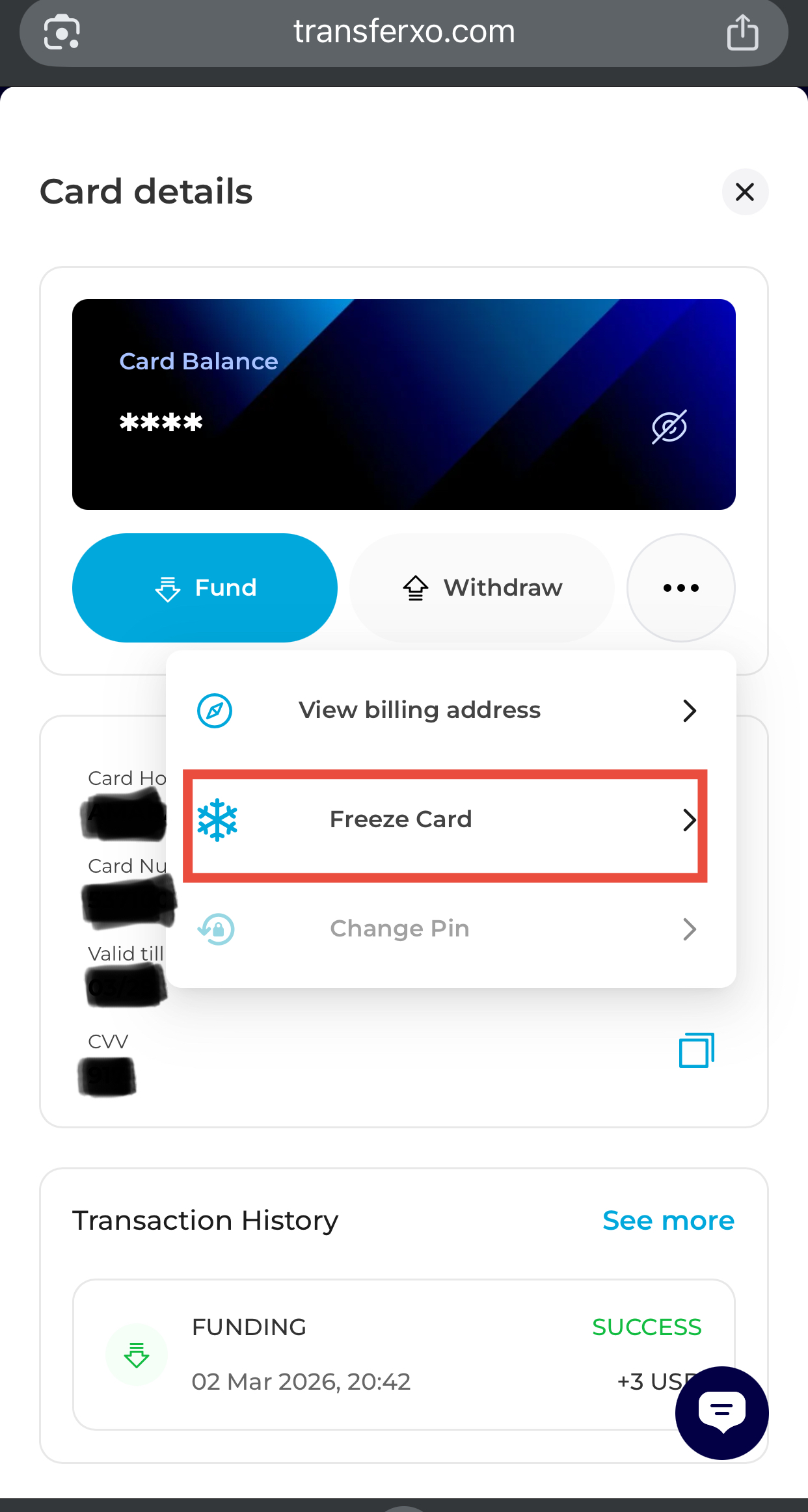
Step 7: Select Freeze Card
Tap Freeze Card.
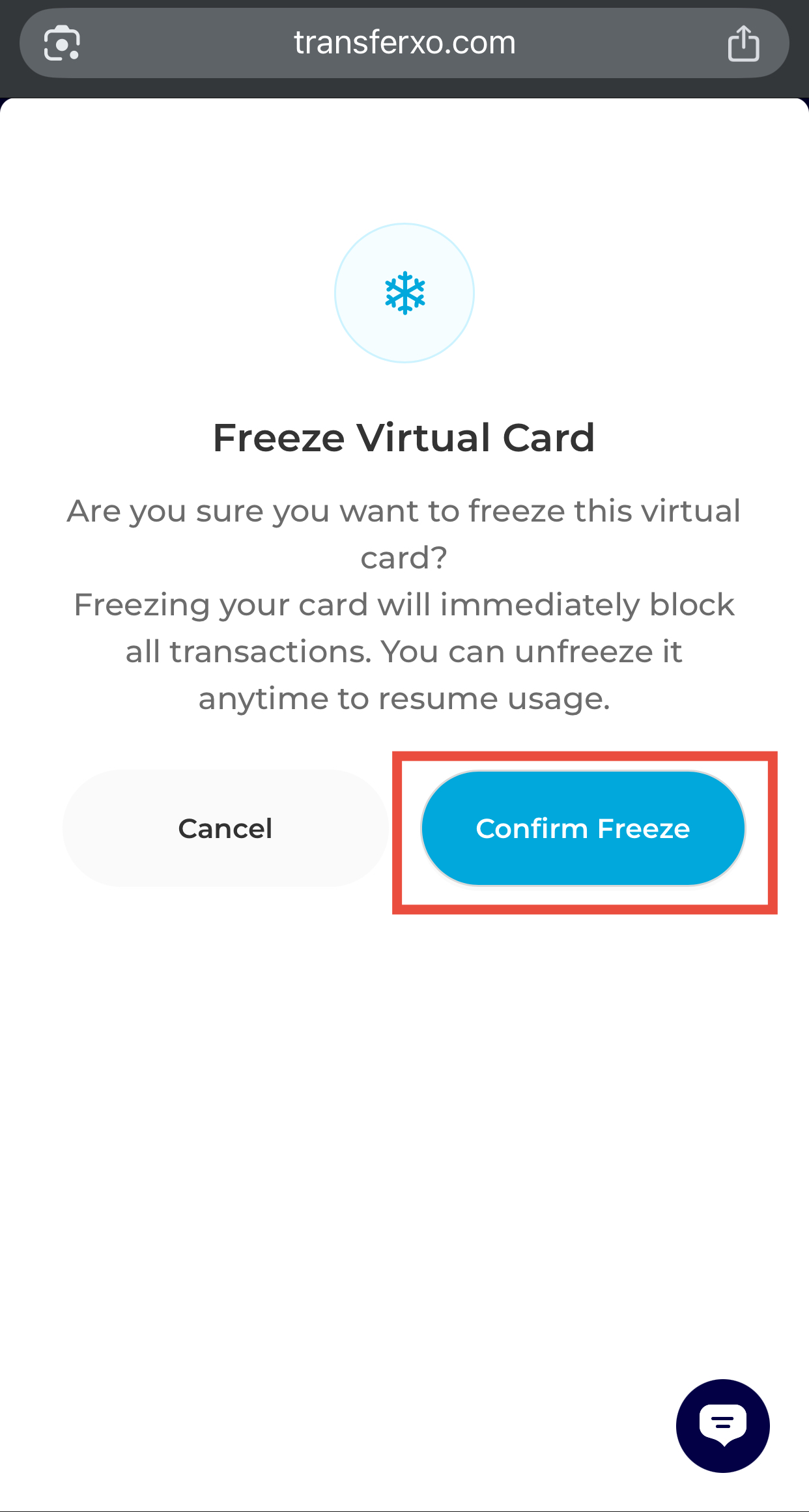
Step 8: Confirm Freeze
Tap Confirm to freeze your card.
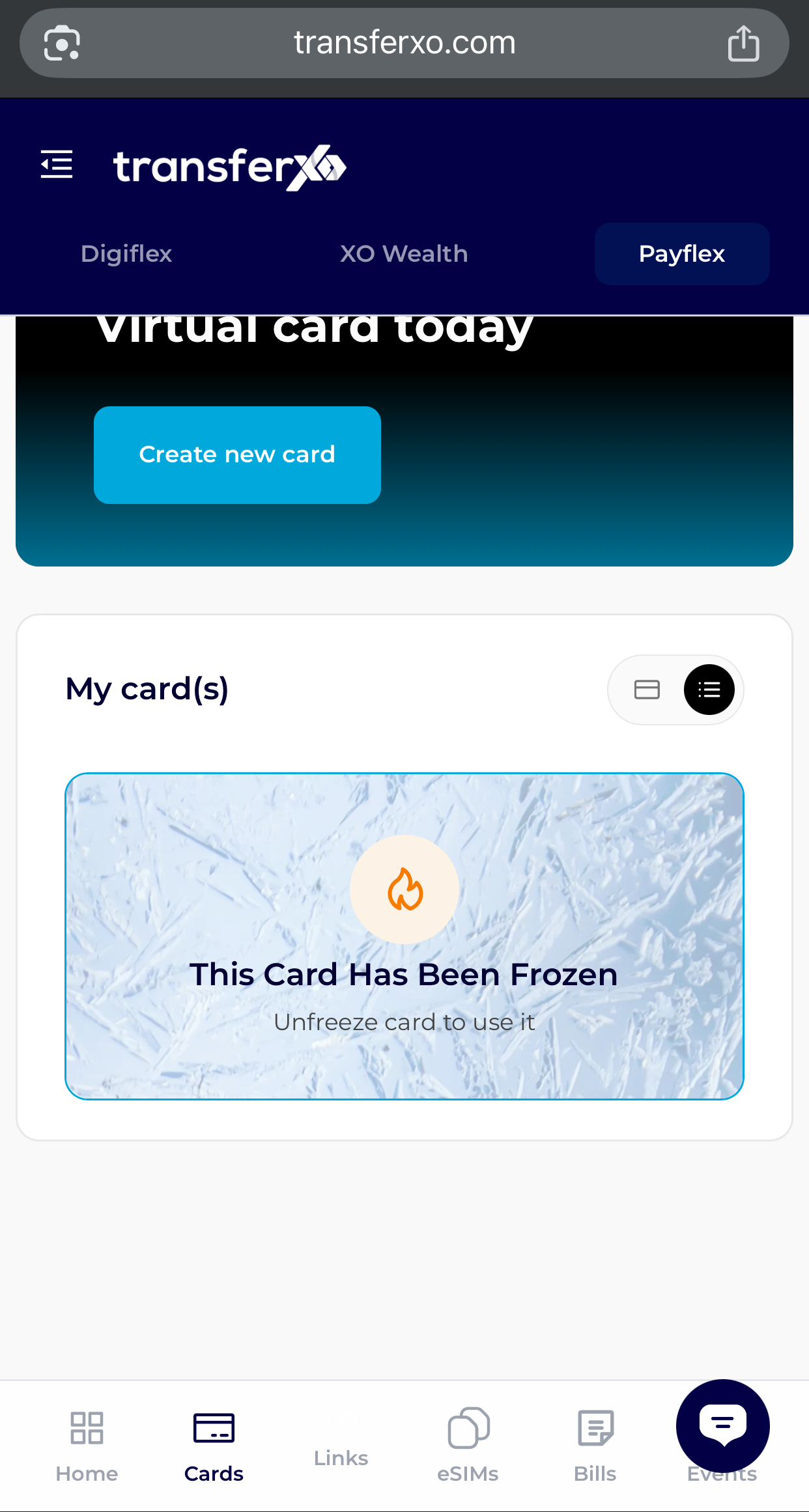
Your card is now frozen and cannot be used for transactions until you unfreeze it.