


Follow the steps below to change your password using the TransferXO web:
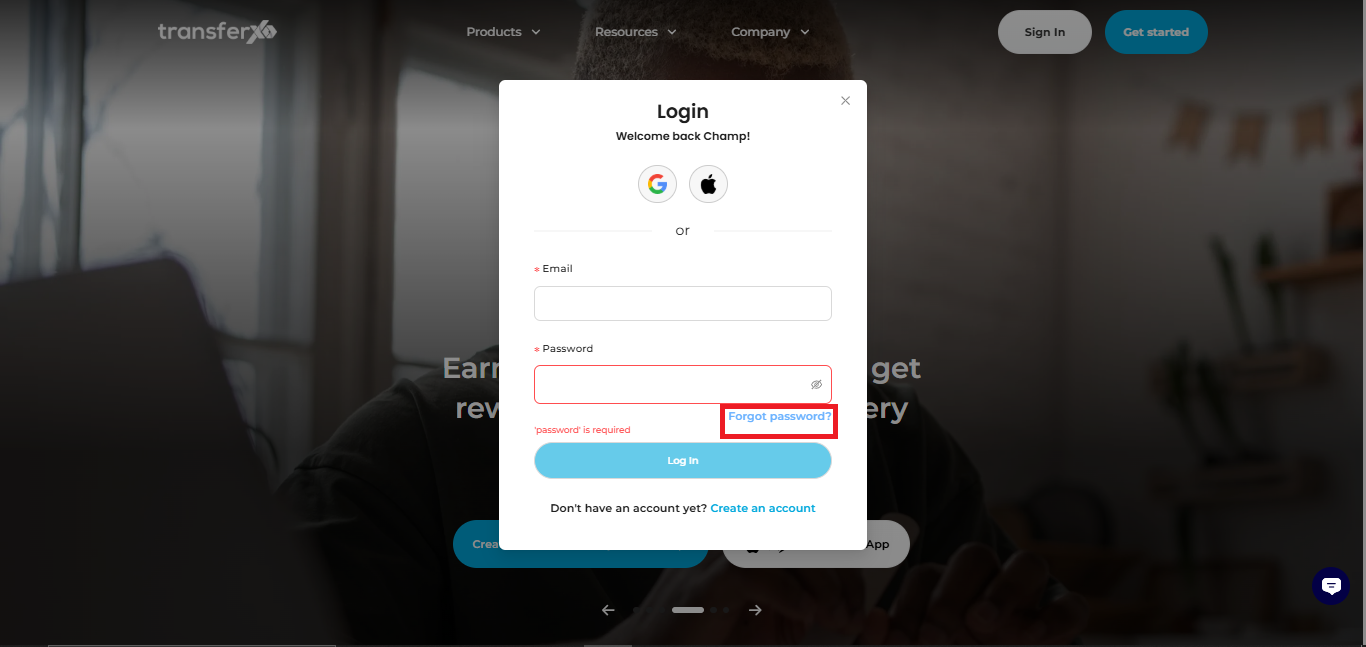
Step 1: Select "Forgot Password"
On the Login screen of the TransferXO web, tap Forget Password.
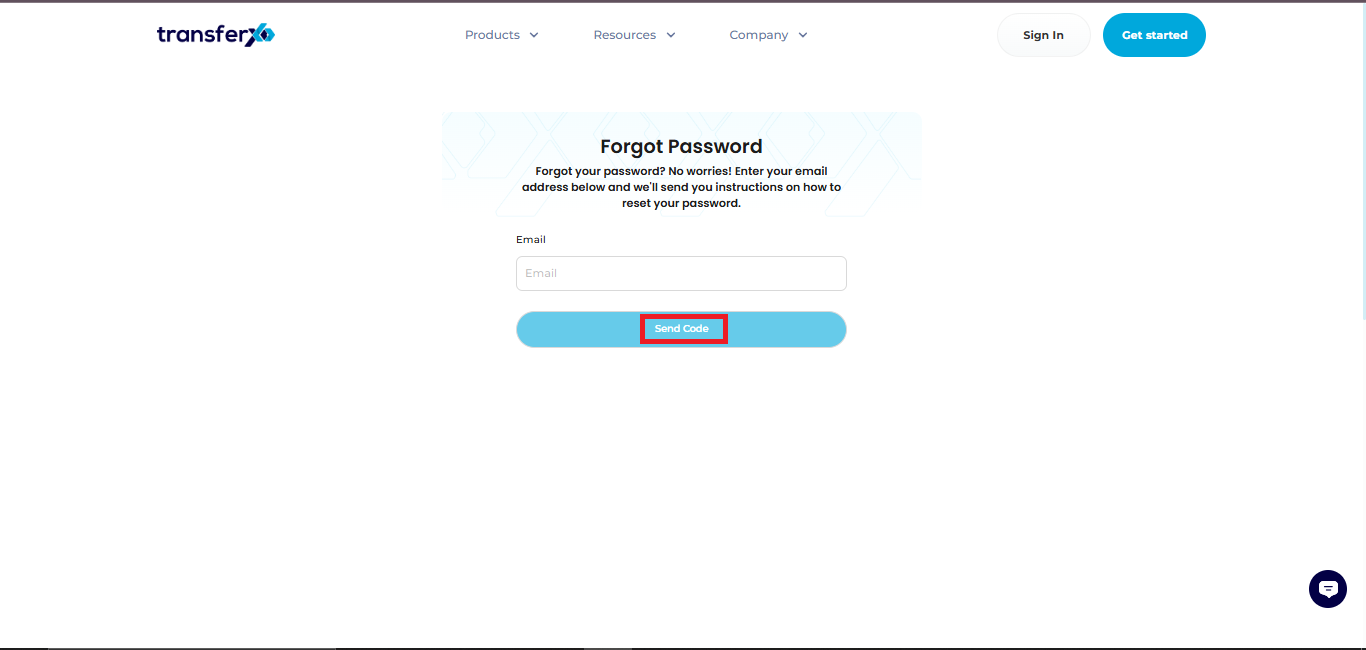
Step 2: Enter Your Email Address
Input your registered email address and tap Send Code.
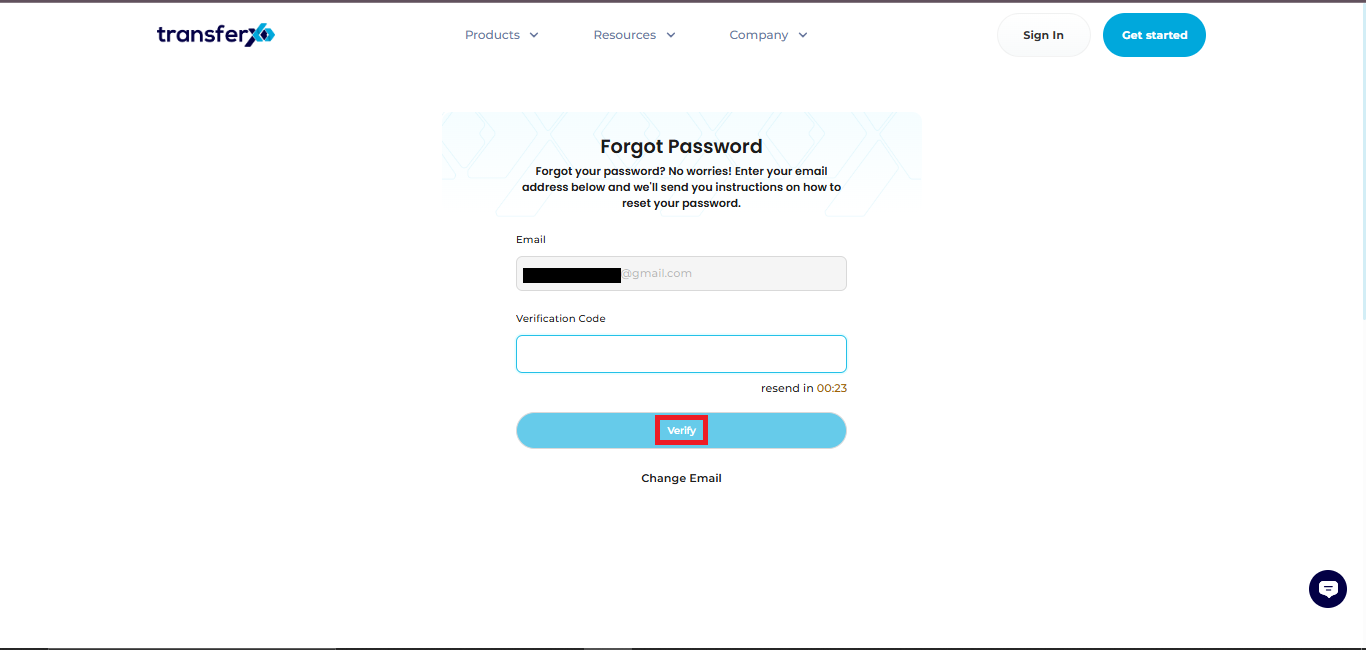
Step 3: Verify Your Email
Enter the verification code sent to your email and tap Verify.
Step 4: Create a New Password
Enter your new password in the required field.
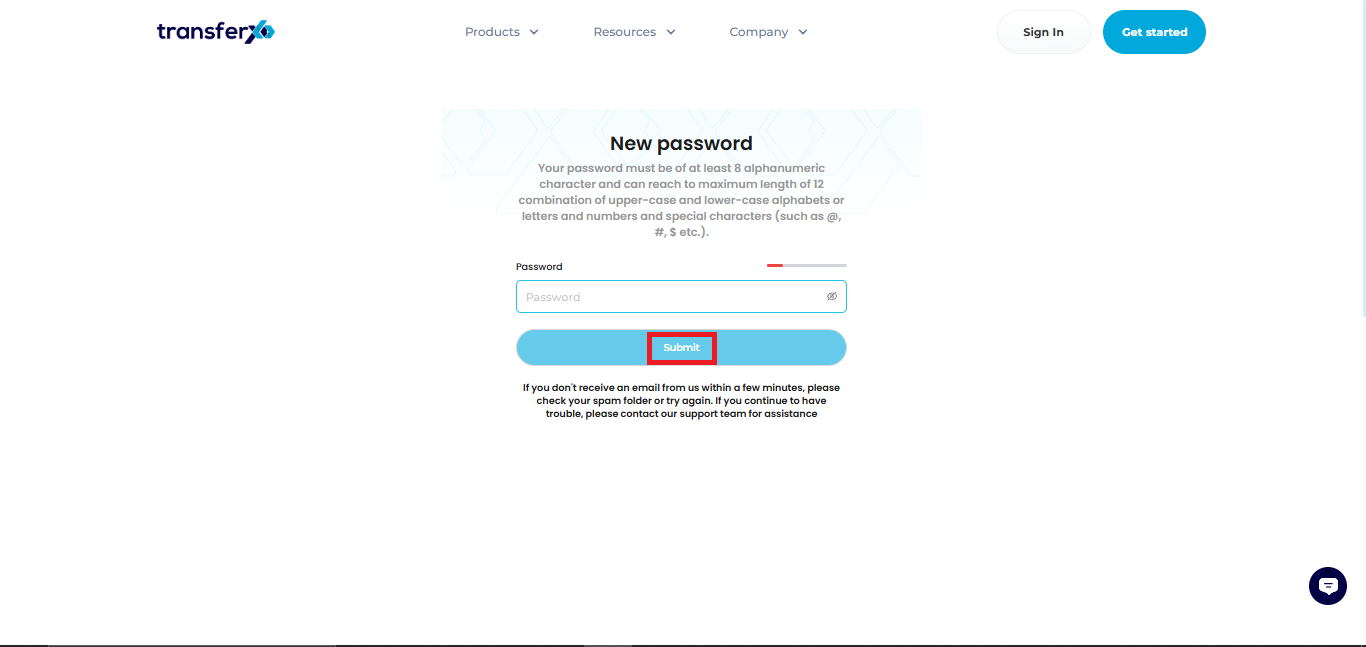
Password Requirements
Your password must contain a minimum of 8 characters and include a combination of:
- Uppercase letters
- Lowercase letters
- Numbers
- Special characters (e.g., @, #, $, etc.)
Important Notes
- If you do not receive the verification email within a few minutes, please check your Spam or Junk folder.
- If you're still experiencing issues, contact the TransferXO support team for assistance.