


Follow the steps below to set up 2FA for transactions via the TransferXO web app.
Step 1: Open the TransferXO Web App
Log in to your TransferXO account via your browser.
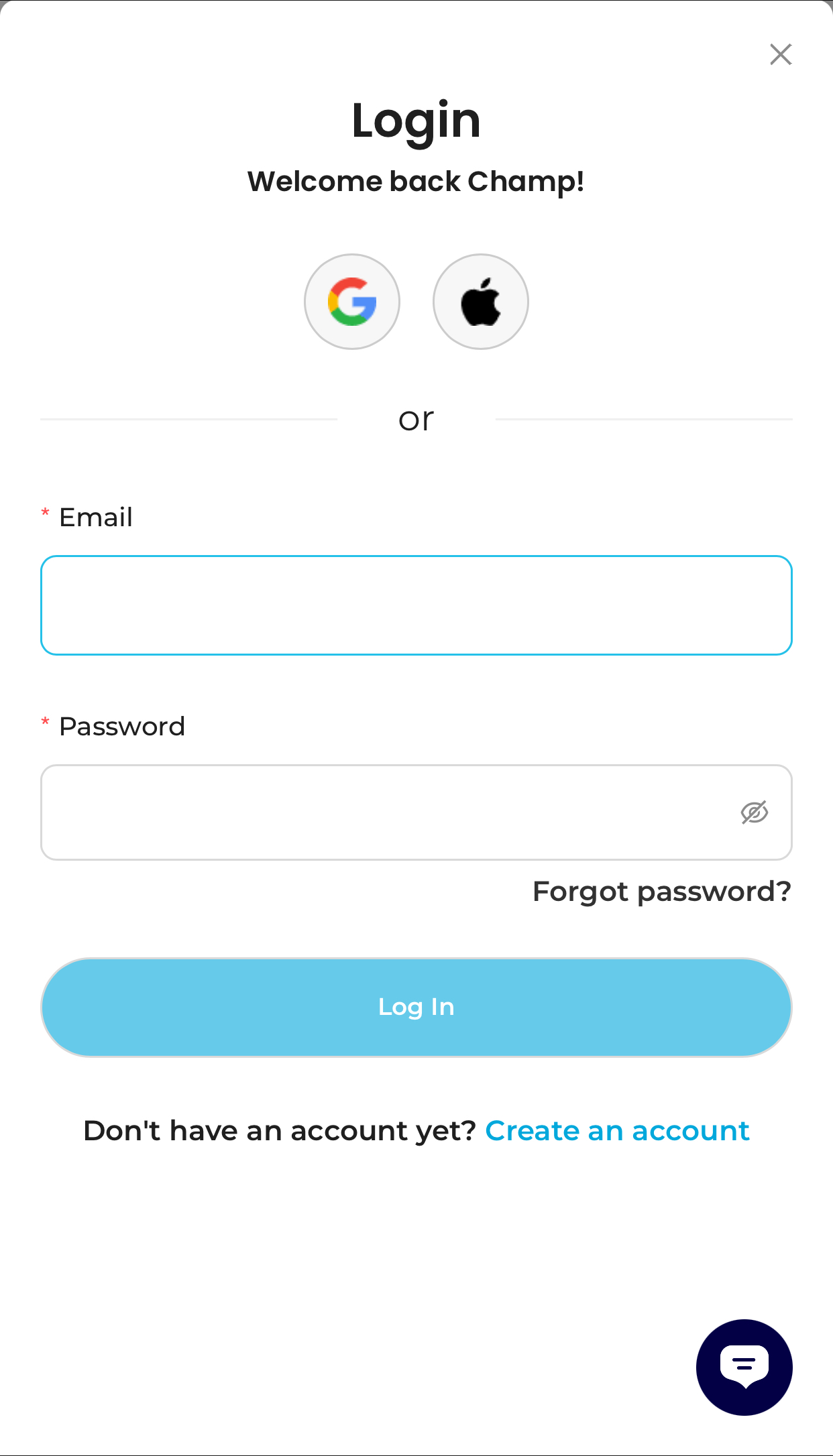
Step 2: Go to Your Dashboard
Once logged in, you’ll land on your dashboard, where you can view your account overview.
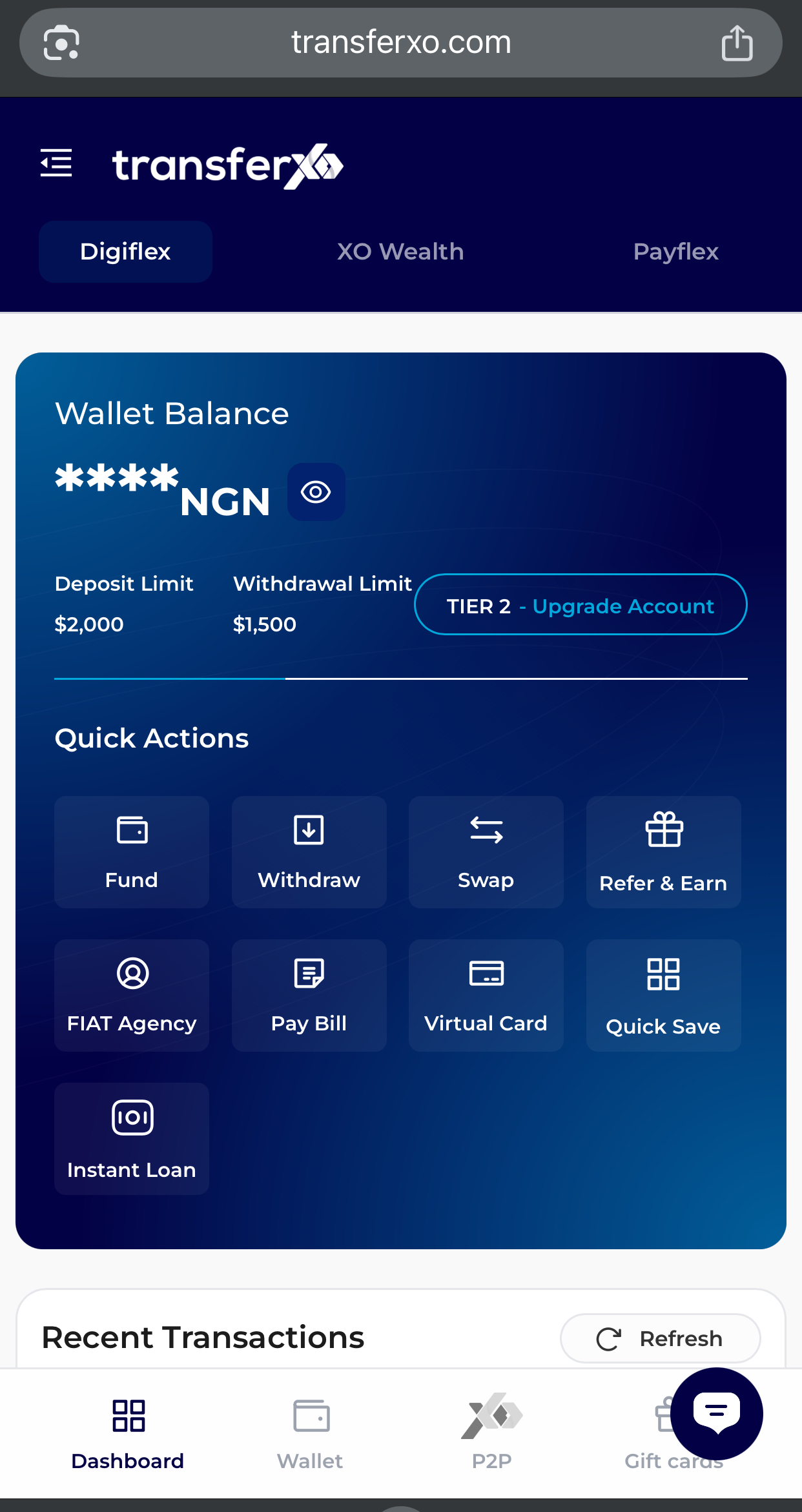
Step 3: Access Account Settings
Tap the menu icon (four horizontal lines) at the top-left corner of the screen.
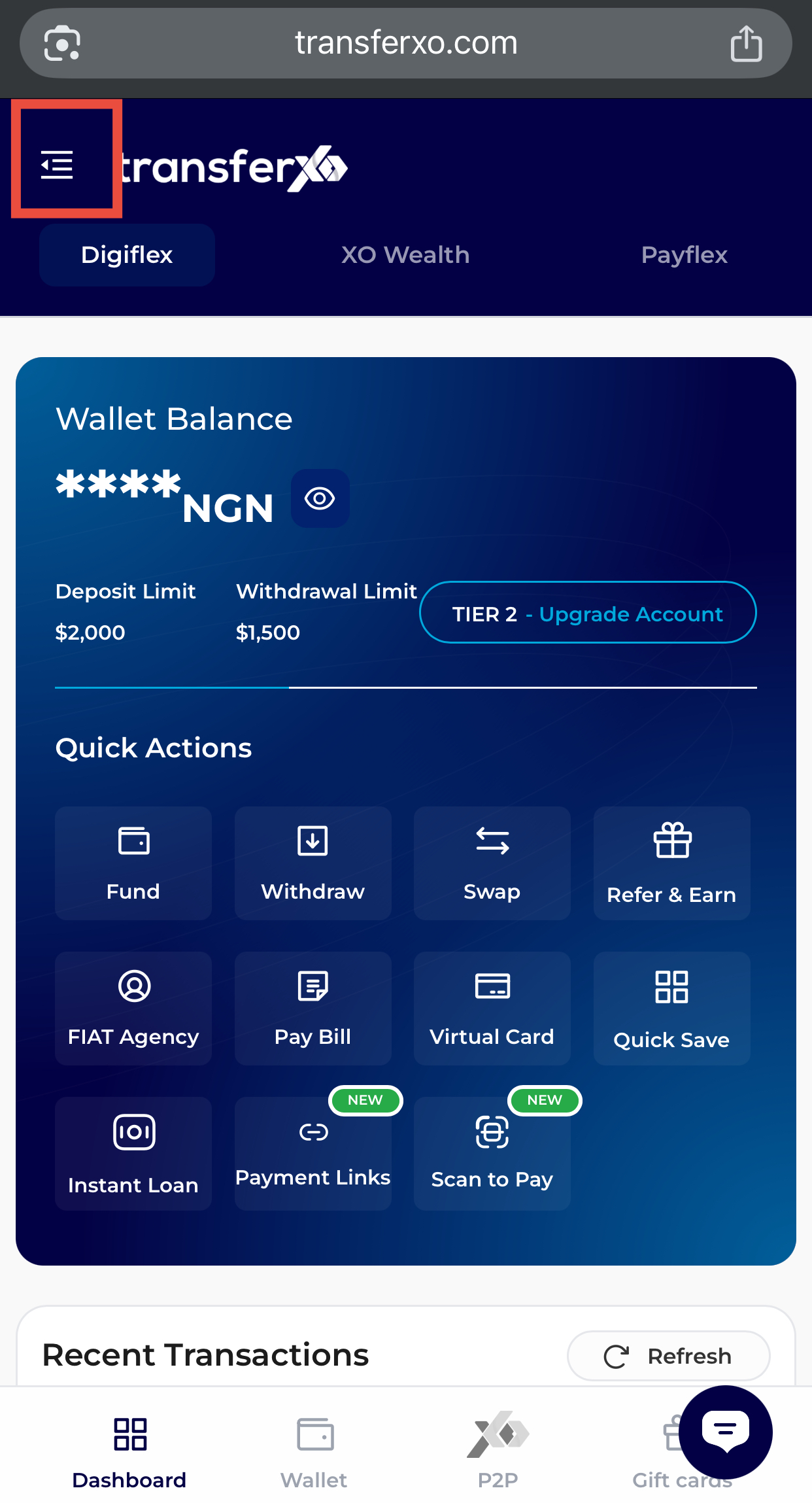
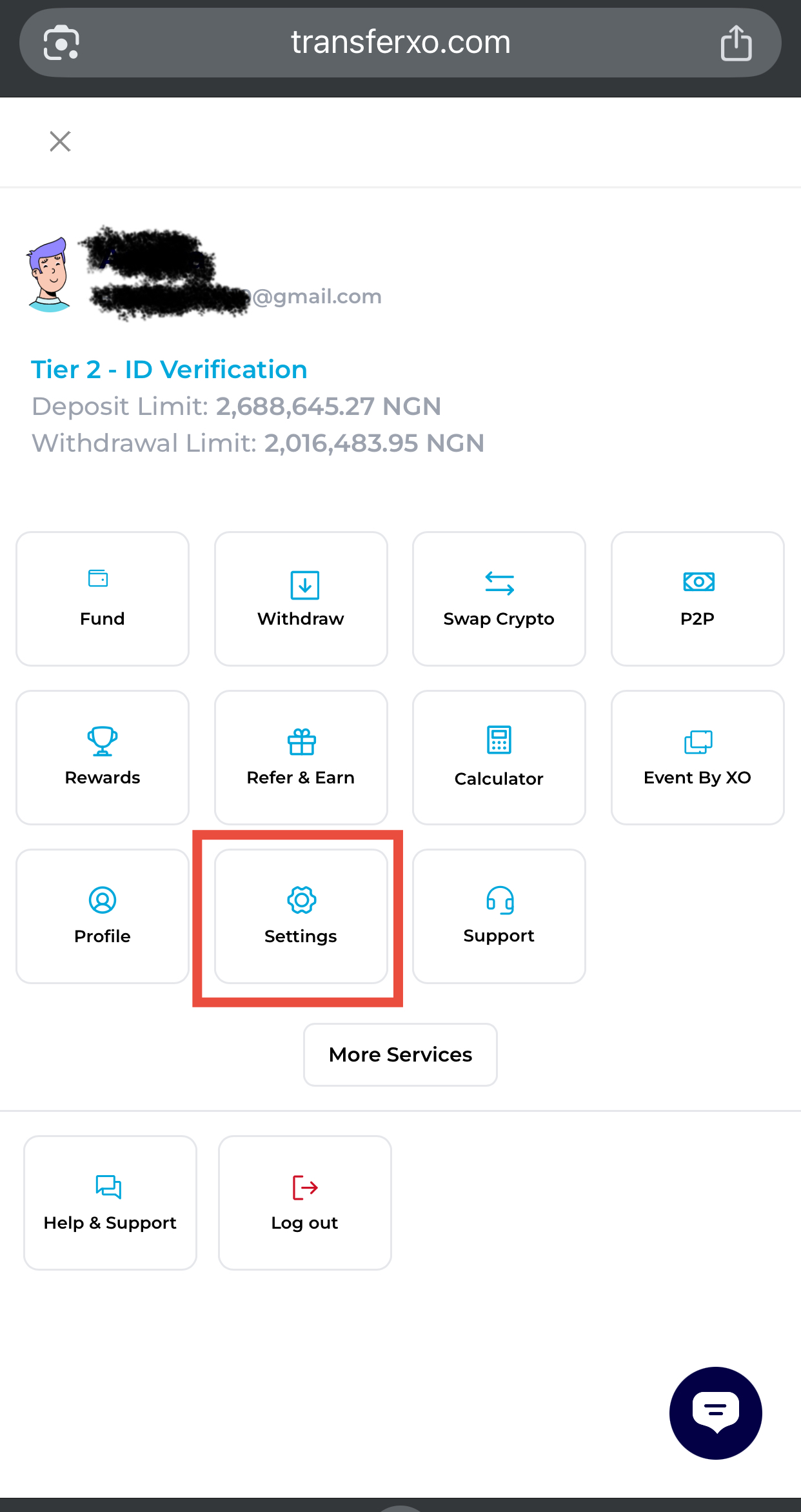
Step 4: Navigate to Settings
Scroll down and select Settings to view options.
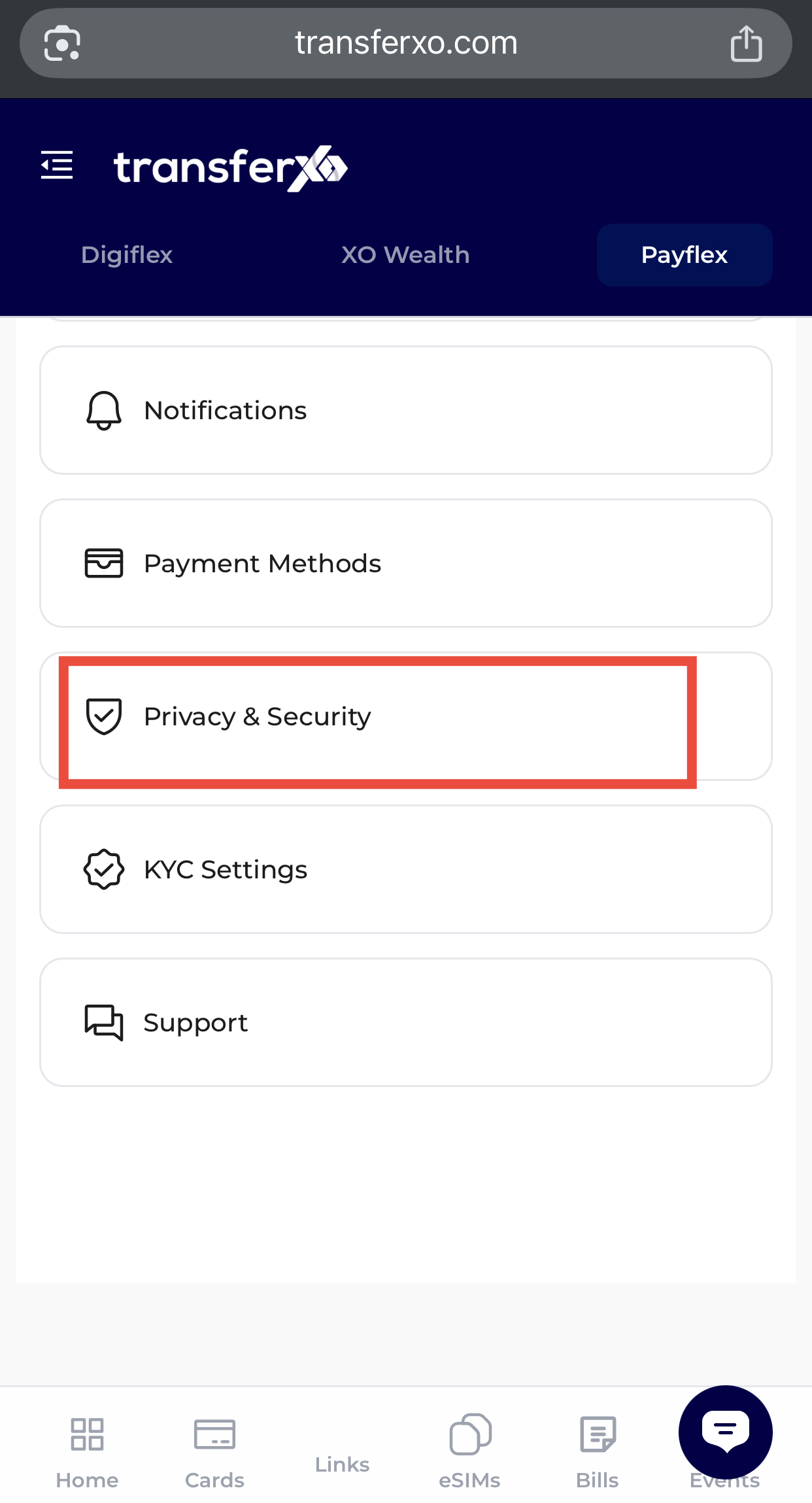
Step 5: Navigate to Privacy and Security
Click Privacy and Security to manage your security settings.
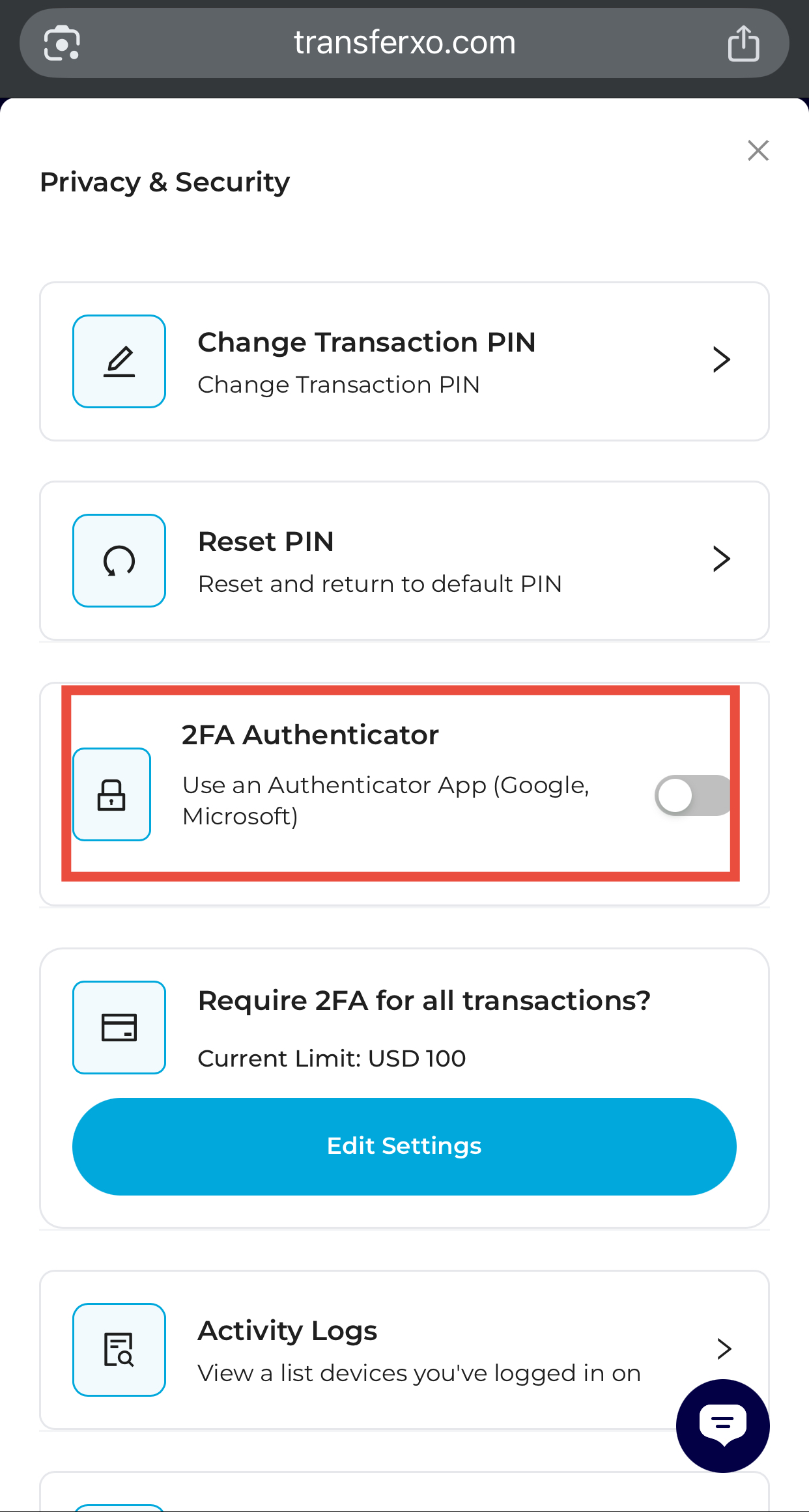
Step 6: Select 2FA Authenticator
Click 2FA Authenticator to begin the setup process.
You’ll be required to use an authenticator app such as Google Authenticator, Microsoft Authenticator, or Authy to generate verification codes.
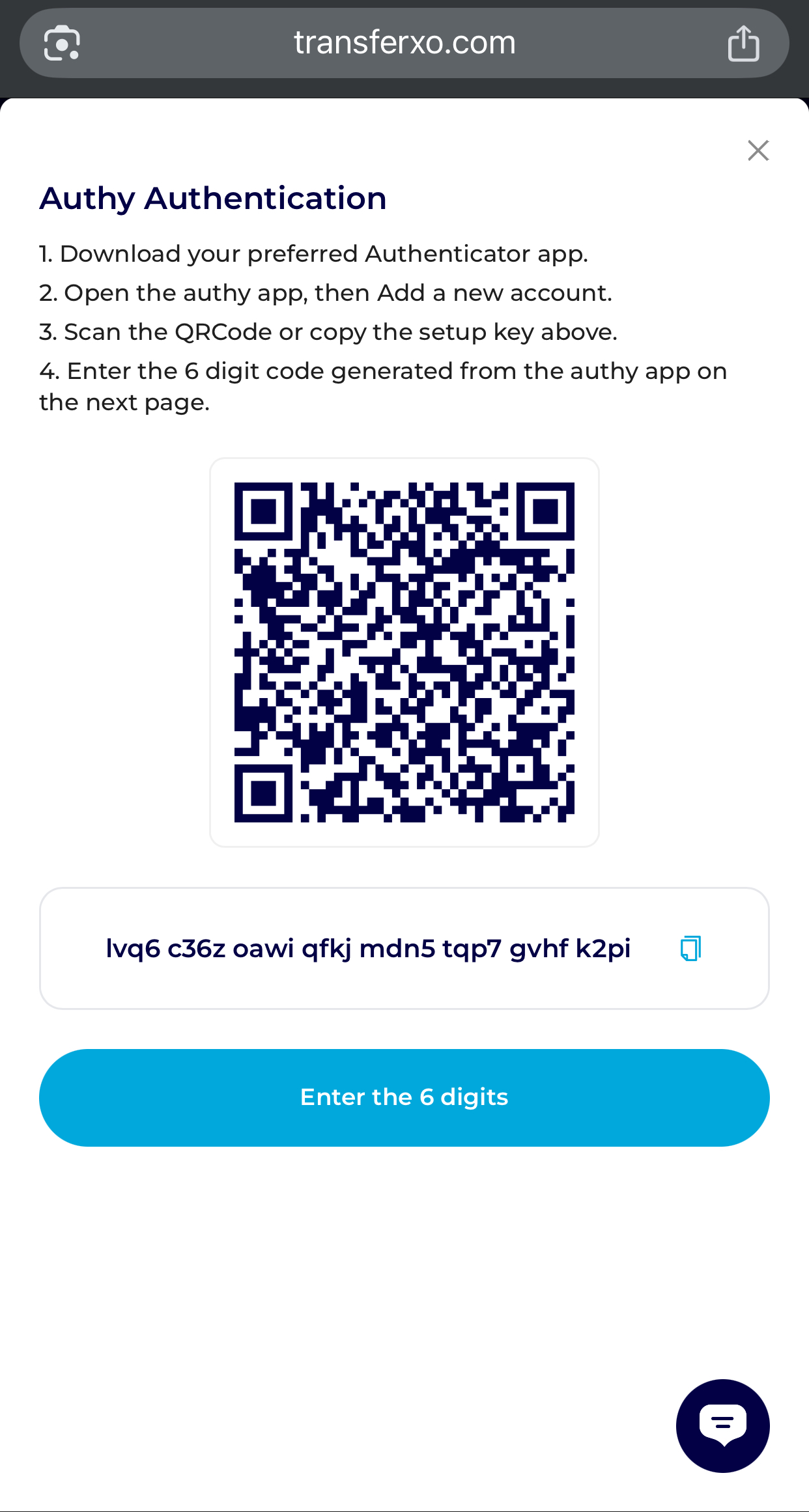
Step 7: Set Up Your Authenticator App
- Download your preferred authenticator app (if not already installed).
- Open the app and select Add New Account.
- Scan the QR code displayed on TransferXO or manually enter the setup key provided.
- The app will generate a 6-digit verification code.
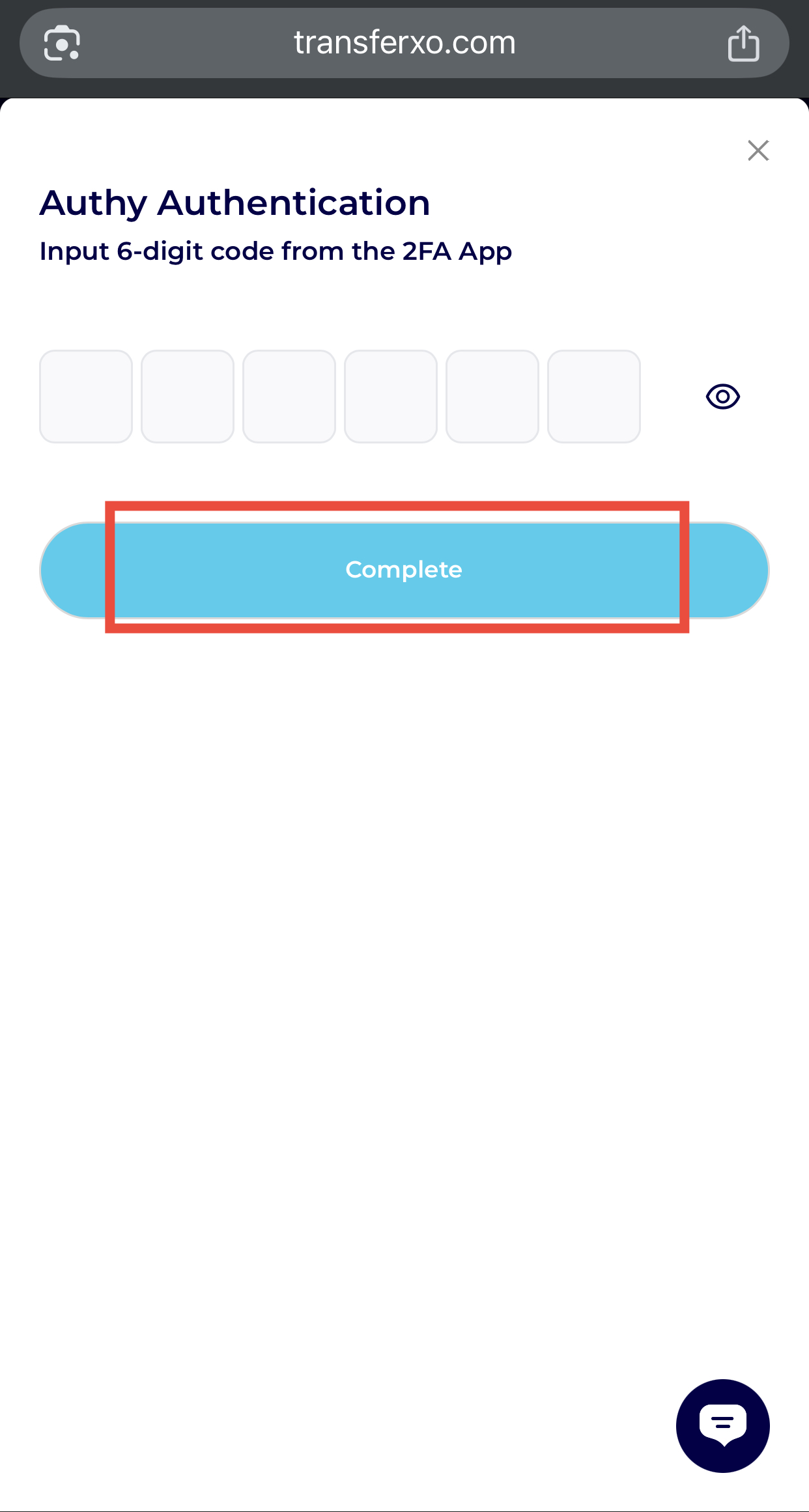
Step 8: Enter the 6-Digit Code
Input the 6-digit code generated by your authenticator app into the required field on TransferXO.
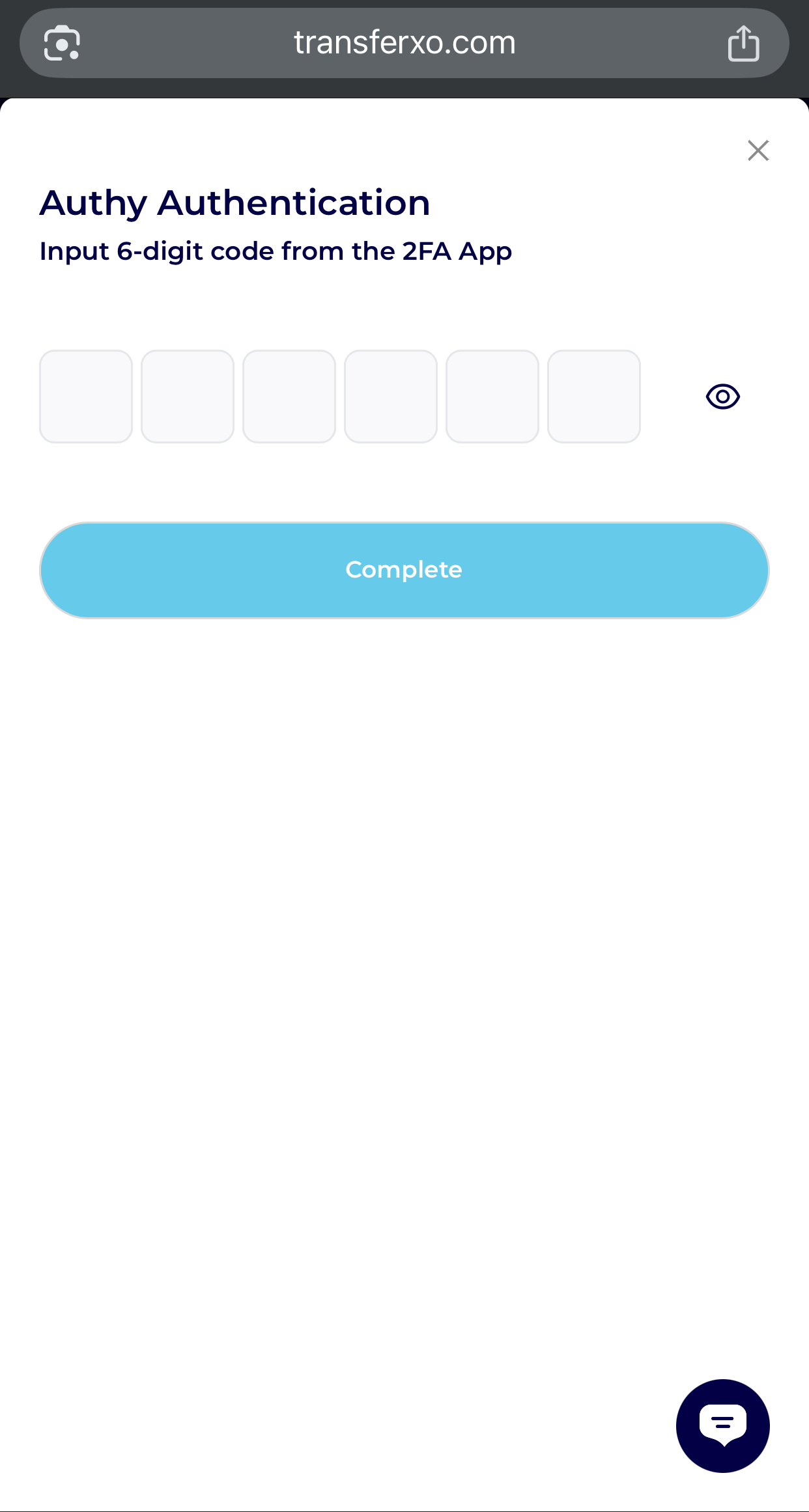
Step 9: Complete Setup
Click Complete to activate 2FA for your transactions.
Once enabled, you’ll be required to enter a verification code from your authenticator app whenever you perform eligible transactions.