


This guide will walk you through how to view your purchased and sold gift cards on TransferXO using your mobile browser.
Step 1: On your browser, visit TransferXO.com.
Open your browser and go to transferxo.com
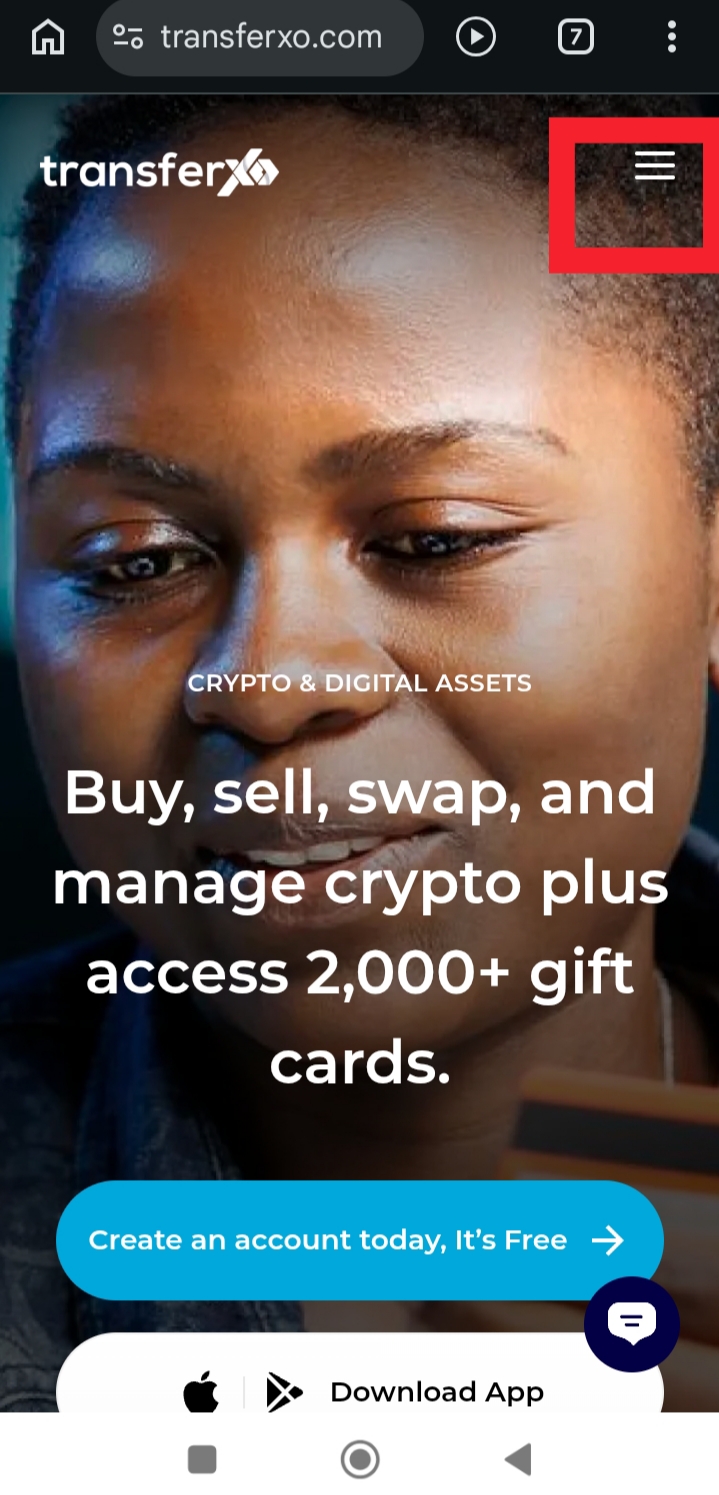
Step 2: Tap the Hamburger menu at the top .
This opens the navigation menu where you can access account options.
Step 3: Click on Login to Dashboard and login to access your dashboard.
Enter your email or username and password to sign in.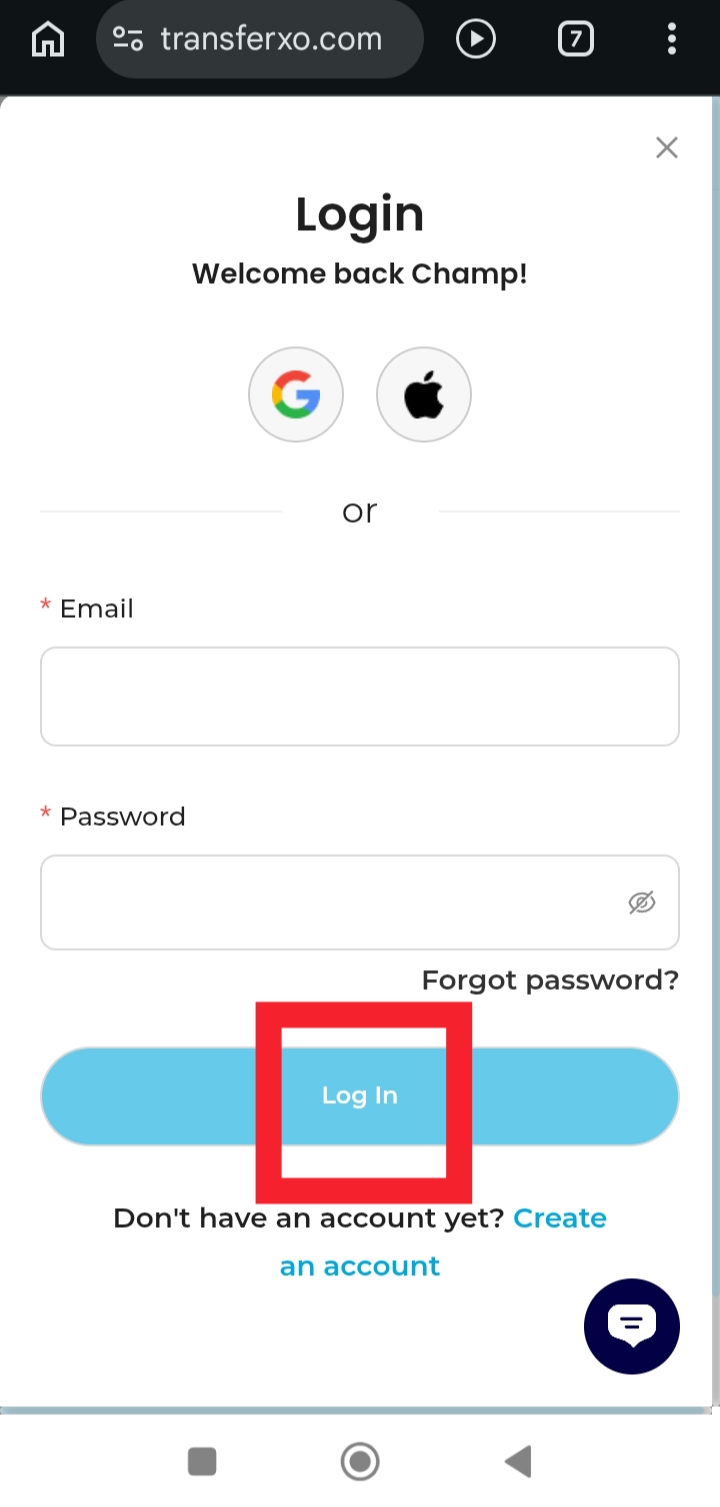
Step 4: On the Dashboard, tap Gift Cards.
This will take you directly to the section where all your gift card options are available.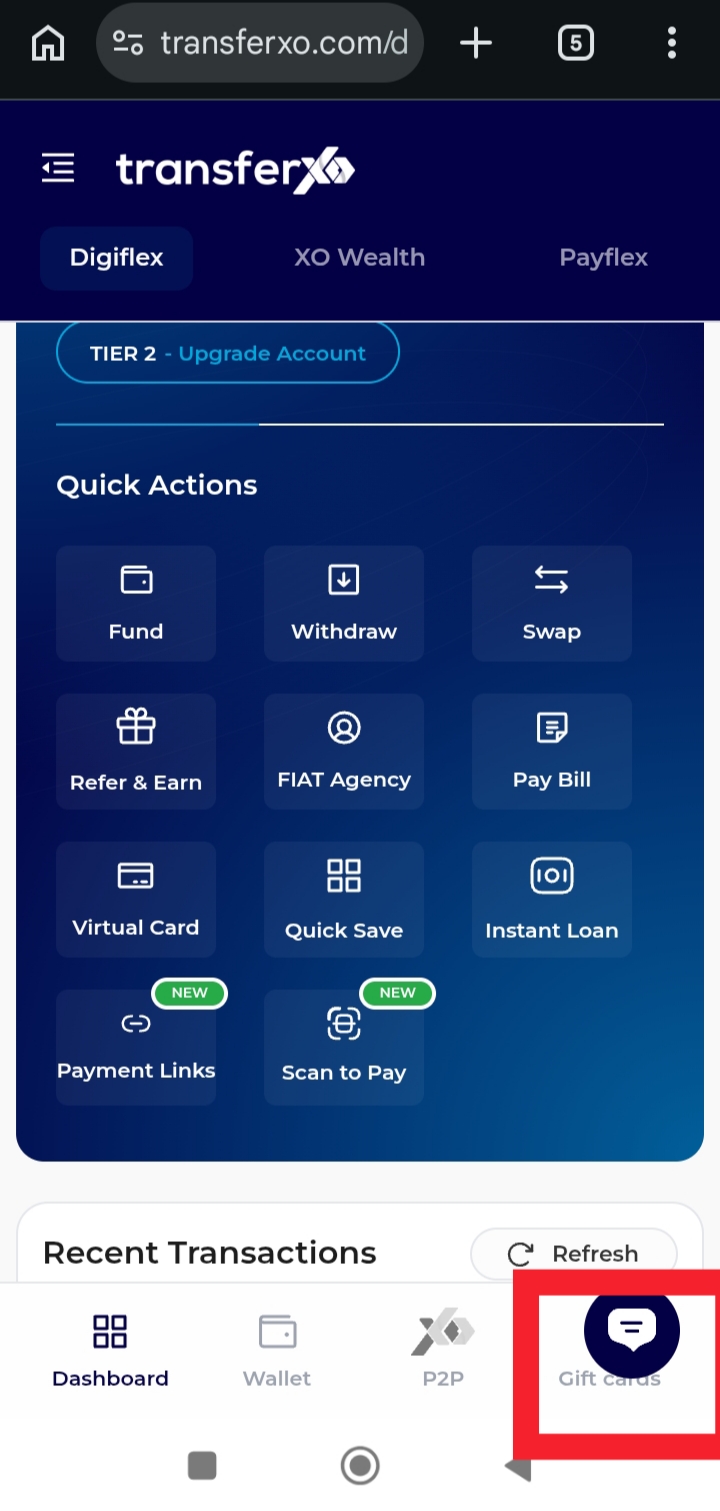
Step 5: Select View Purchased Gift Cards or View Sold Gift Cards.
Choose View Purchased to see gift cards you’ve bought, or View Sold to see those you’ve sold.
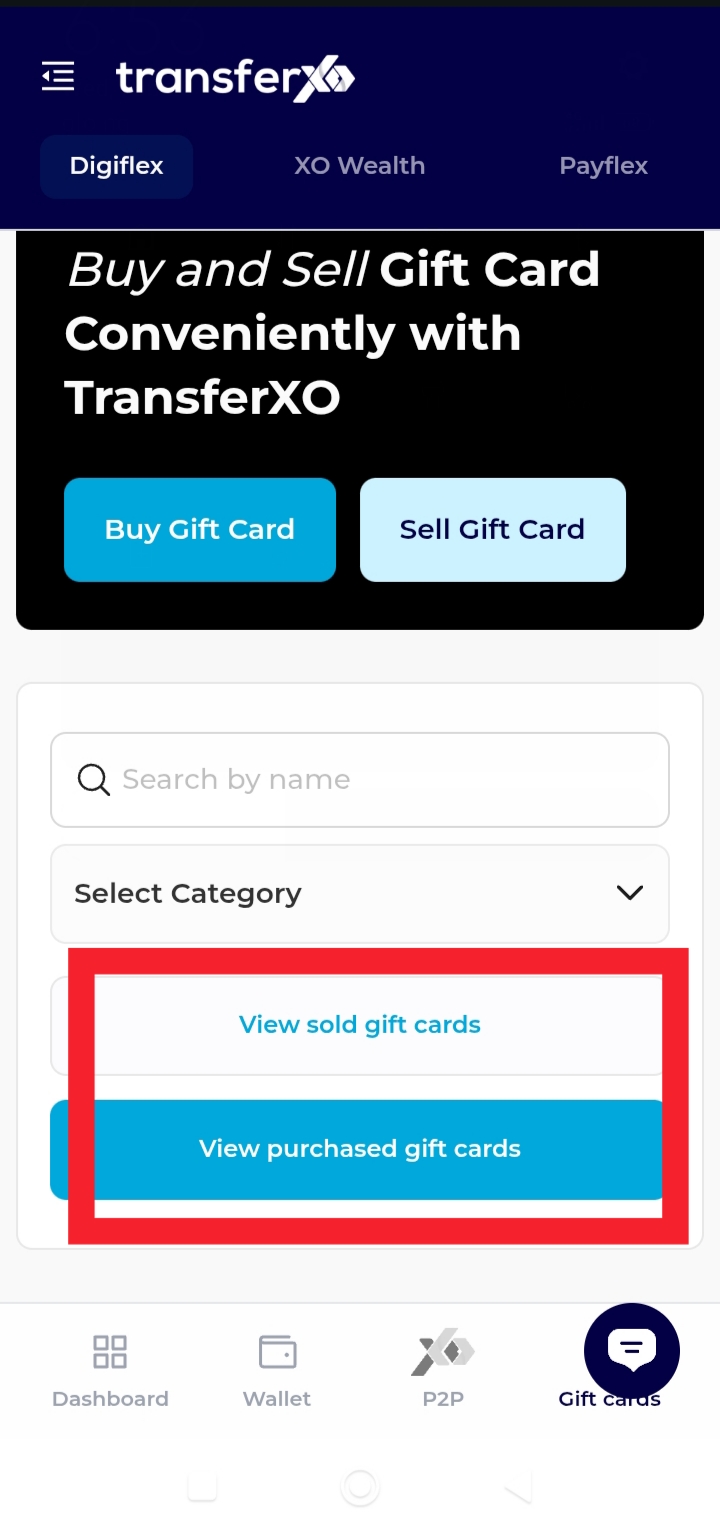
You can now easily track all your gift card transactions. This feature helps to give a clear record of your purchased and sold gift cards at any time.