


Viewing your gift card transactions on TransferXO is quick and easy. Follow these simple steps to check your purchased or sold gift cards directly from your mobile app:
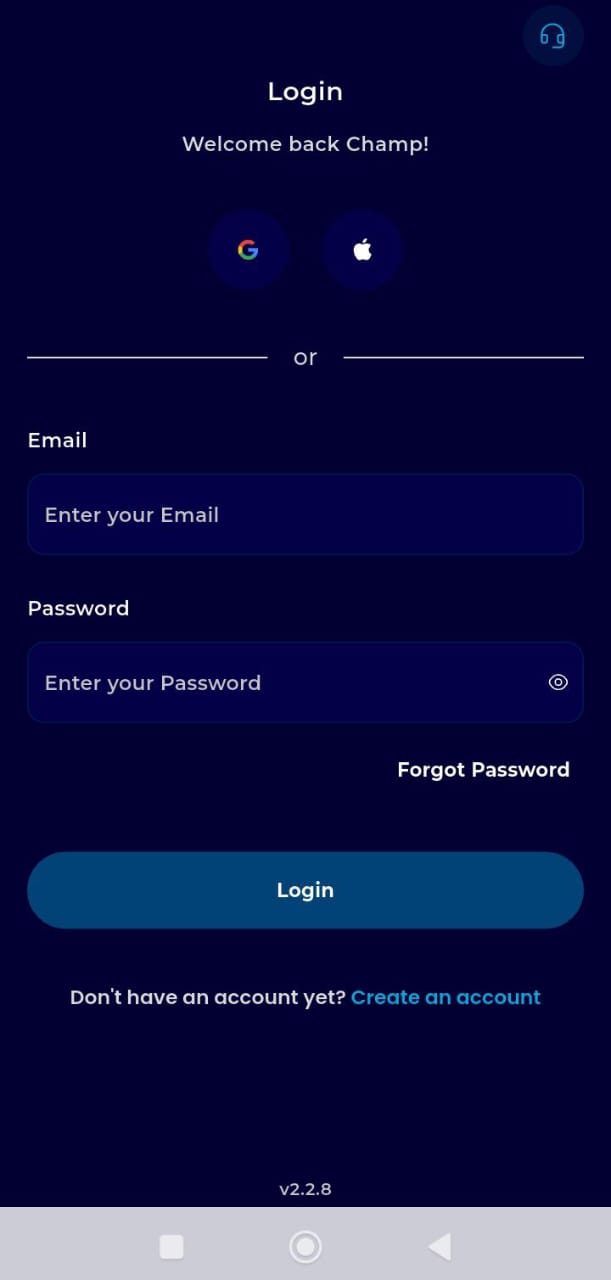
Step 1: Open the TransferXO app and login to your TransferXO account
Open the TransferXO mobile app and enter your login credentials to access your account.
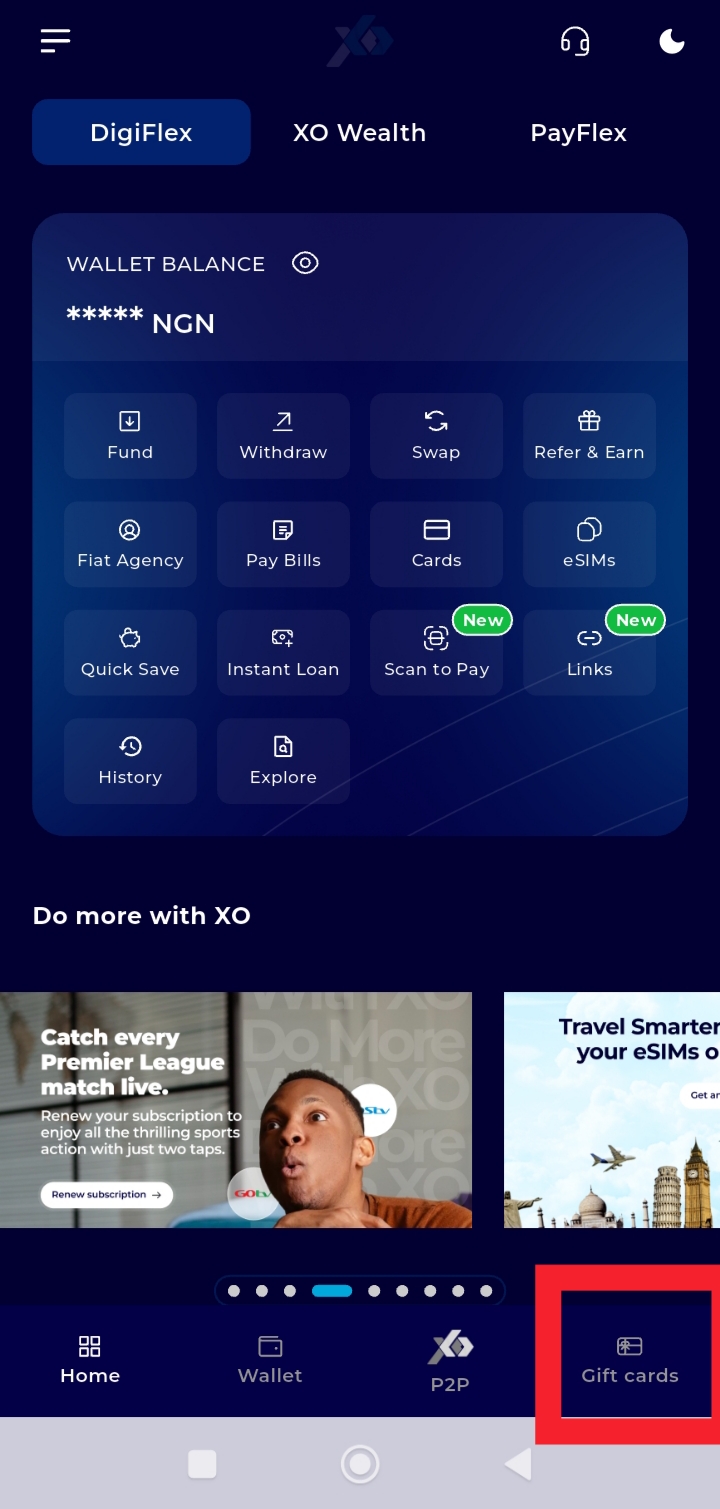
Step 2: Go to your Dashboard and tap Gift Cards.
On your main dashboard, you’ll see all account options, tap Gift Cards to proceed.
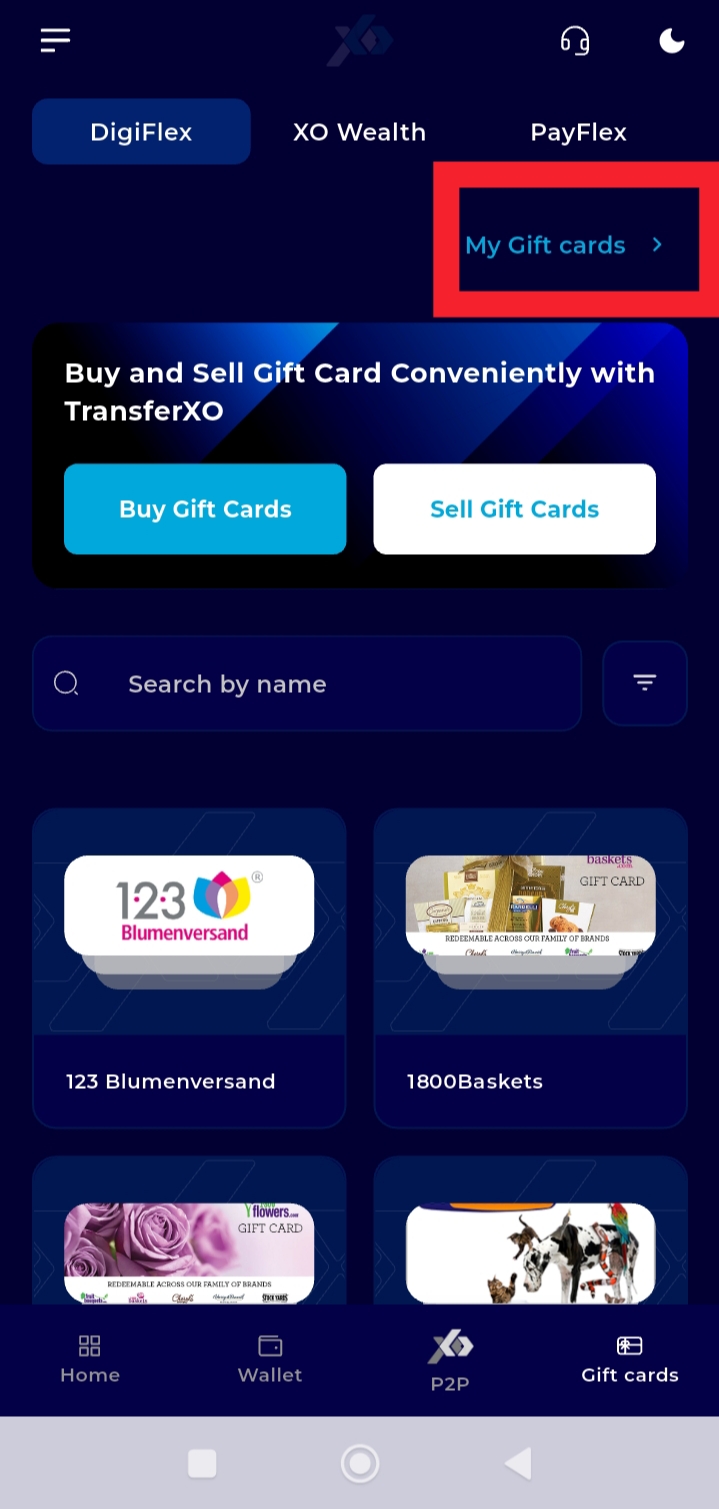
Step 3: Select, My Gift Cards.
This will take you to a page listing all gift cards associated with your account.
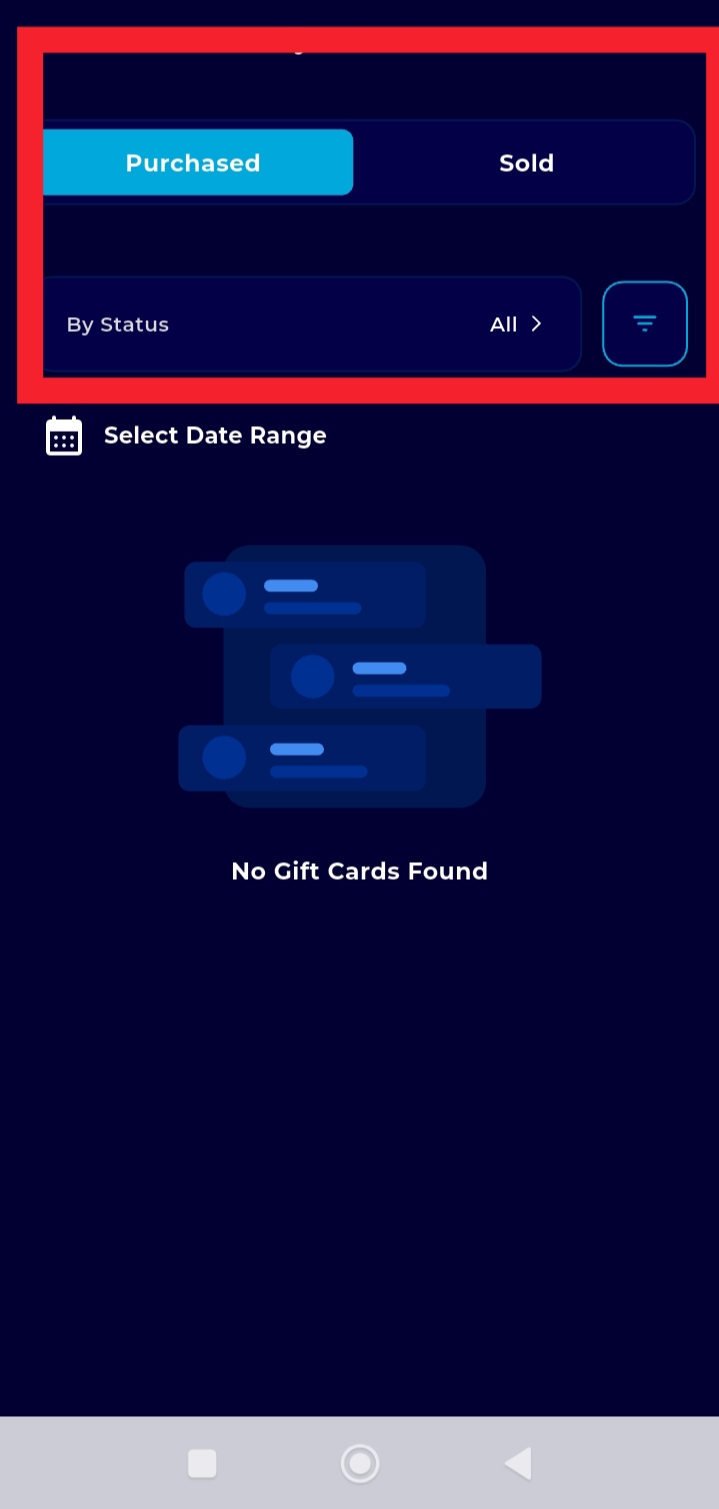
Step 4: Choose Purchased or Sold.
Depending on what you want to view, tap Purchased to see gift cards you’ve bought, or Sold to see those you’ve sold.
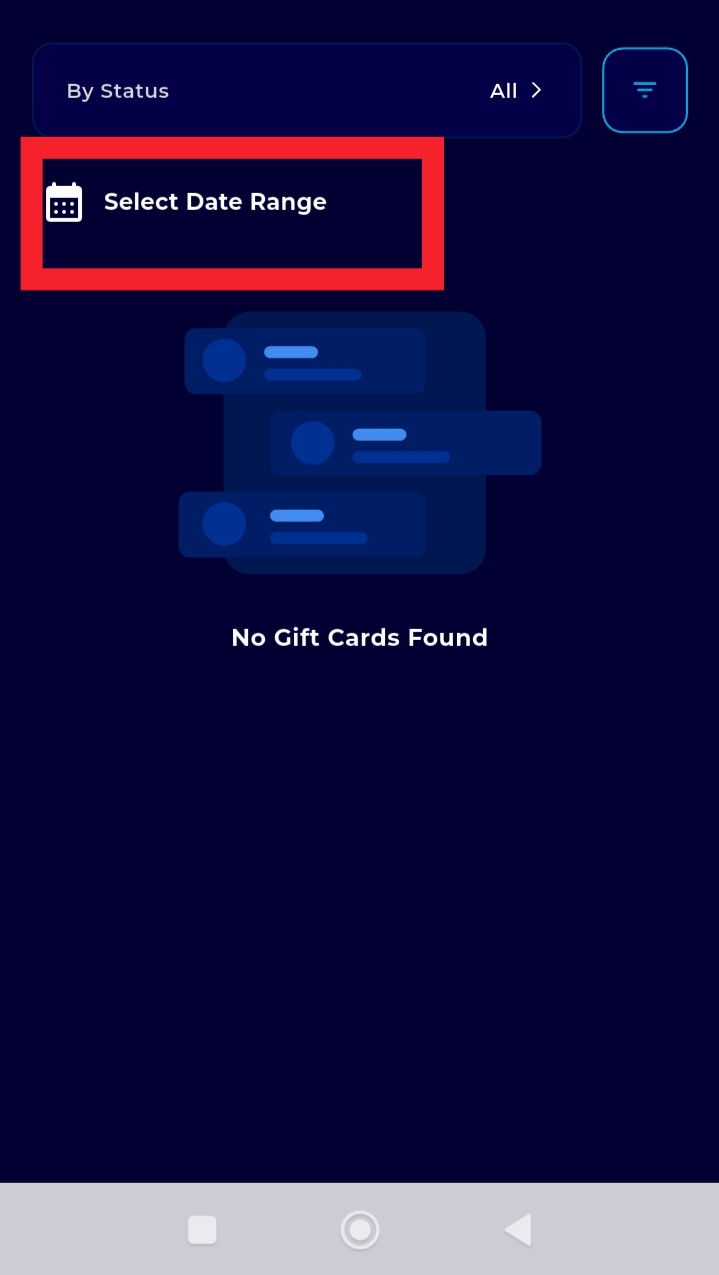
Step 5: Filter by date range.
Select the time period for the transactions you want to review to quickly find specific gift cards.
Now you can easily track all your gift card activity anytime, anywhere!