


Step 1: Open and Authenticate
Launch the TransferXO app and log in. Once on your DigiFlex Dashboard, look at the bottom of the screen.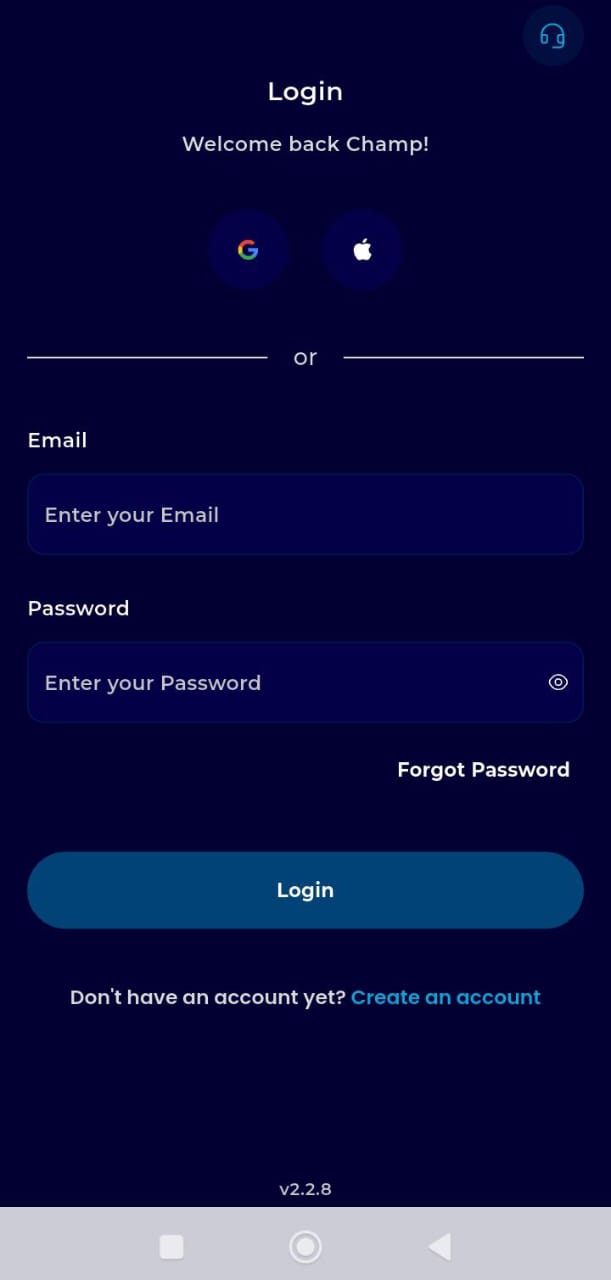
Step 2: Enter the Wallet
Tap the Wallet icon in the bottom navigation bar. This opens your asset overview where all your balances are managed.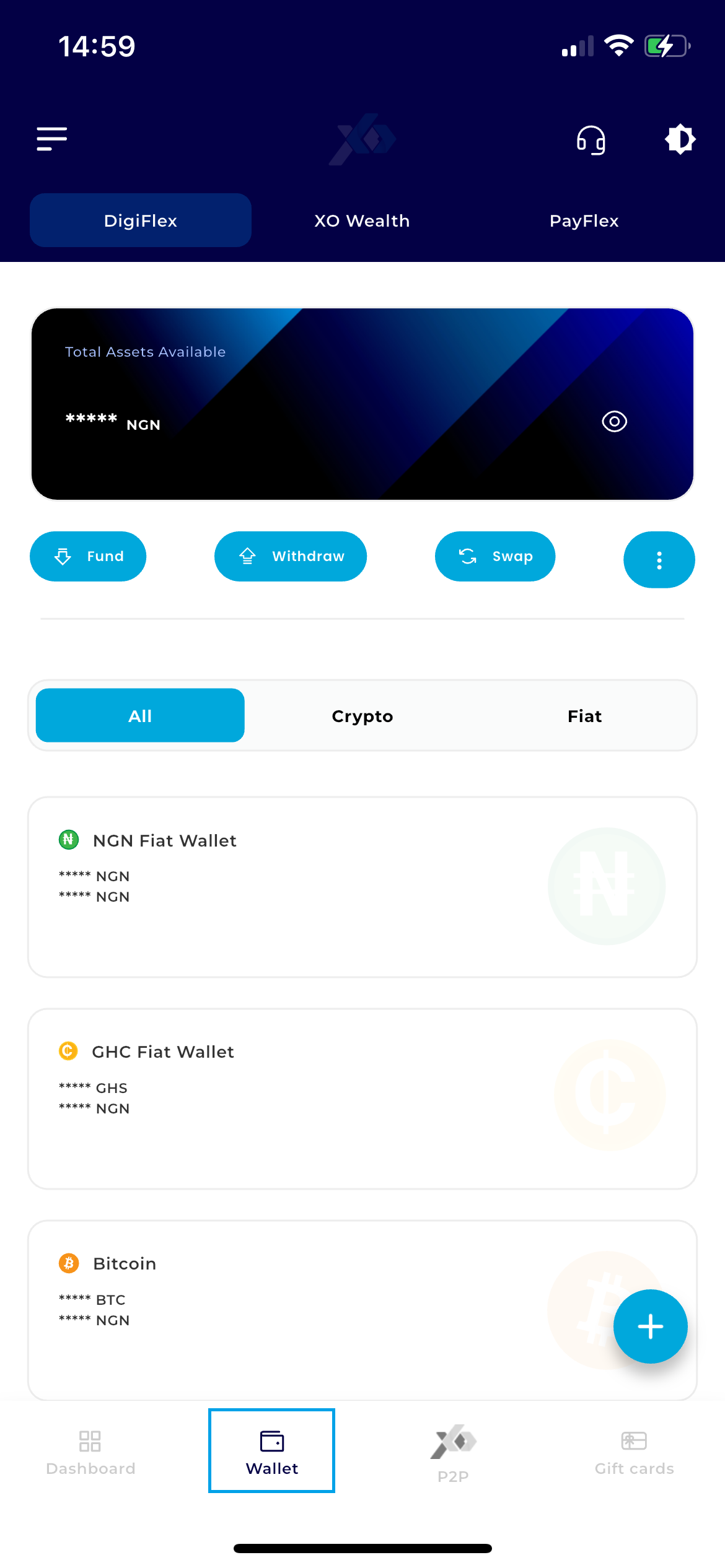
Step 3: Initiate Funding
Directly below your total balance card, tap the blue Fund button. This will pull up the available deposit methods for your account.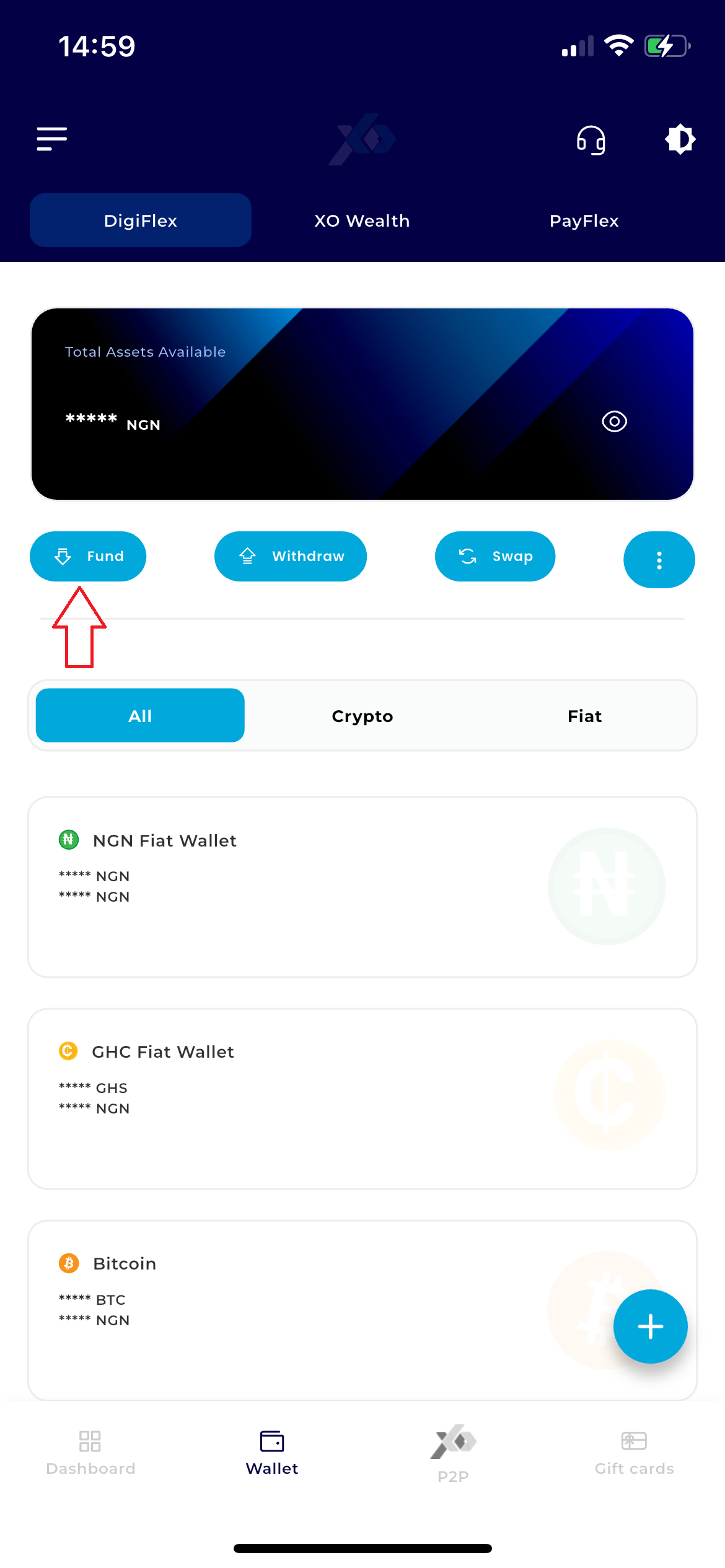
Step 4: Match the Asset
Select the specific currency that matches your voucher.
Note: For example, if you have a Naira voucher, select NGN Wallet. If you have a Bitcoin voucher, select BTC.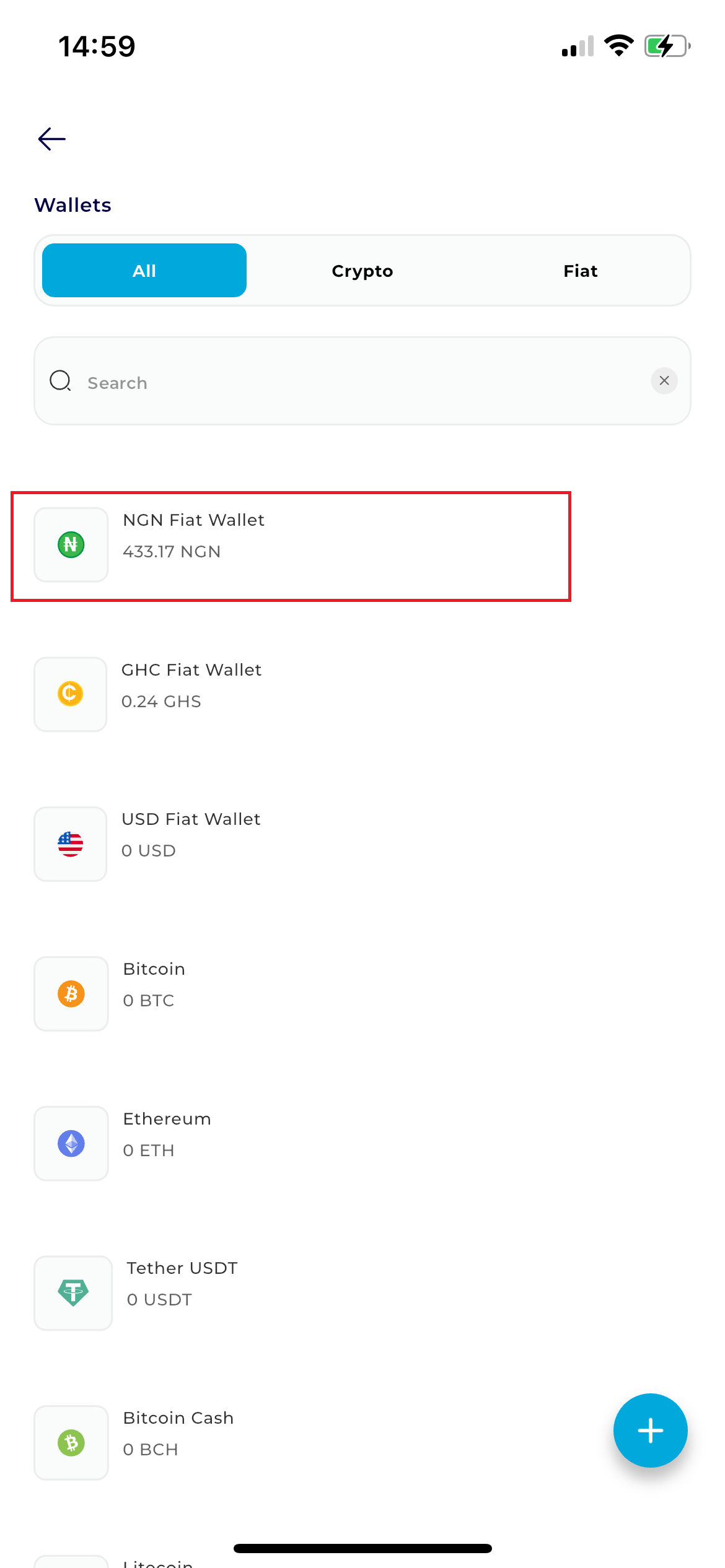
Step 5: Choose Voucher Method
A panel labeled " Fund Wallet" will appear. From the list of options (Bank, P2P, etc.), select Fund with a Voucher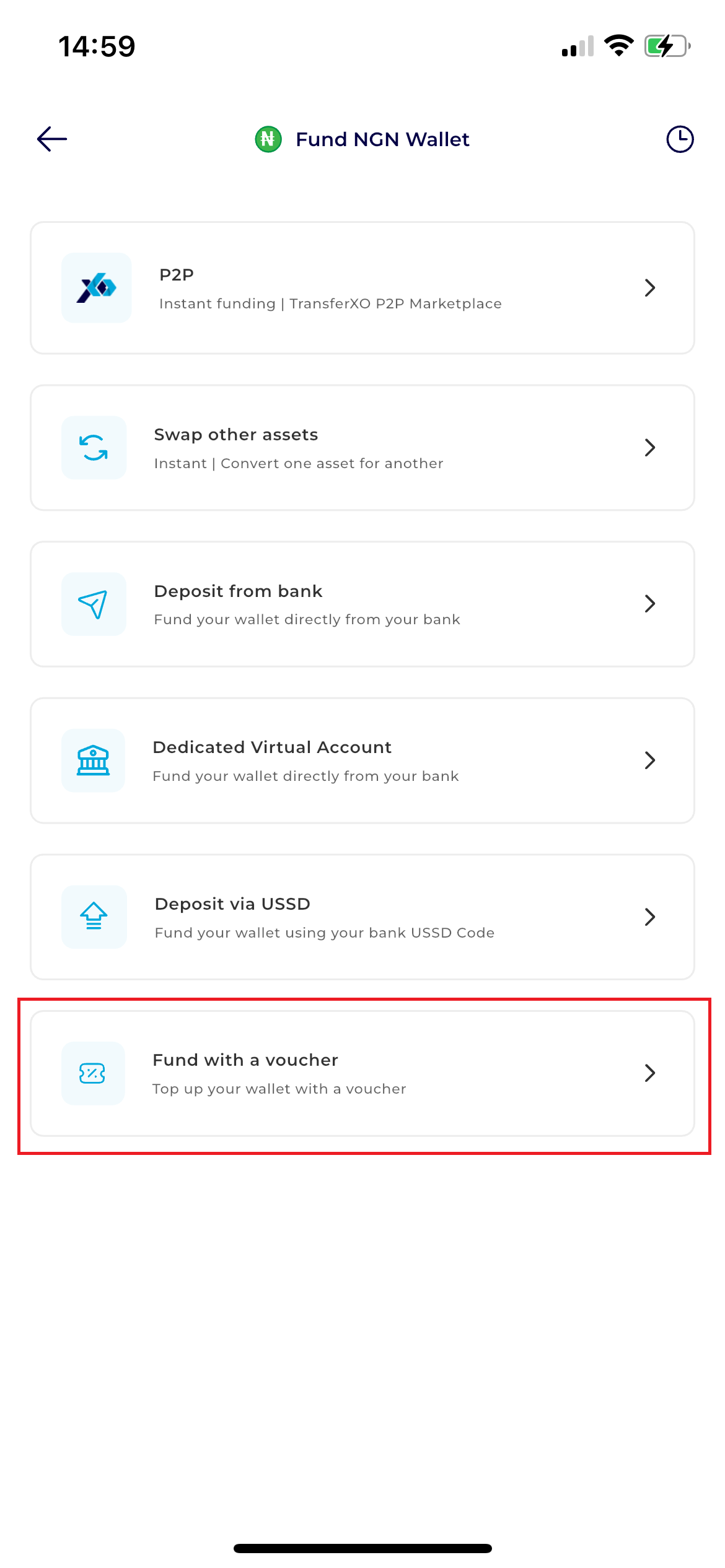
Step 6: Input Voucher Code
Carefully type or paste your voucher code into the designated field.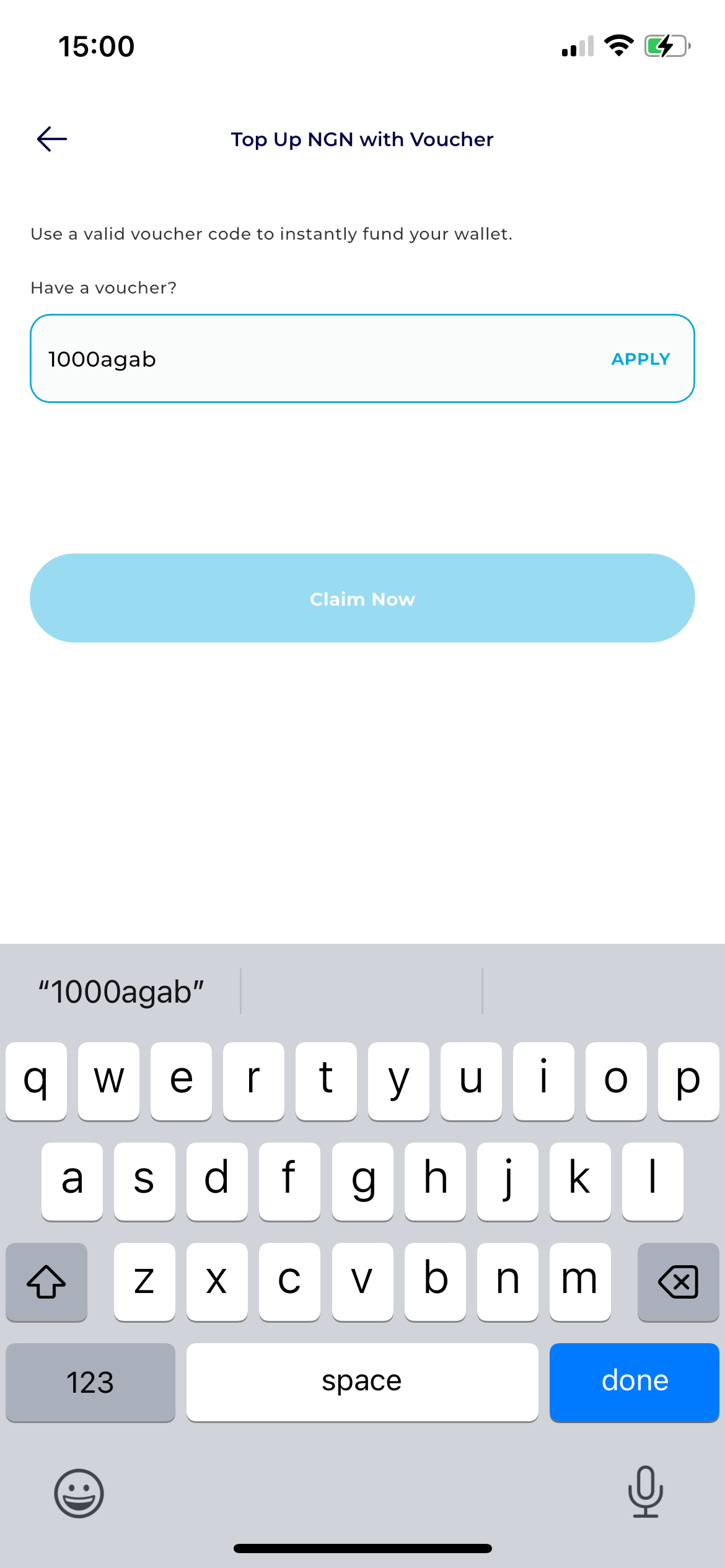
Step 7: Validate
Tap the Apply button. The system will verify the code's validity and display the value it holds.
Step 8:Finalize Claim
Once the value is confirmed, tap Claim Now.
.