


Follow the steps below to add a new payment method via the mobile app.
Step 1: Open the TransferXO Mobile App
Launch the TransferXO app on your mobile device.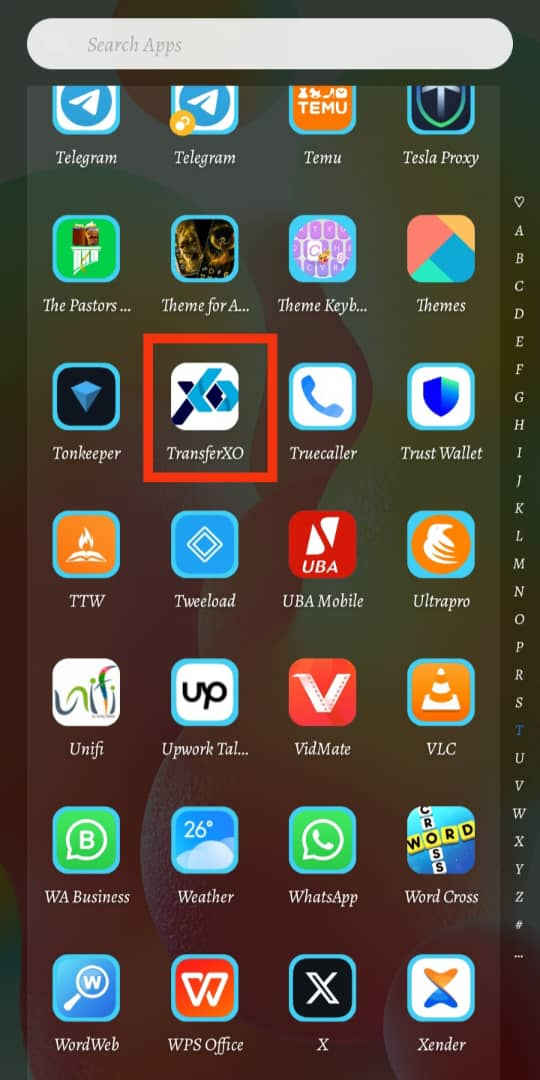
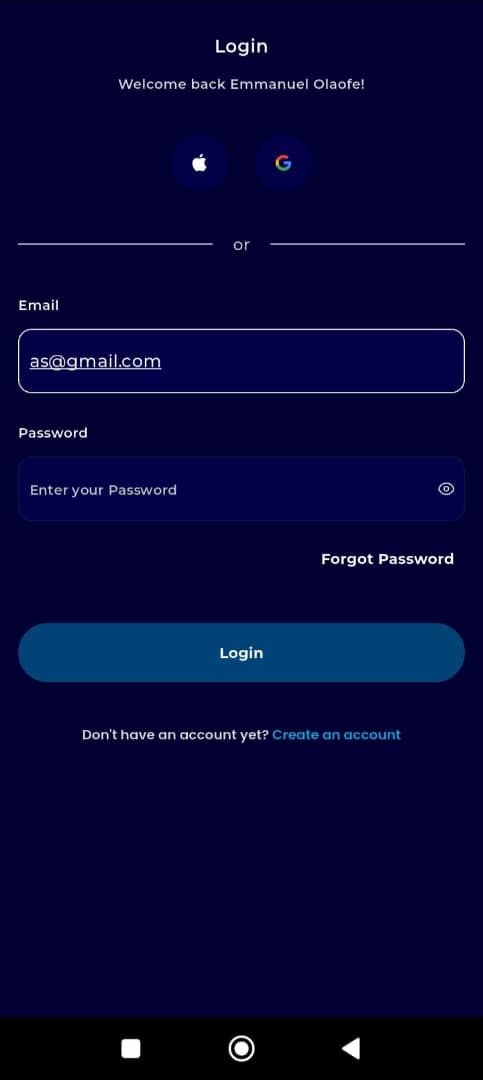
Step 2: Log In to Your Account
Enter your email address and password in the provided fields.
If you registered using Gmail or Apple ID, select the corresponding option to log in.
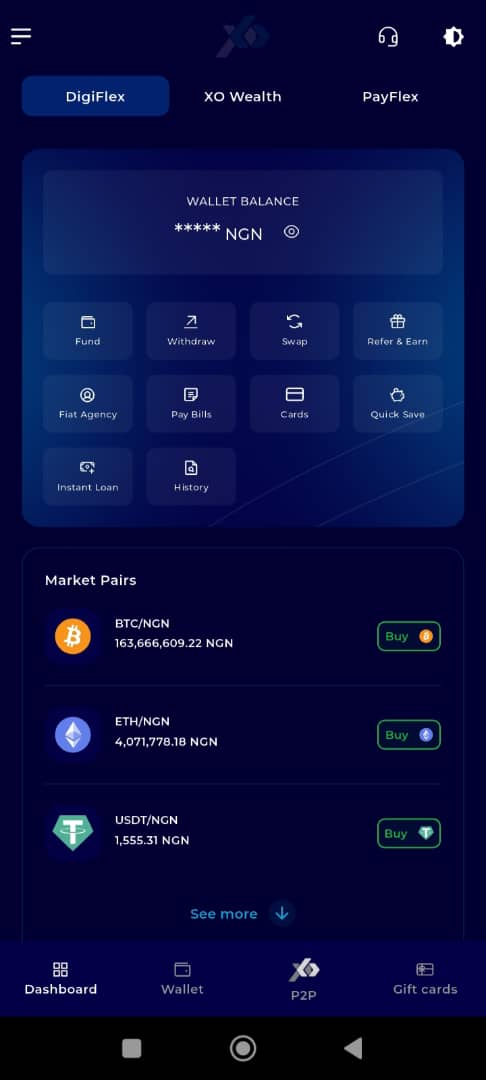
Step 3: Go to Your Dashboard
Once logged in, you’ll be directed to your dashboard.
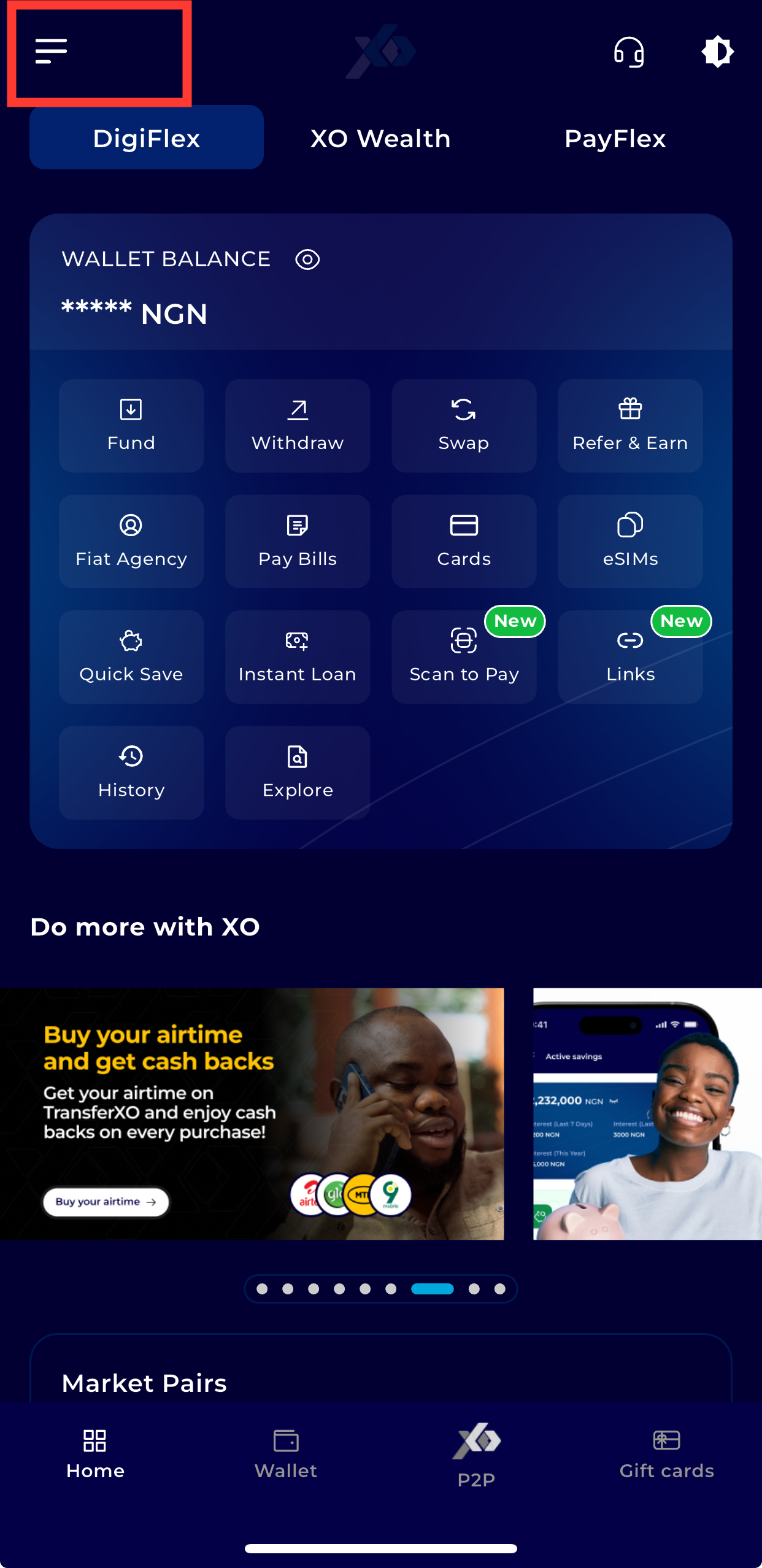
Step 4: Open the Menu
Tap the menu icon (three horizontal lines) at the top-left corner of the screen.
Step 5: Navigate to Settings
From the menu options, tap Settings.
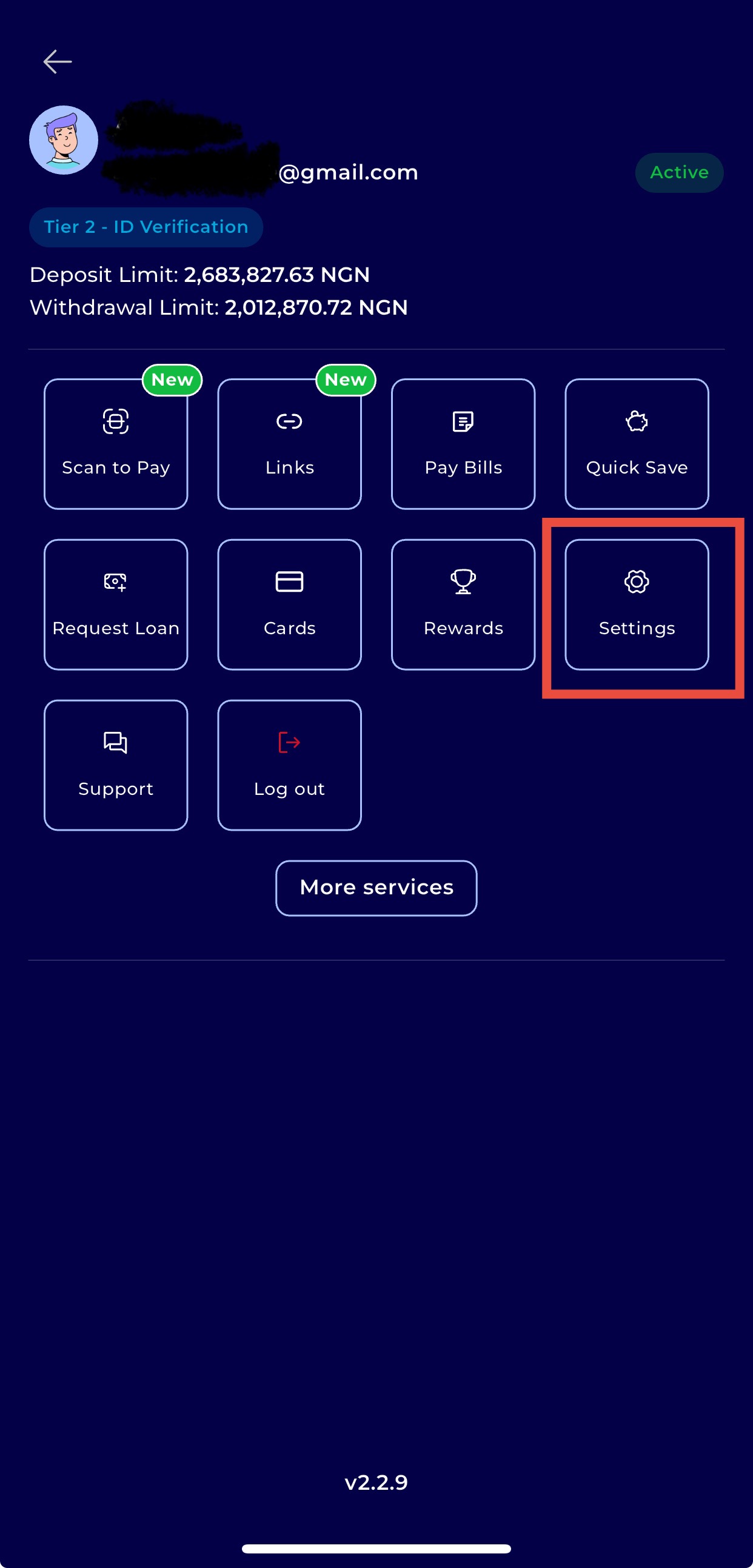
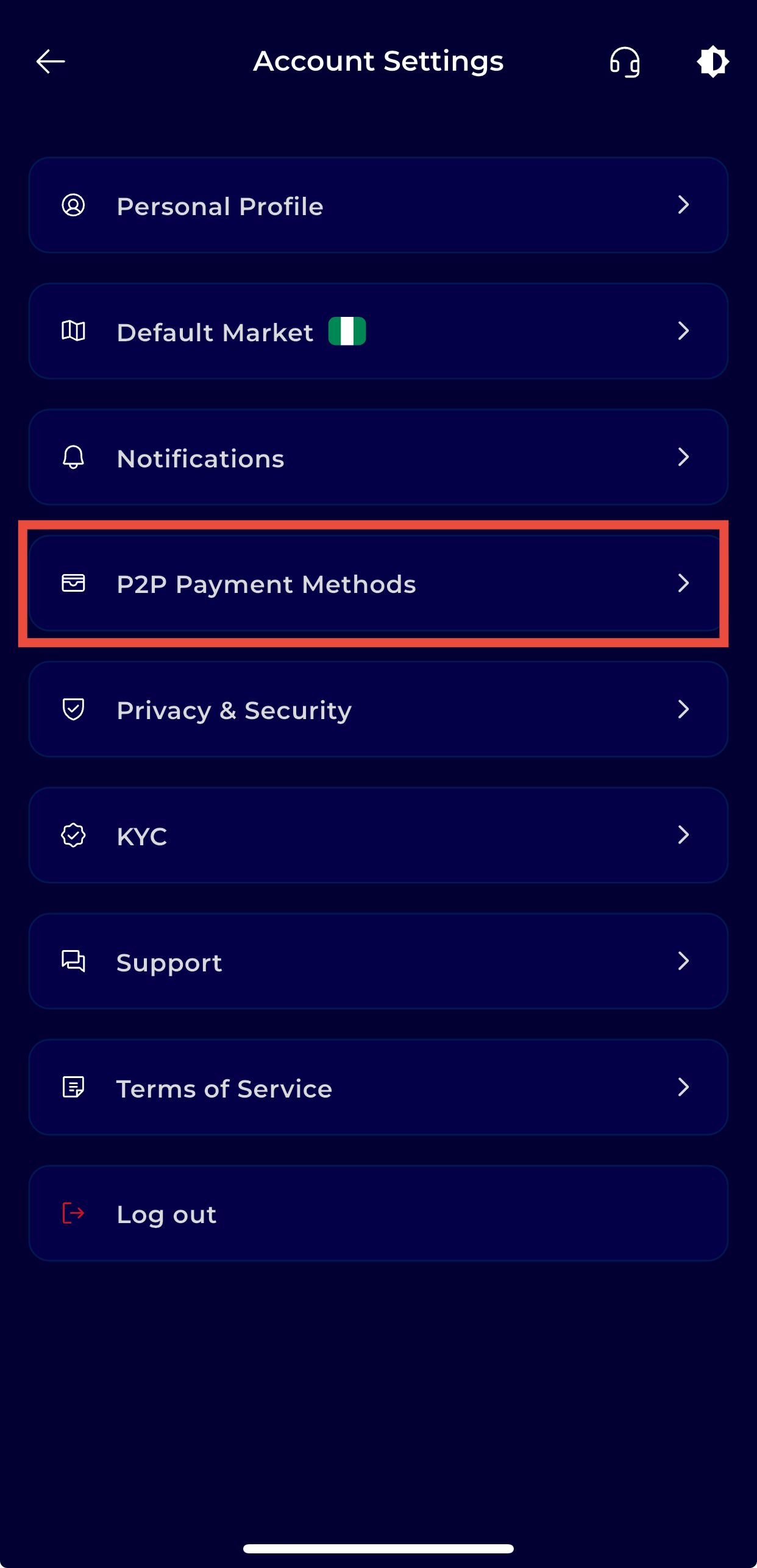
Step 6: Navigate to Payment Methods
Scroll down and click on P2P Payment Methods to view and manage your saved payment options.
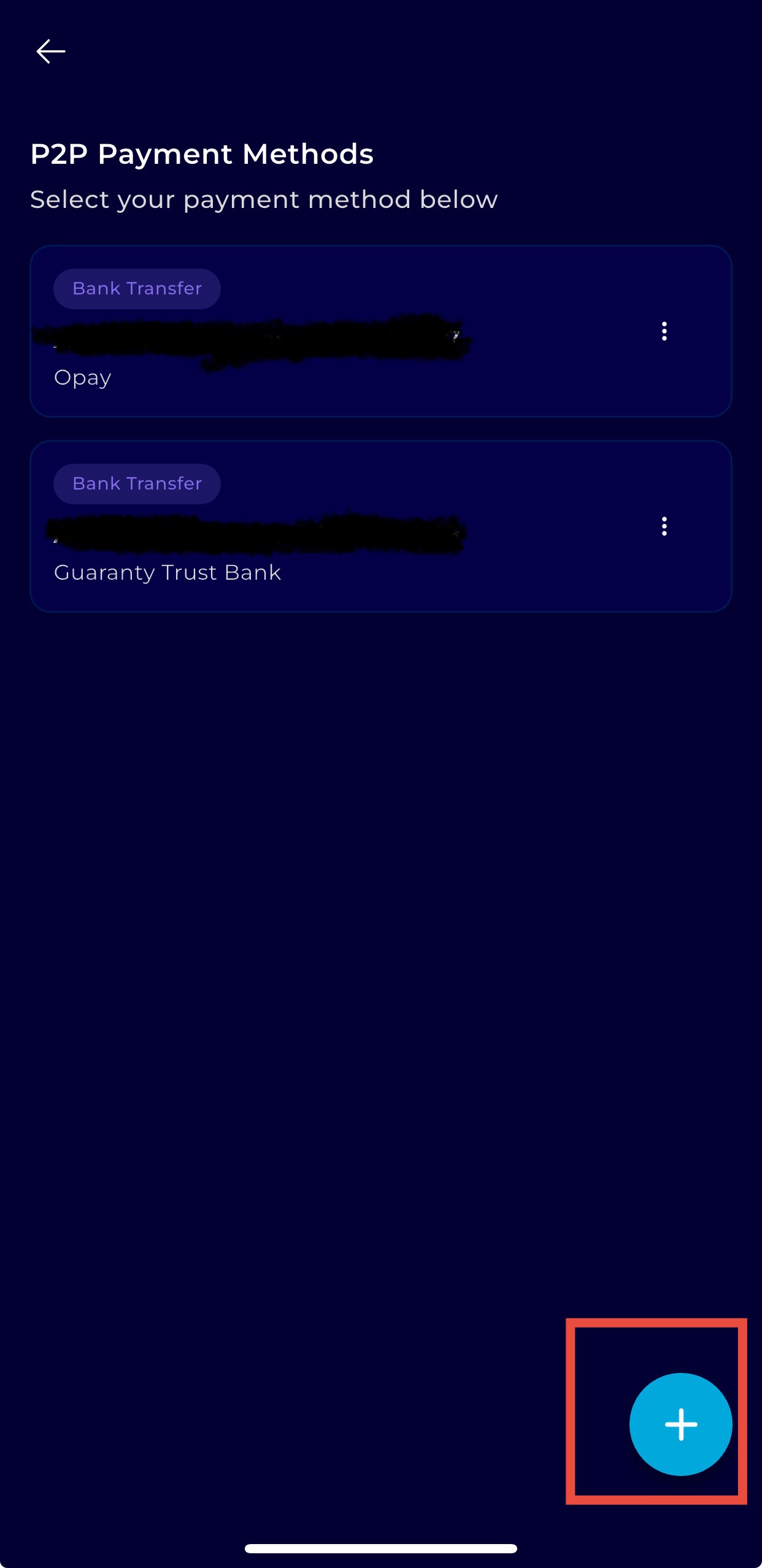
Step 7: Add a New Payment Method
Click the plus sign to Add New and select your preferred payment method.
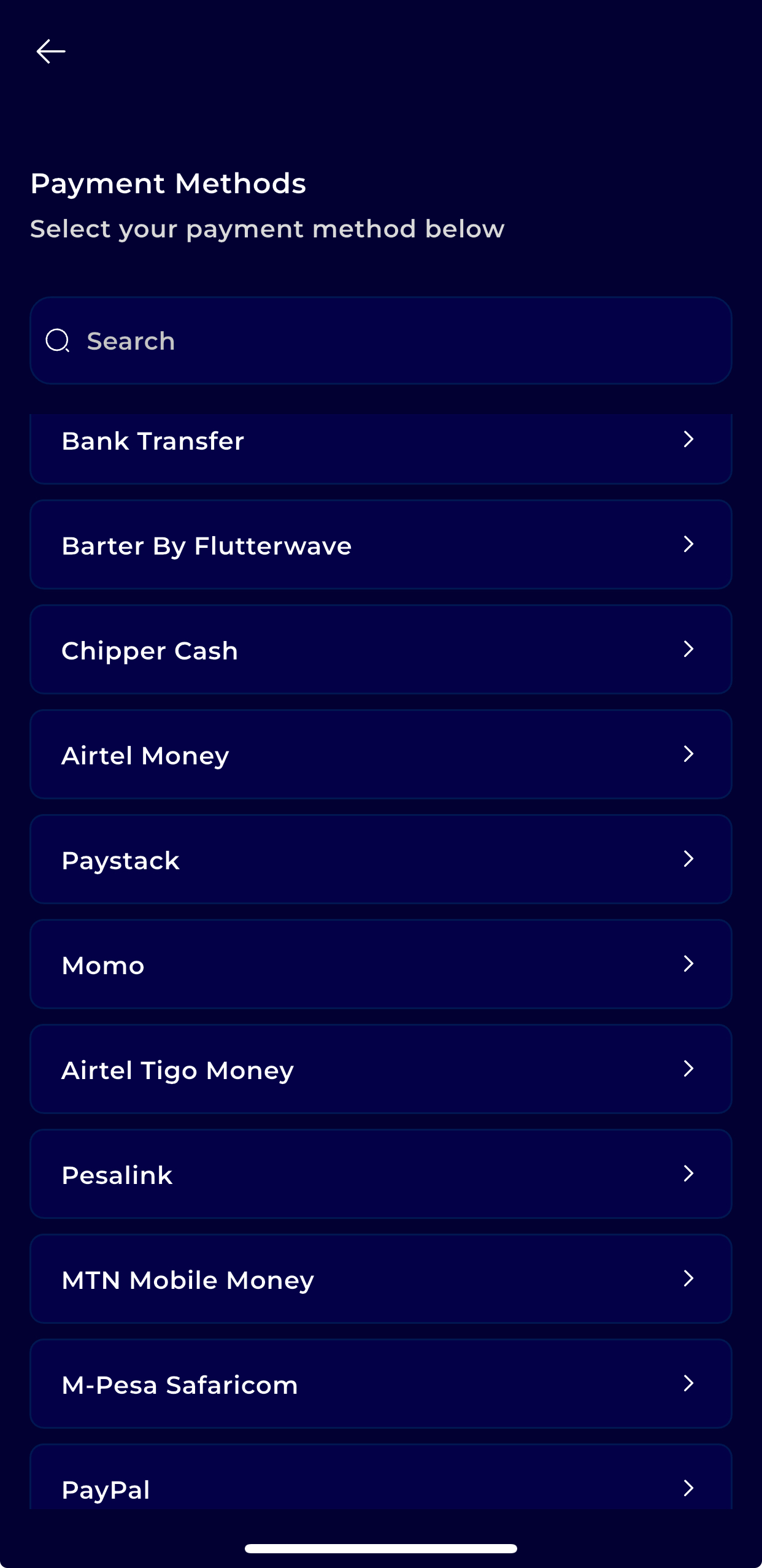
Step 8: Choose Payment Method
Select your preferred payment method from the options Provided.
Step 9: Enter Required Details
Fill in the necessary information for the selected payment method.
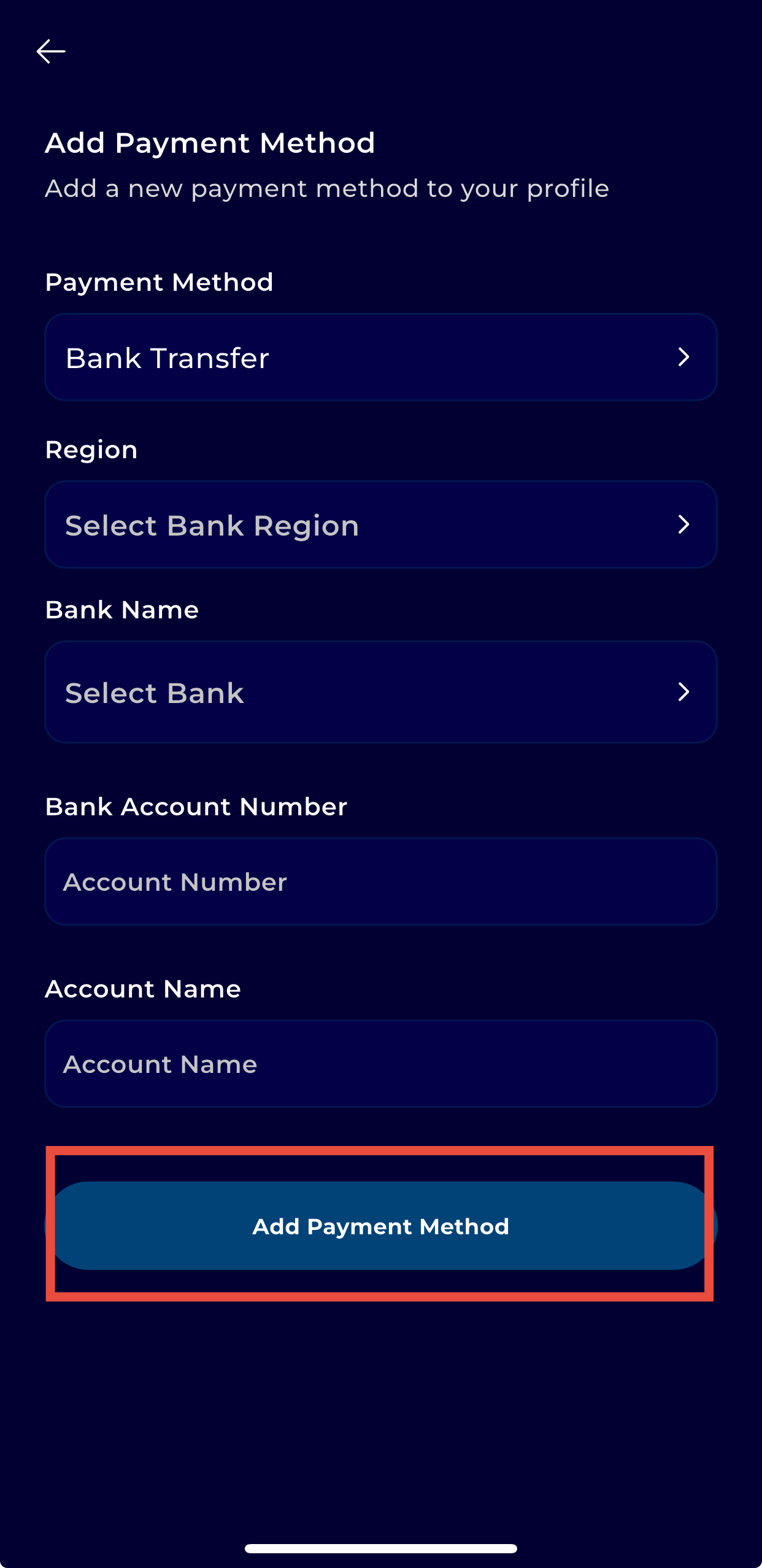
Step 10: Create Payment Method
Click Add Payment Method to save your details.
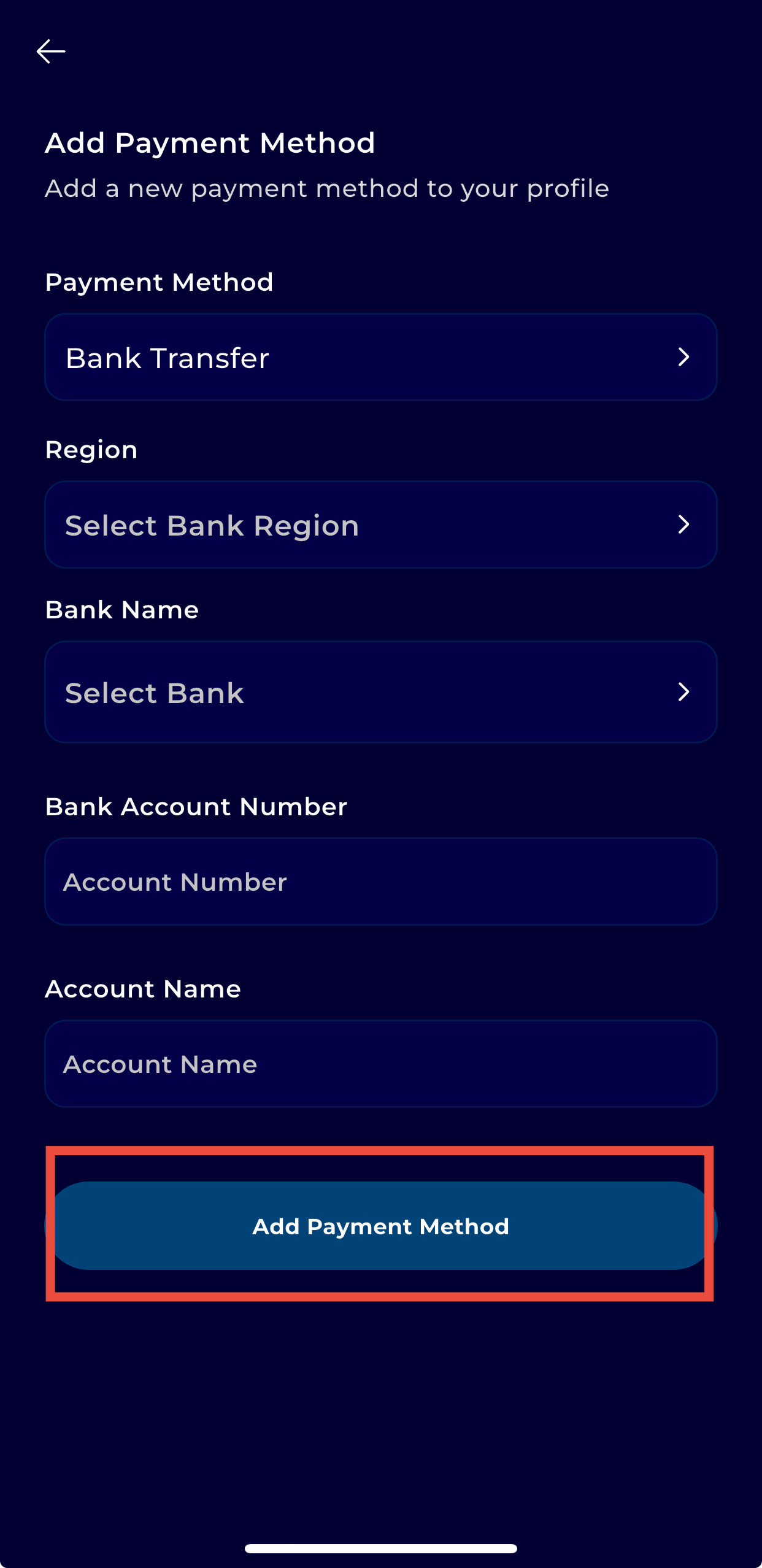
Your new payment method will now be available for use on TransferXO.