


Stay updated by enabling notifications on your TransferXO account. Follow these steps:
Step 1: Open the TransferXO Mobile App
Launch the TransferXO app on your mobile device.
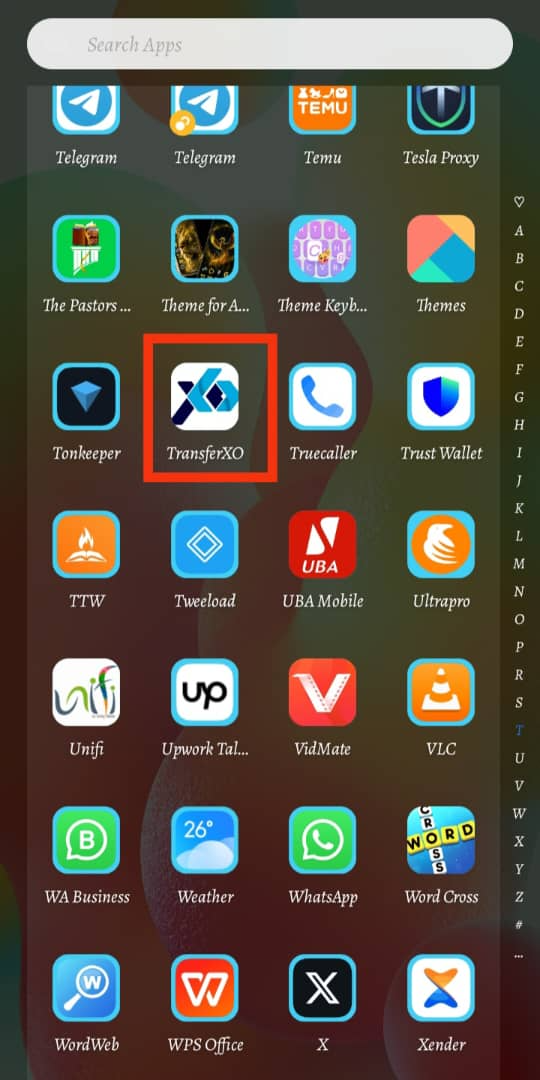
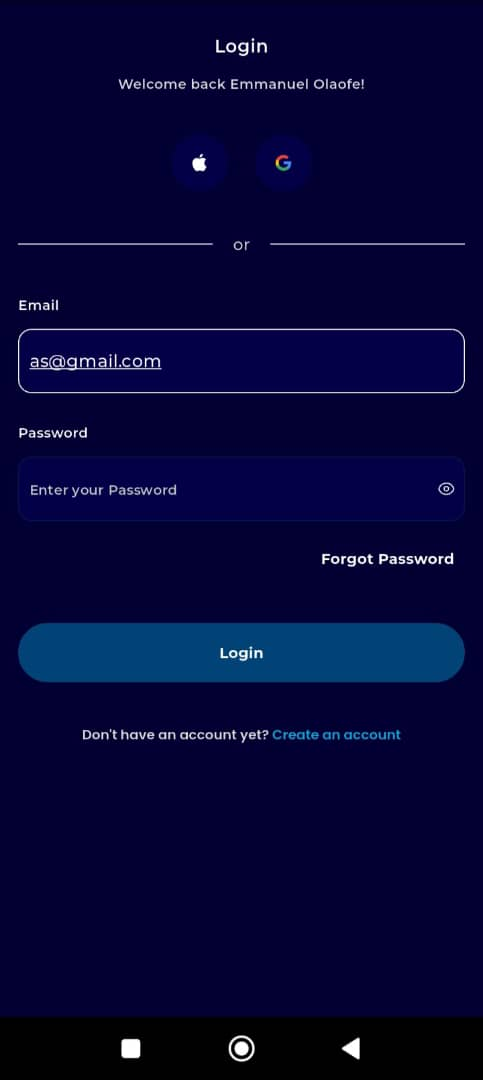
Step 2: Log In to Your Account
Enter your email address and password in the provided fields.
If you registered using Gmail or Apple ID, select the corresponding option to log in.
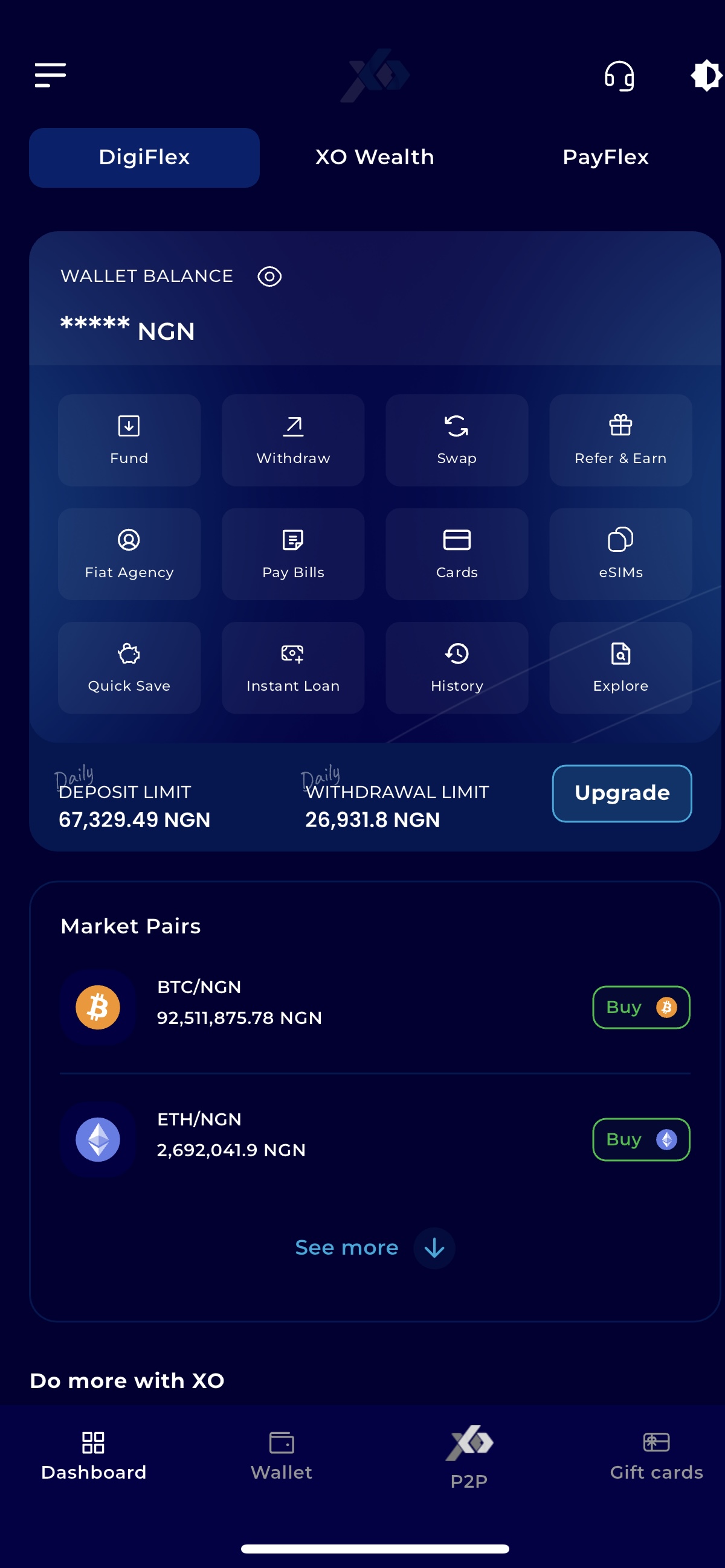
Step 3: Go to Your Dashboard
Once logged in, you’ll be directed to your dashboard.
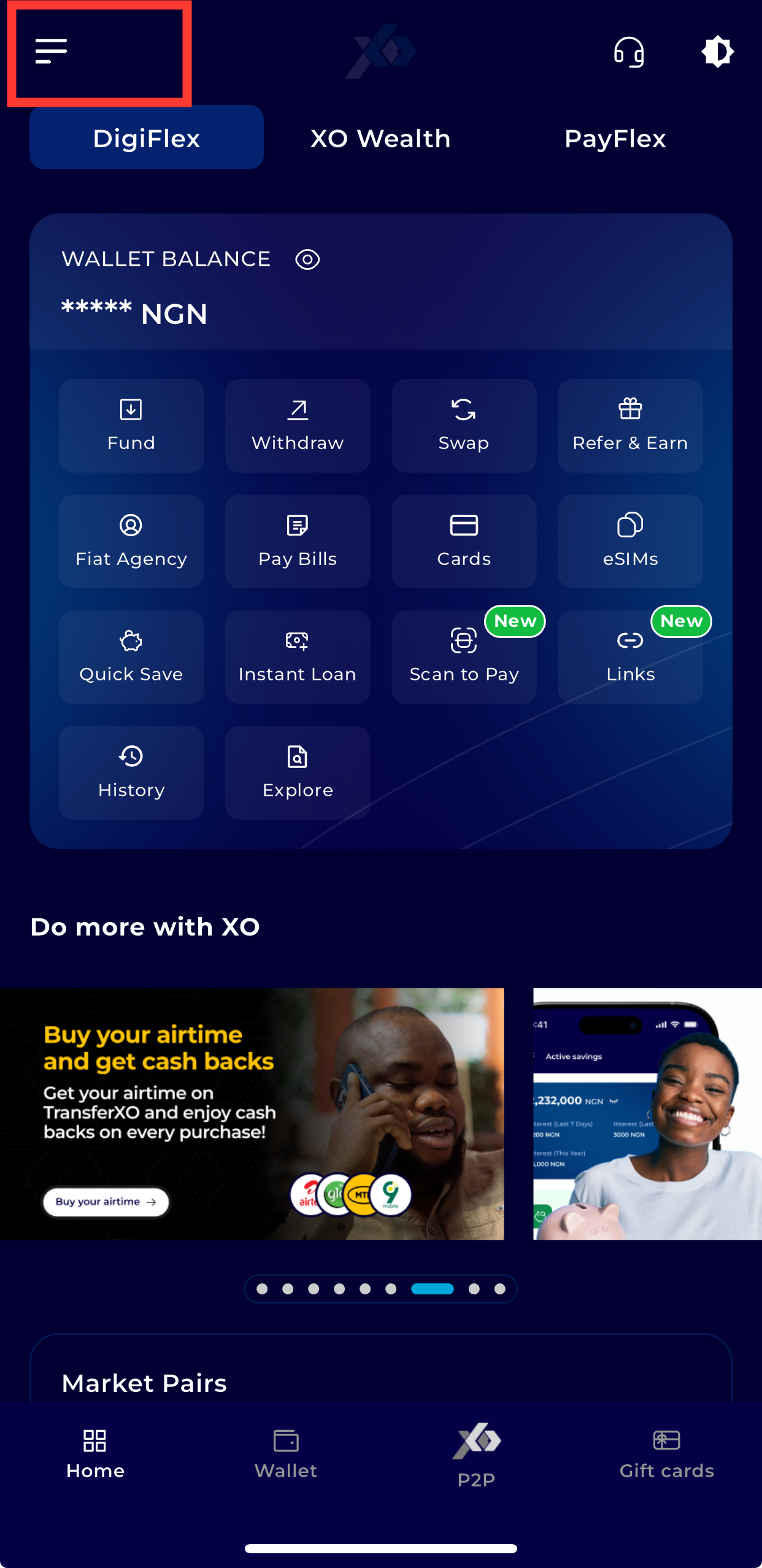
Step 4: Open the Menu
Tap the menu icon (three horizontal lines) at the top-left corner of the screen.
Step 5: Navigate to Settings
From the menu options, tap Settings.
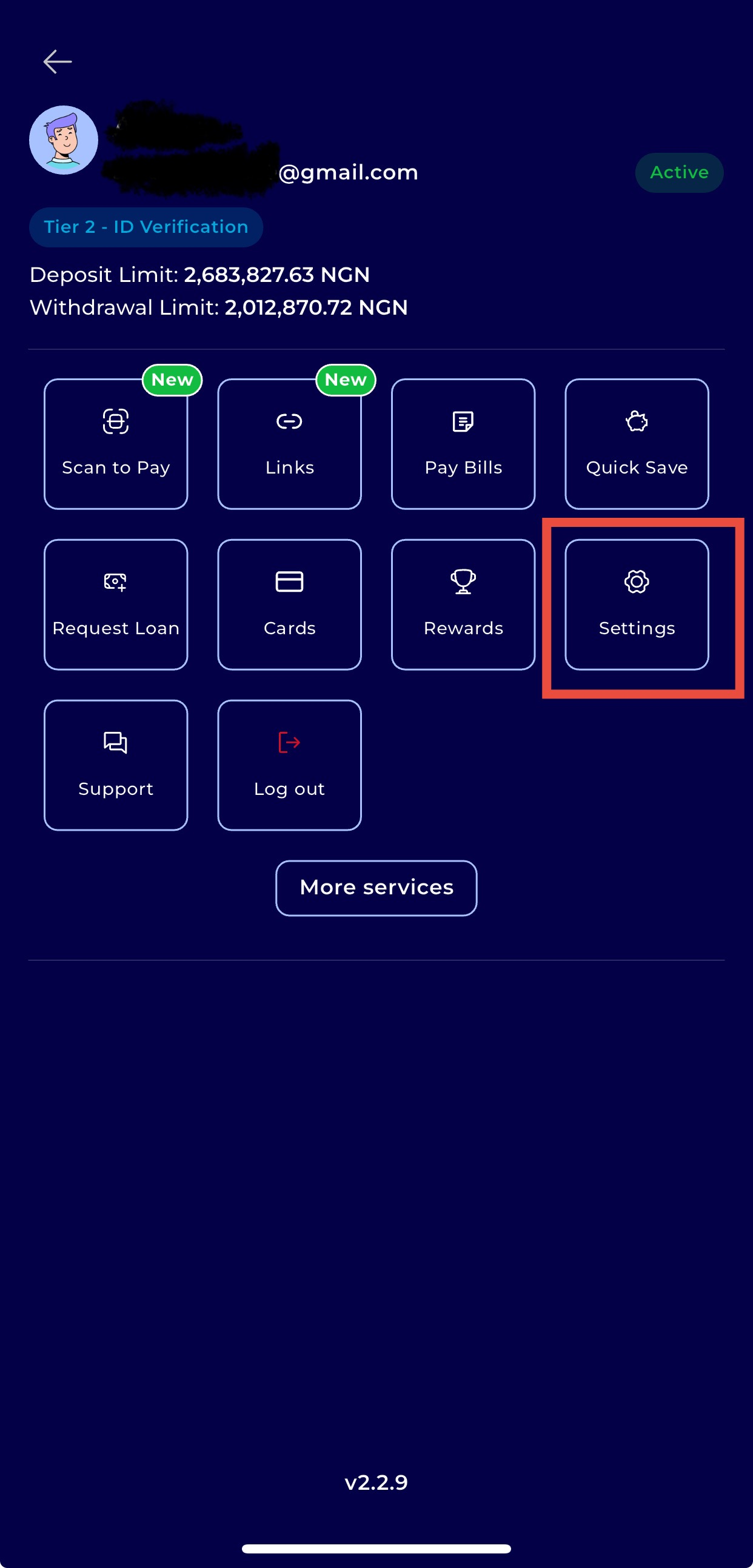
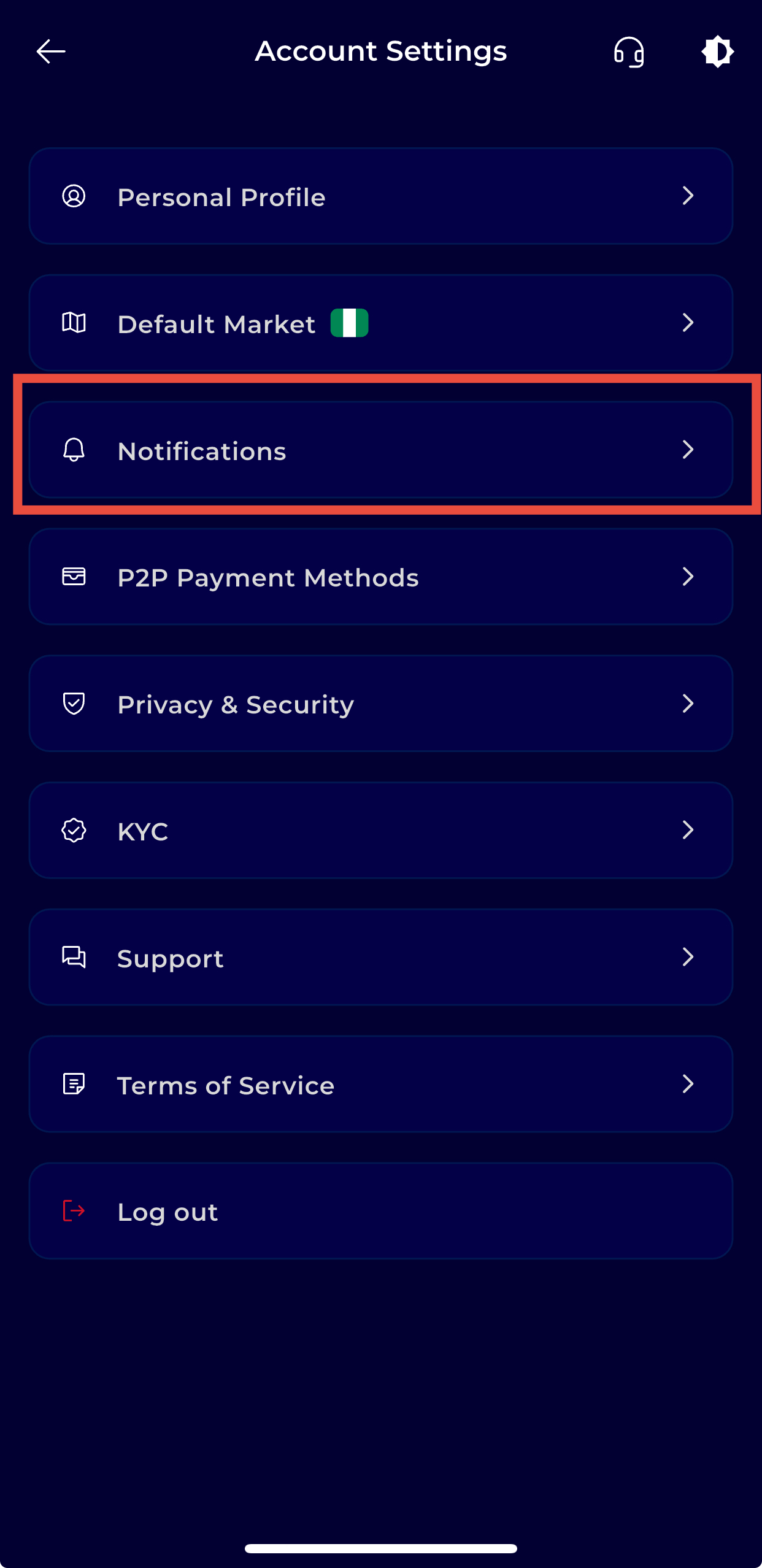
Step 6: Navigate to Notification Settings
Select Notifications to view available notification options.
Step 7: Enable or Disable Notifications
Use the toggle buttons to activate or deactivate notifications based on your preference.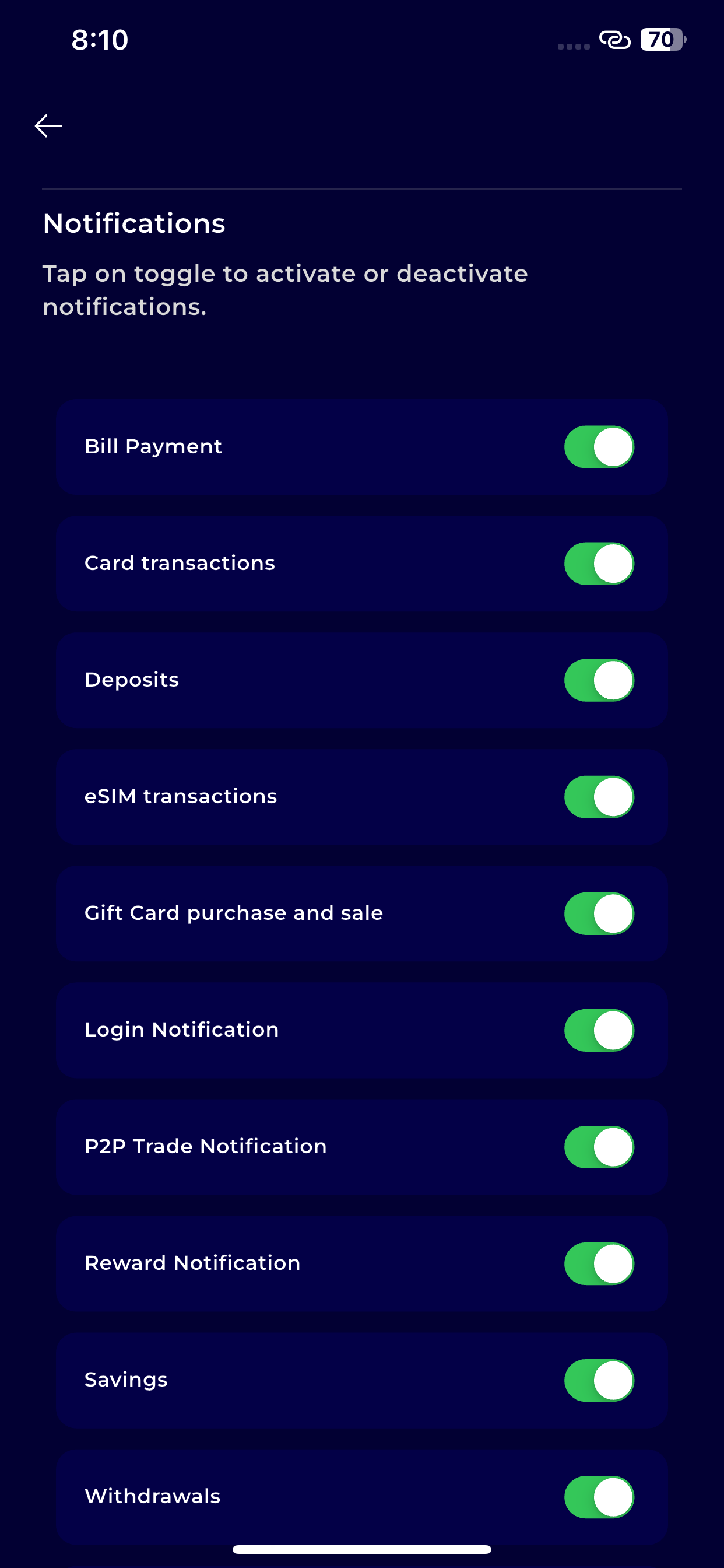
Once enabled, you’ll receive timely alerts about important activities and updates on your TransferXO account.