


Stay updated by enabling notifications on your TransferXO account. Follow these steps:
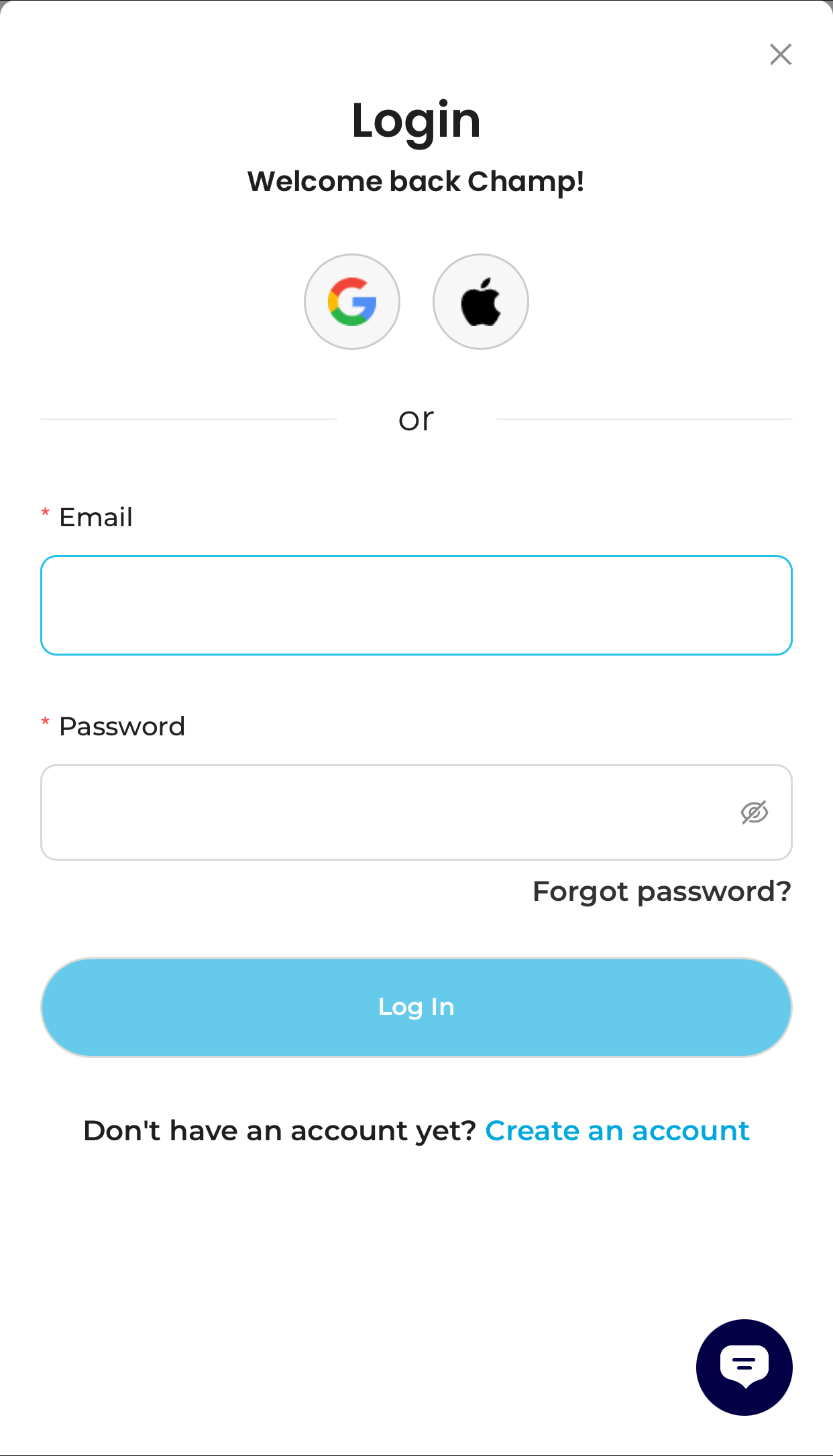
Step 1: Open the TransferXO Web App
Log in to your TransferXO account via your browser.
Step 2: Go to Your Dashboard
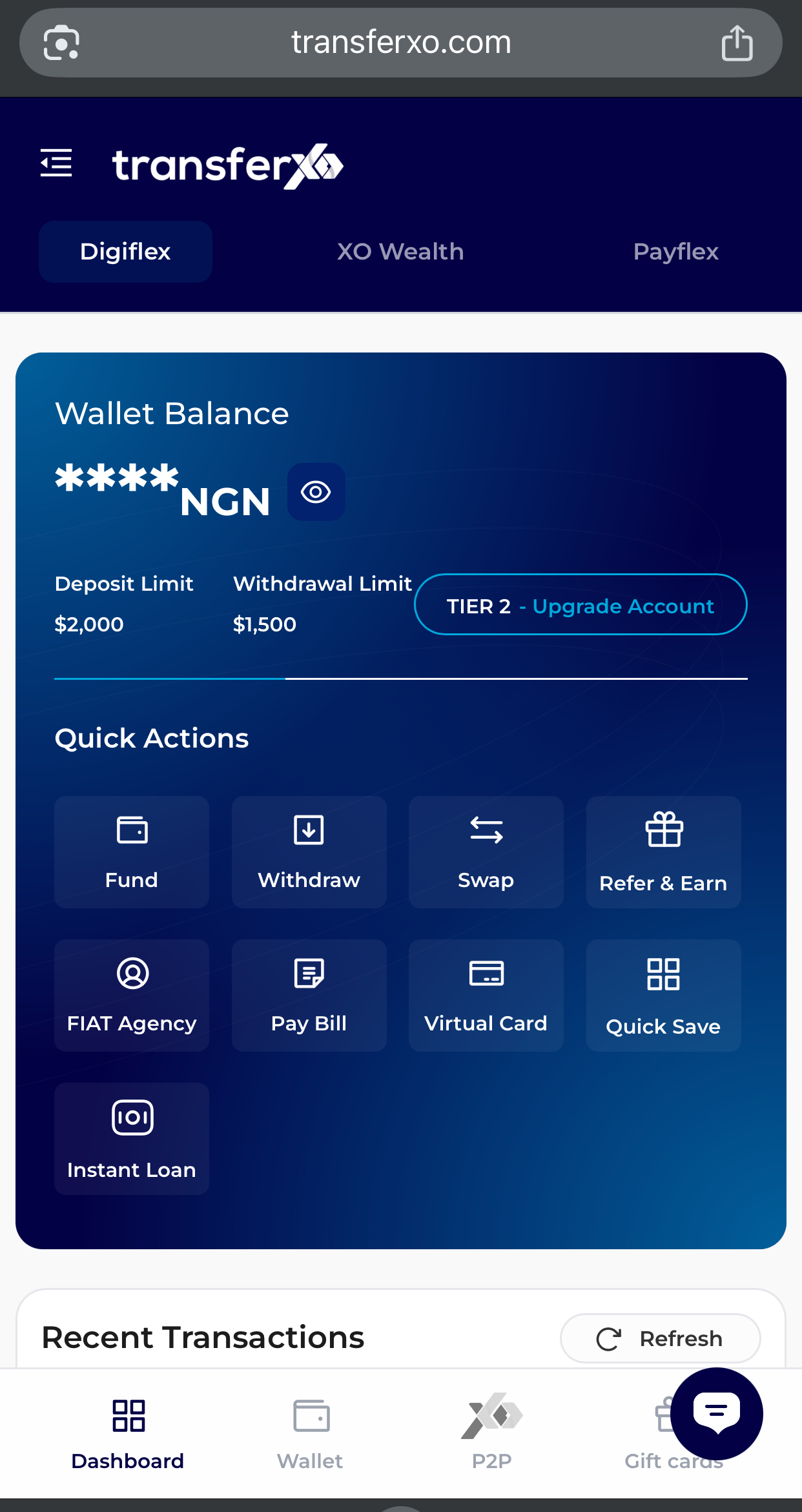
Once logged in, you’ll land on your dashboard, where you can view your account overview.
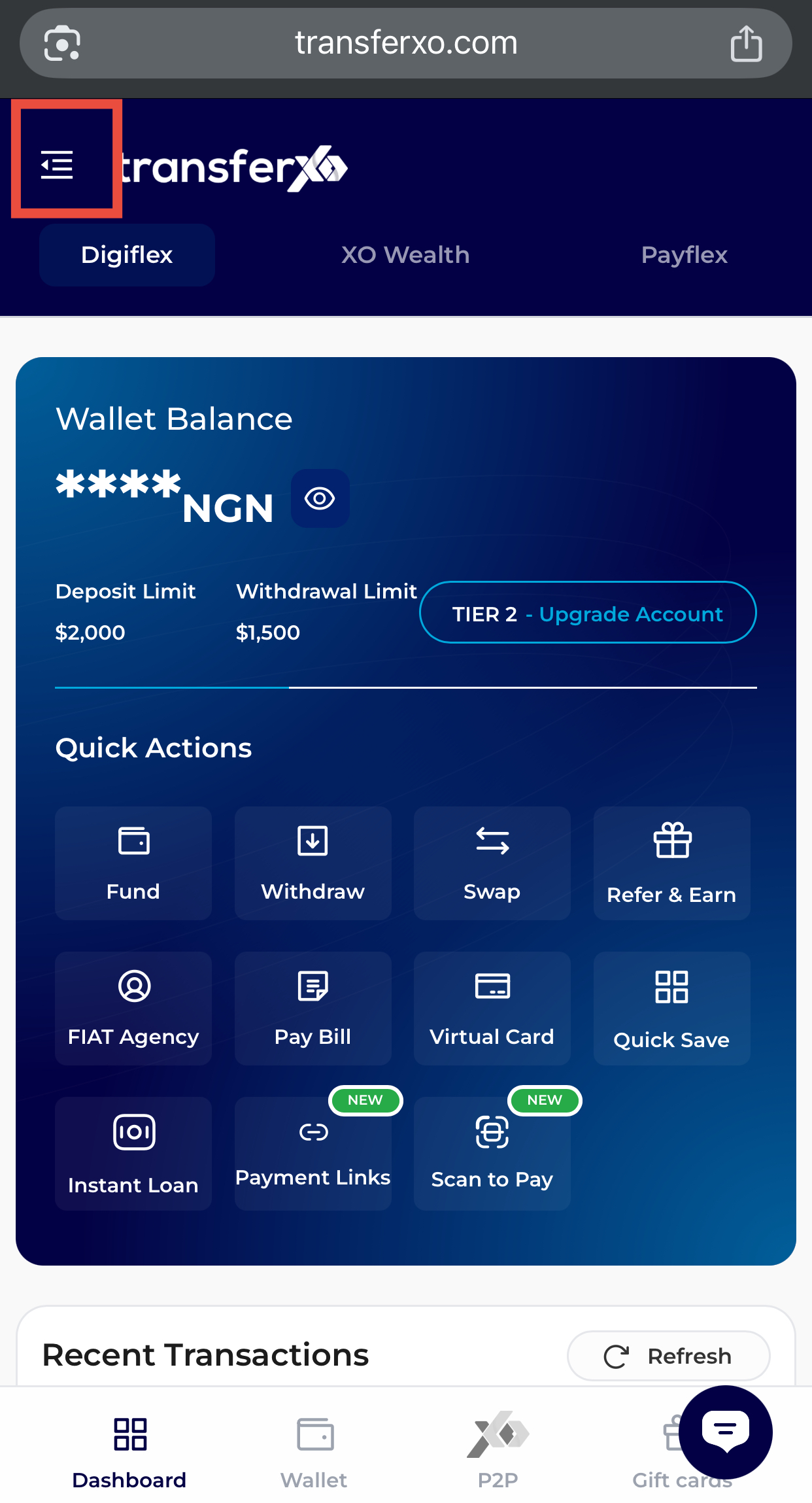
Step 3: Access Account Settings
- Tap the menu icon (four horizontal lines) at the top-left corner of the screen.
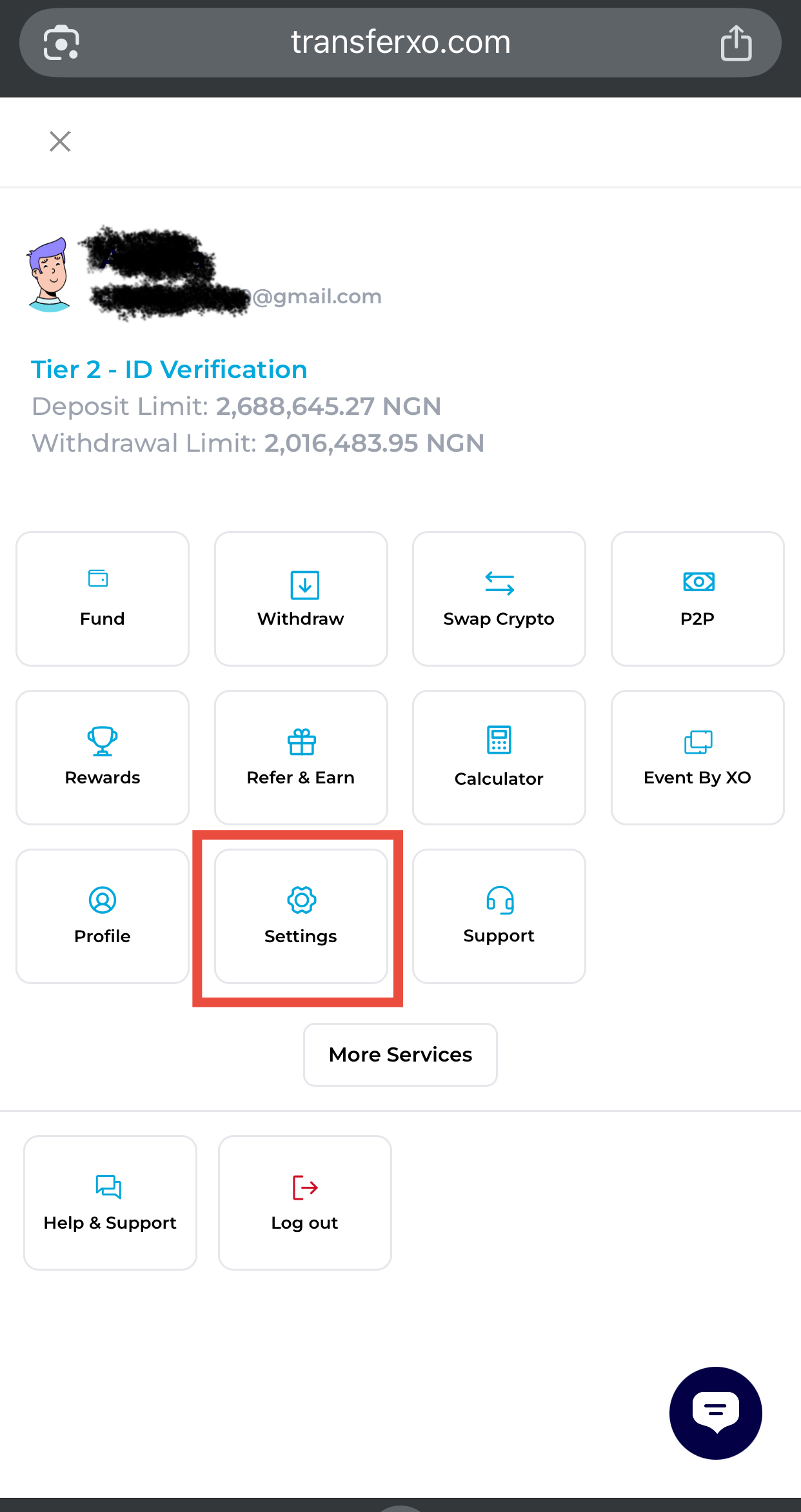
Step Four: Navigate to Settings
Scroll down and select Settings to view options.
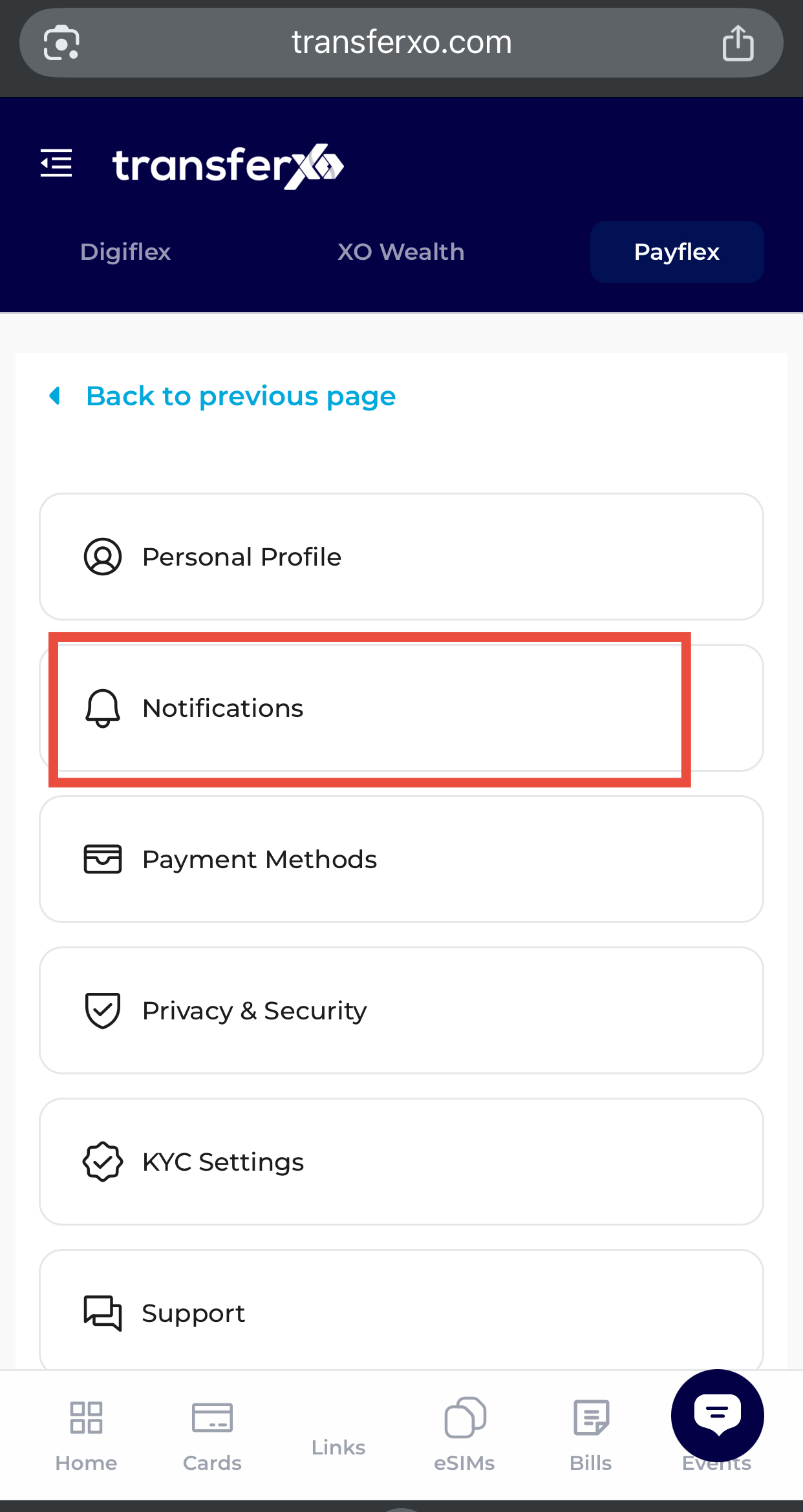
Step 5: Navigate to Notification Settings
Select Notifications to view available notification options.
Step 6: Enable or Disable Notifications
Use the toggle buttons to activate or deactivate notifications based on your preference.
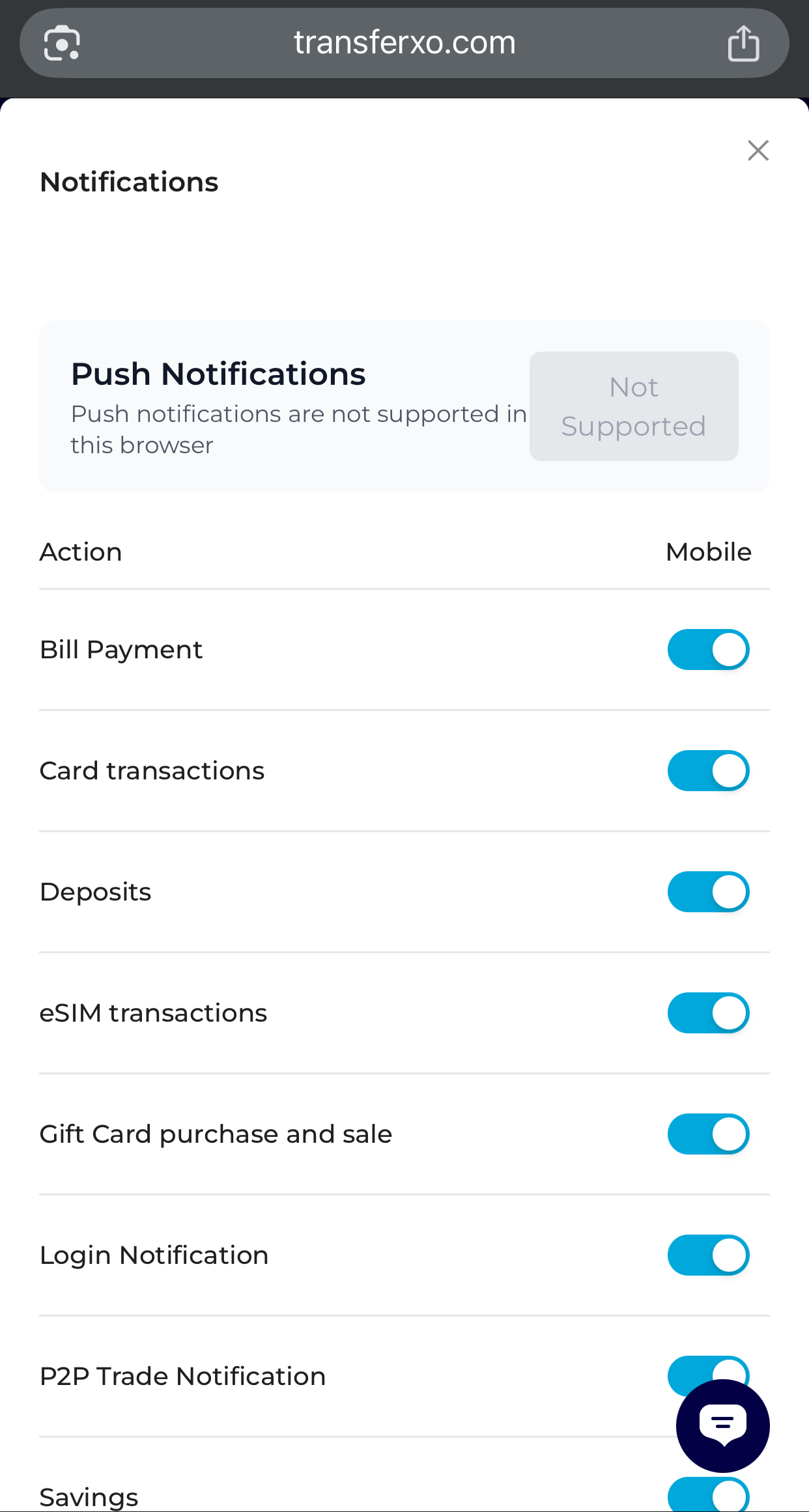
Once enabled, you’ll get timely notifications about important account activities and updates.