


Follow these simple steps to change your profile image on TransferXO:
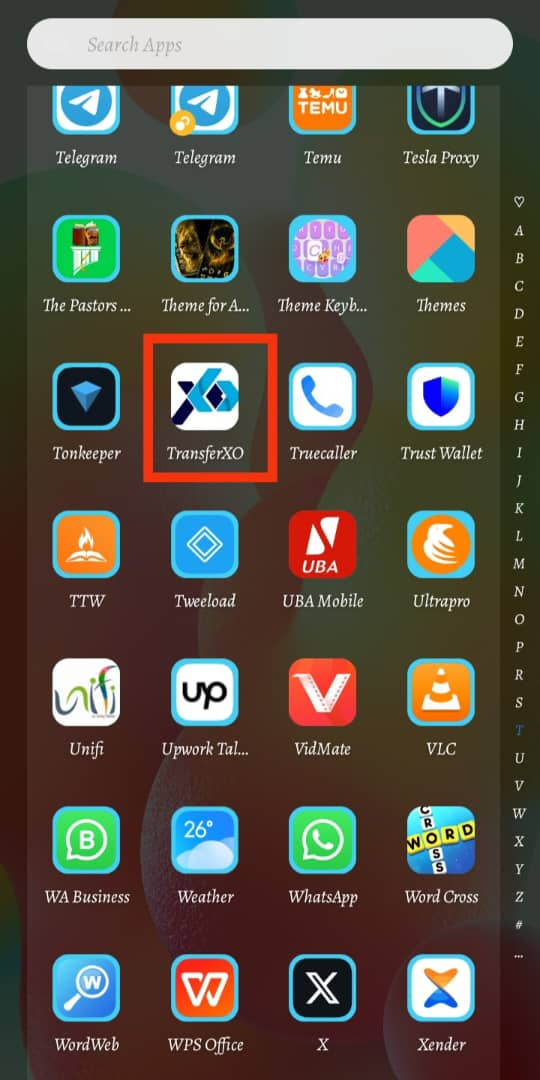
Step 1: Open the TransferXO Mobile App
Launch the TransferXO app on your mobile device.
Step 2: Log In to Your Account
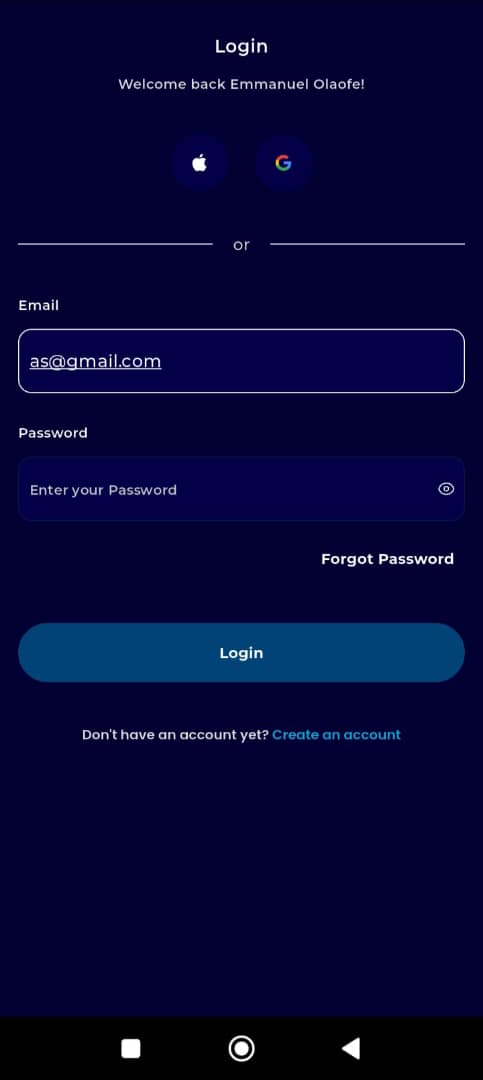
Enter your email and password on the login screen.
If you registered using Gmail or Apple ID, tap the corresponding option to log in.
Step 3: Go to Your Dashboard
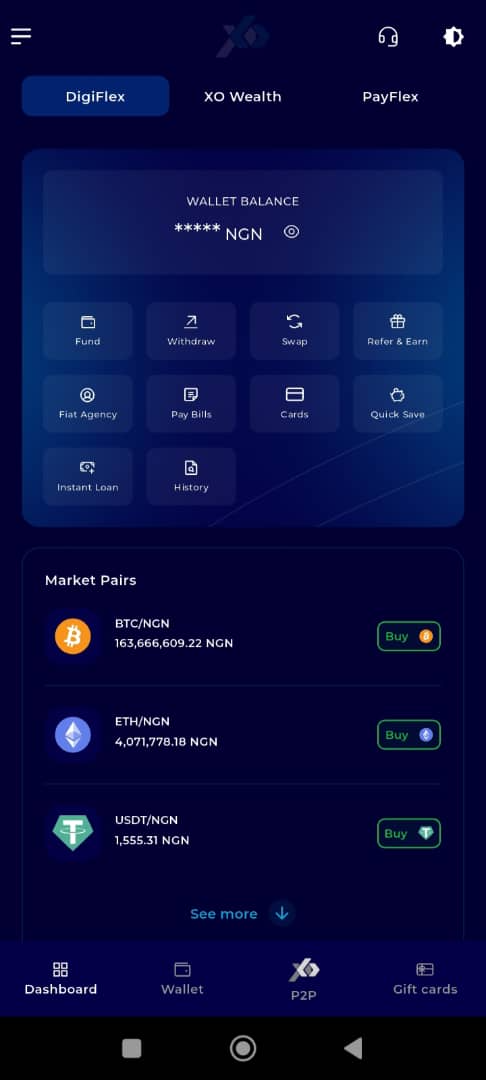
After logging in, you’ll be taken to your dashboard.
Step 4: Open the Menu
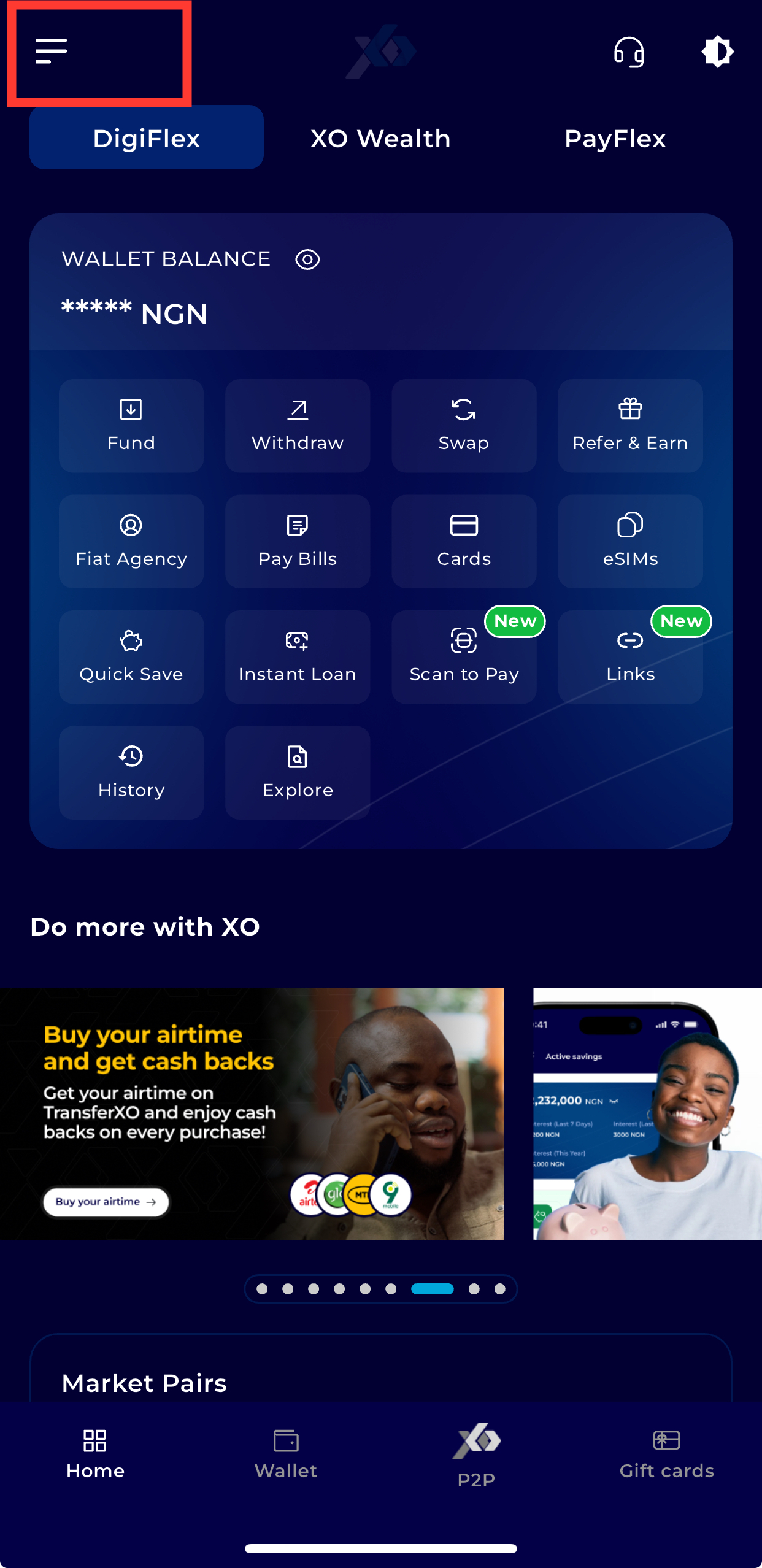
Tap the menu icon (three horizontal lines) at the top-left corner of the screen.
Step 5: Navigate to Settings
From the menu, tap Settings.
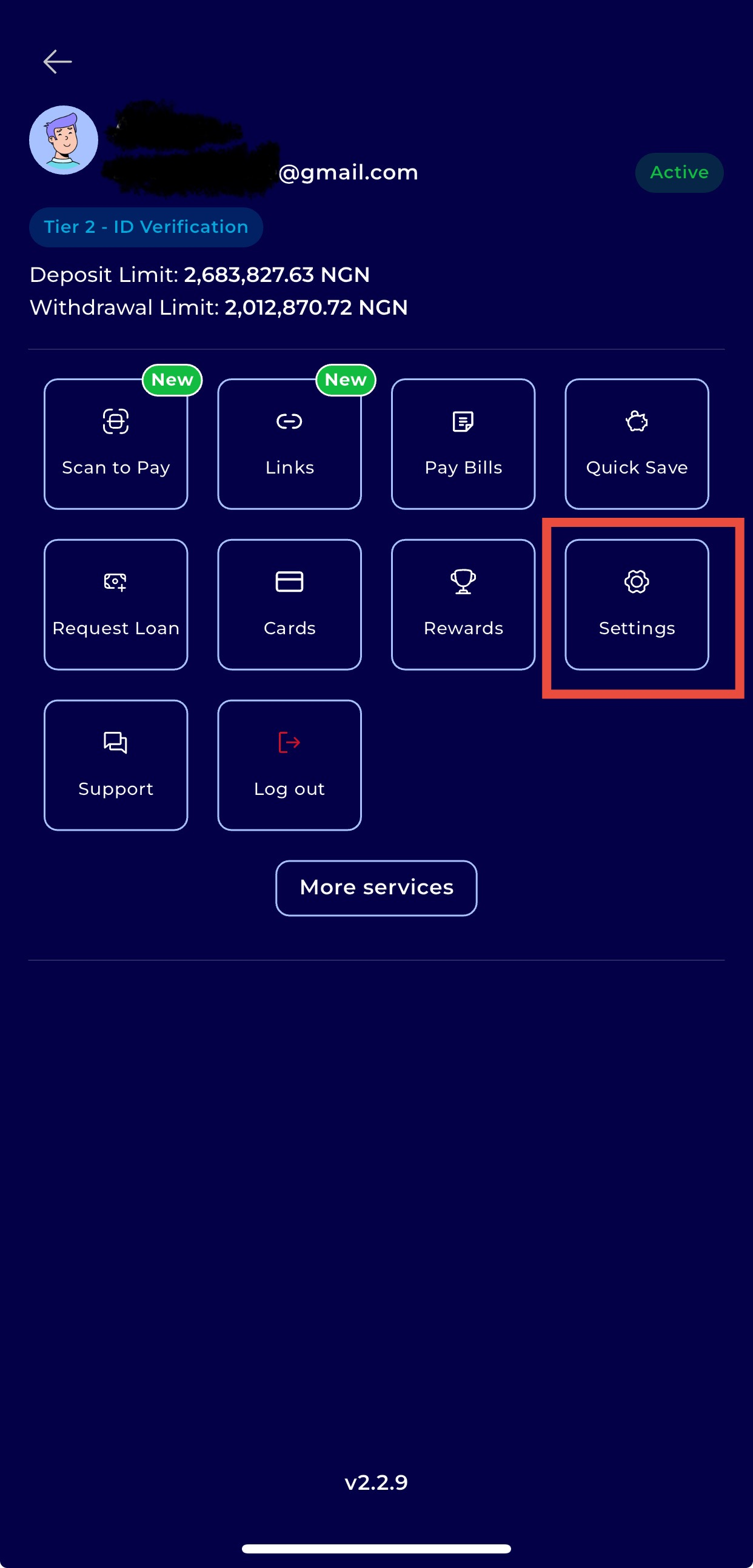
Step 6: Open Personal Profile
Select Personal Profile to manage your profile details.
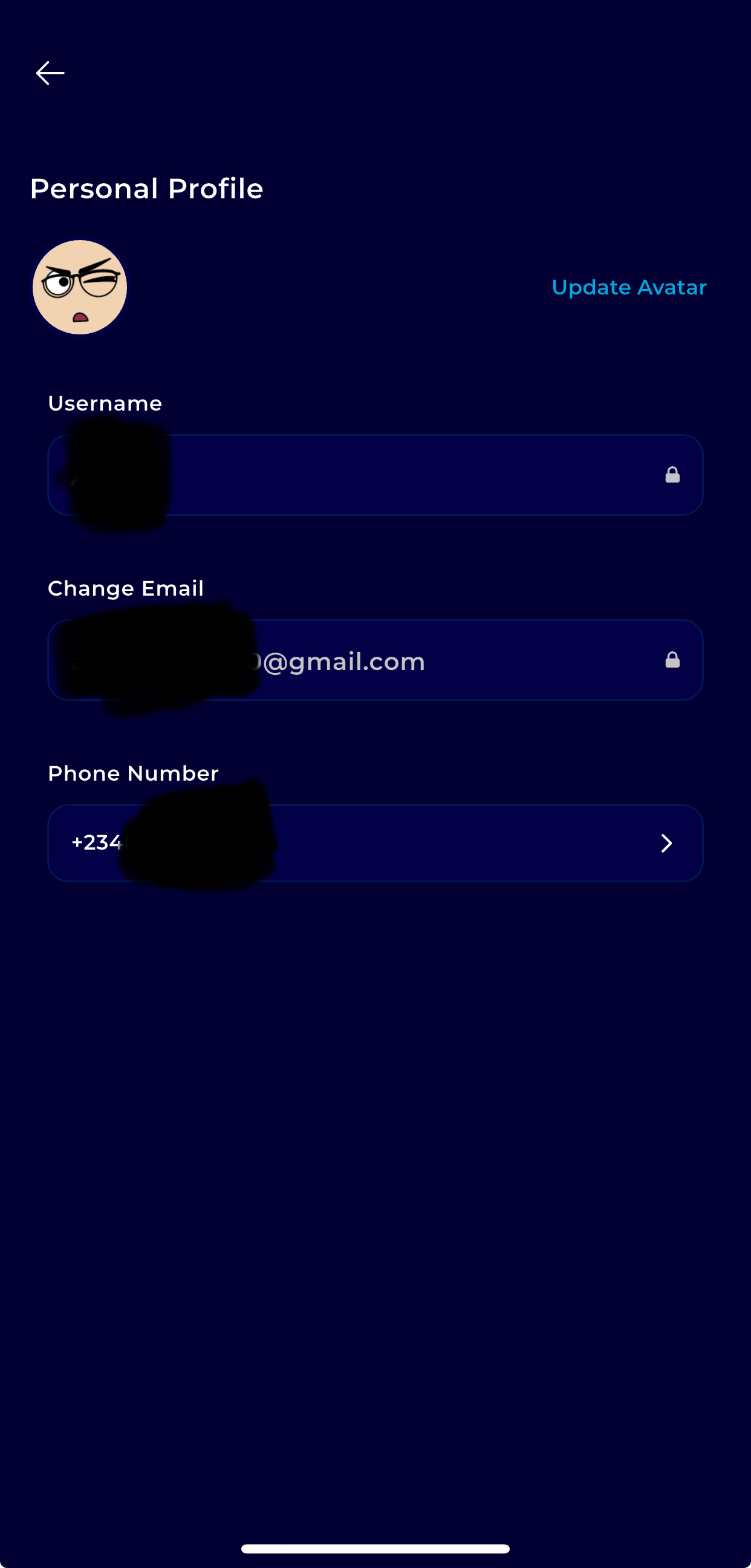
Step 7: Update Profile Image
Tap Update Avatar and choose your avatar image fromthe options.

Once selected, your profile image will be updated across the TransferXO platform.