


Updating your phone number on TransferXO is quick and easy. Follow these steps:
Step 1: Open the TransferXO Web App
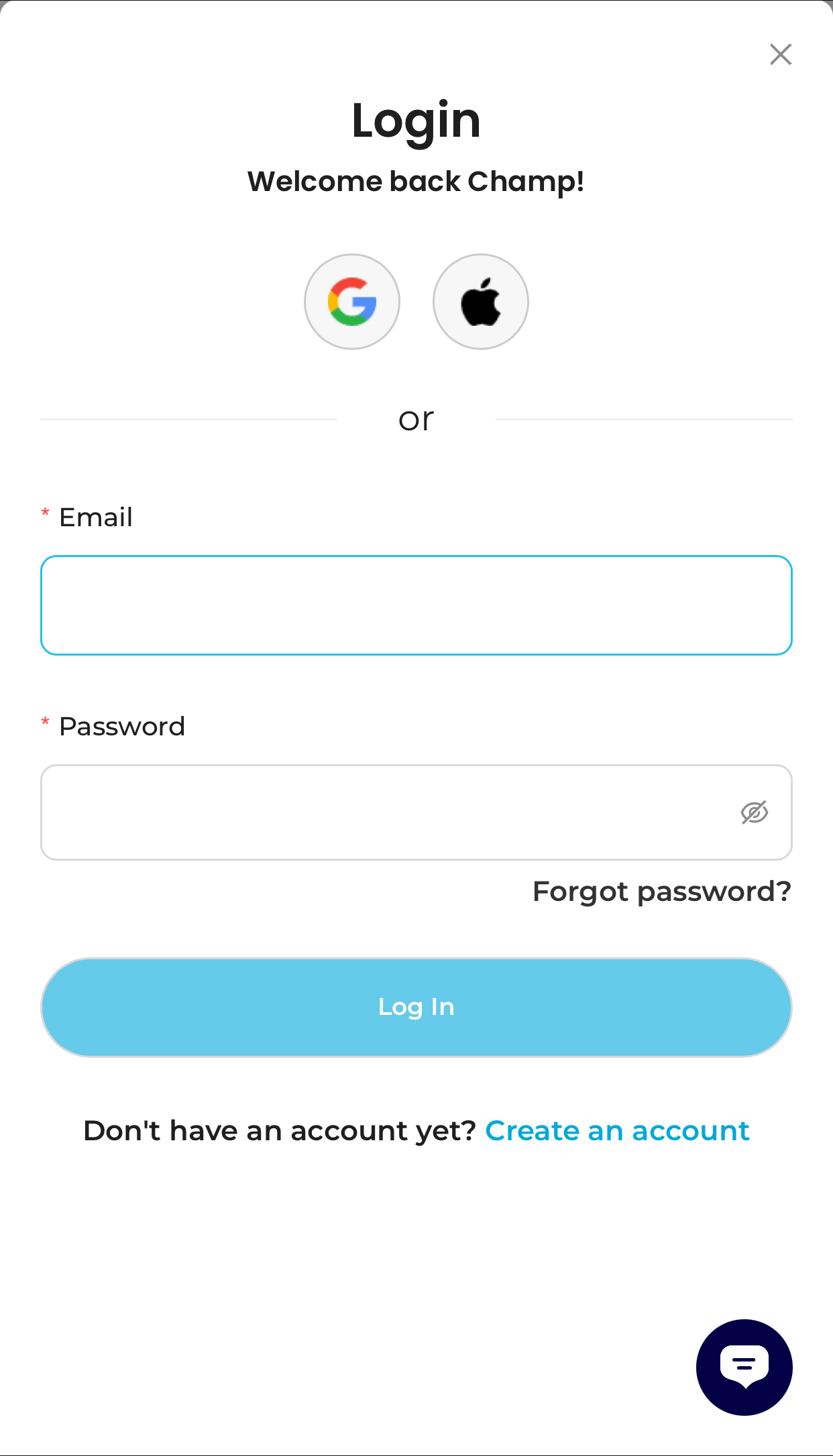
Log in to your TransferXO account using your browser.
Step 2: Go to Your Dashboard
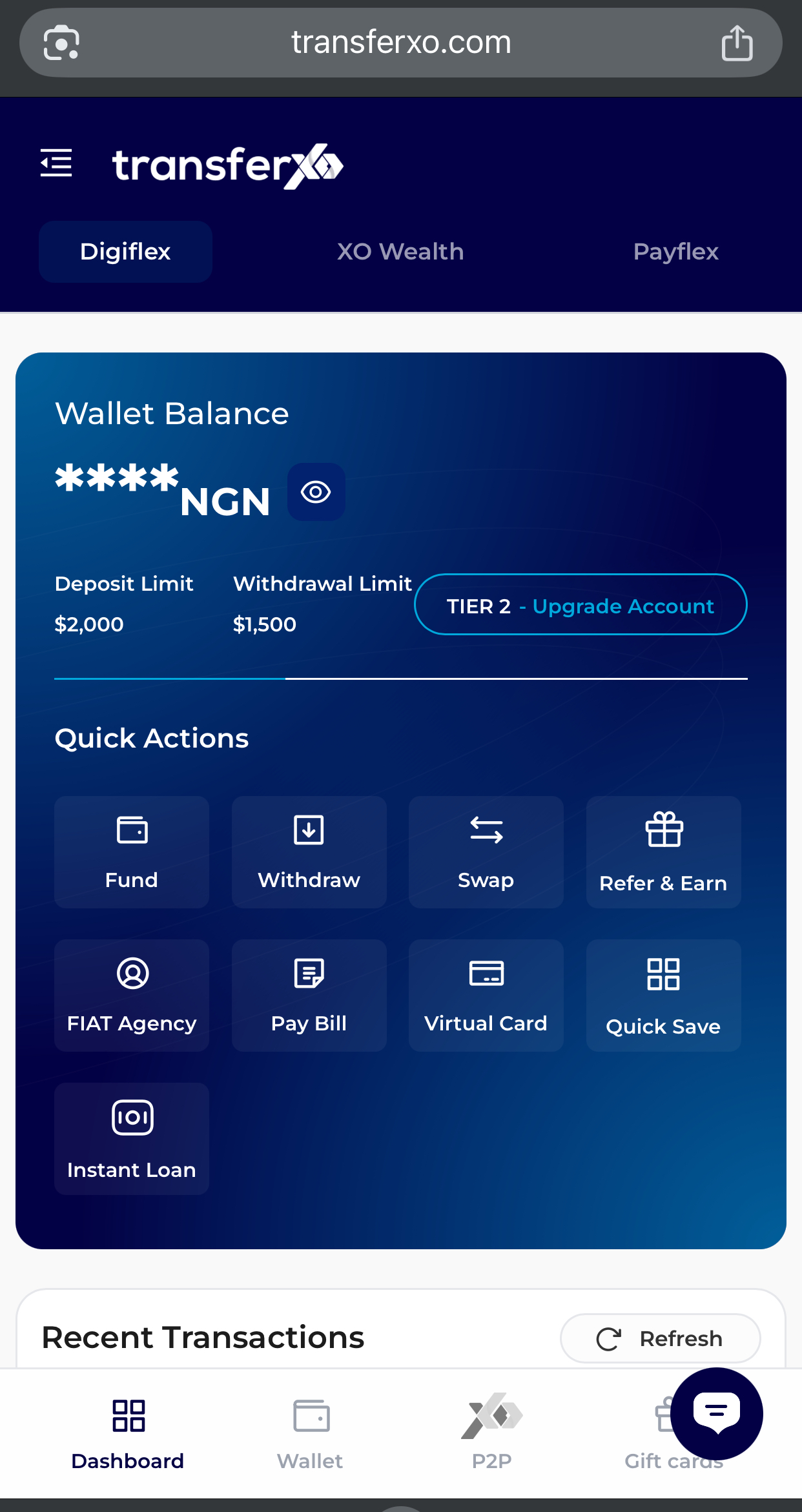
From your dashboard, access your account settings.
Step 3: Access Account Settings
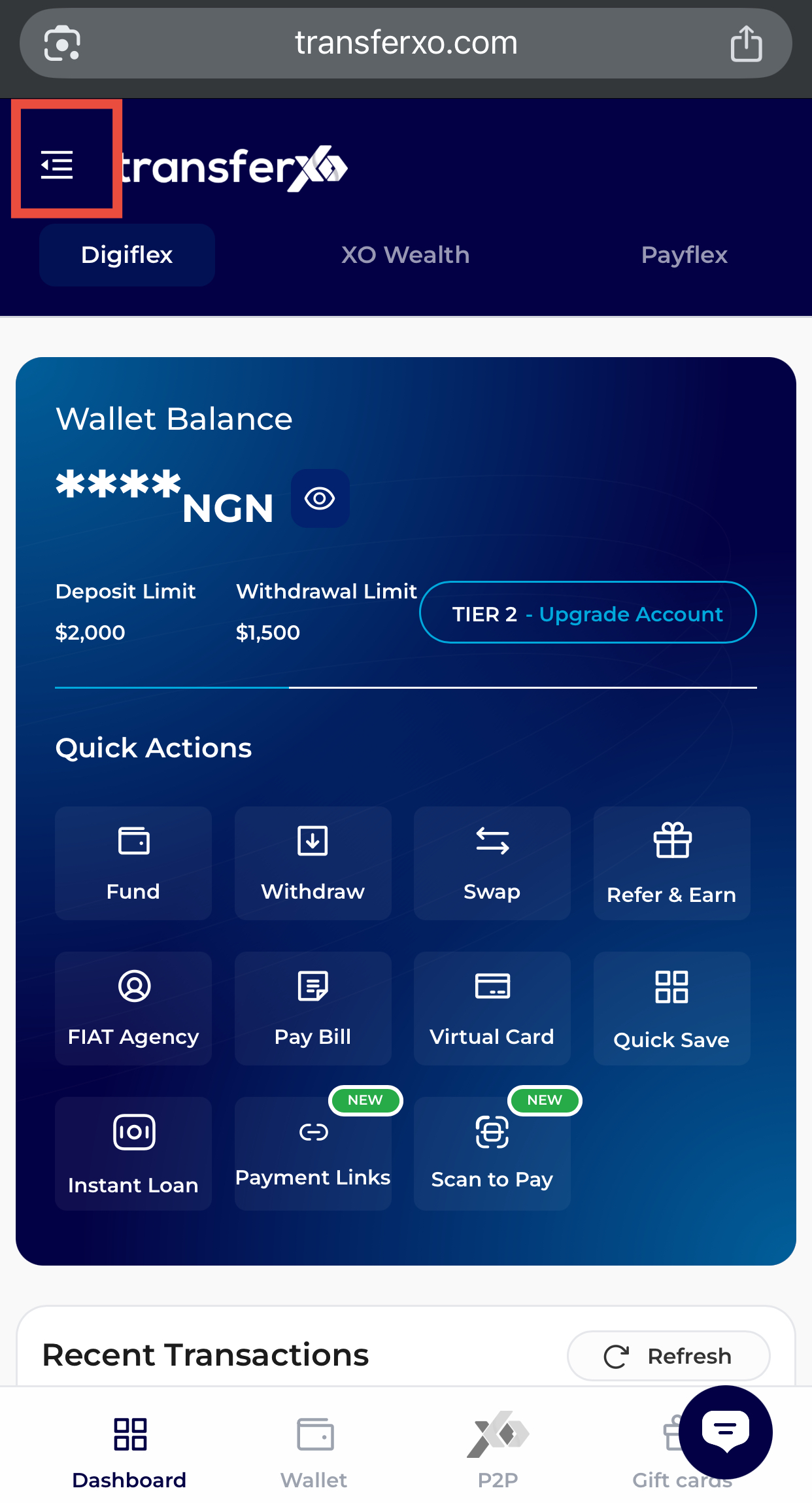
Tap the menu icon (four horizontal lines) at the top-left corner of the screen.
Step 4: Navigate to Account Settings
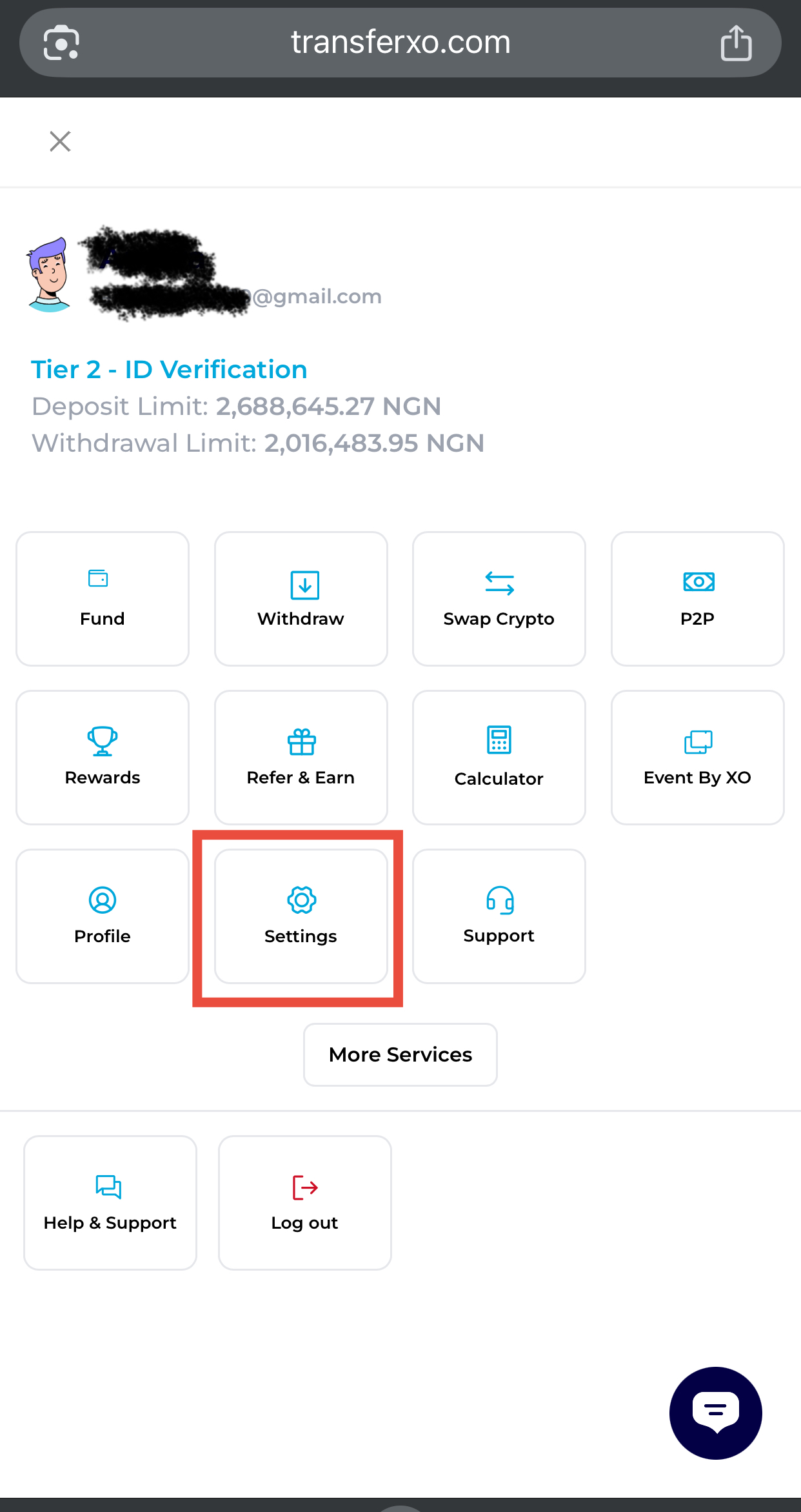
Scroll down and select Account Settings from the dropdown menu.
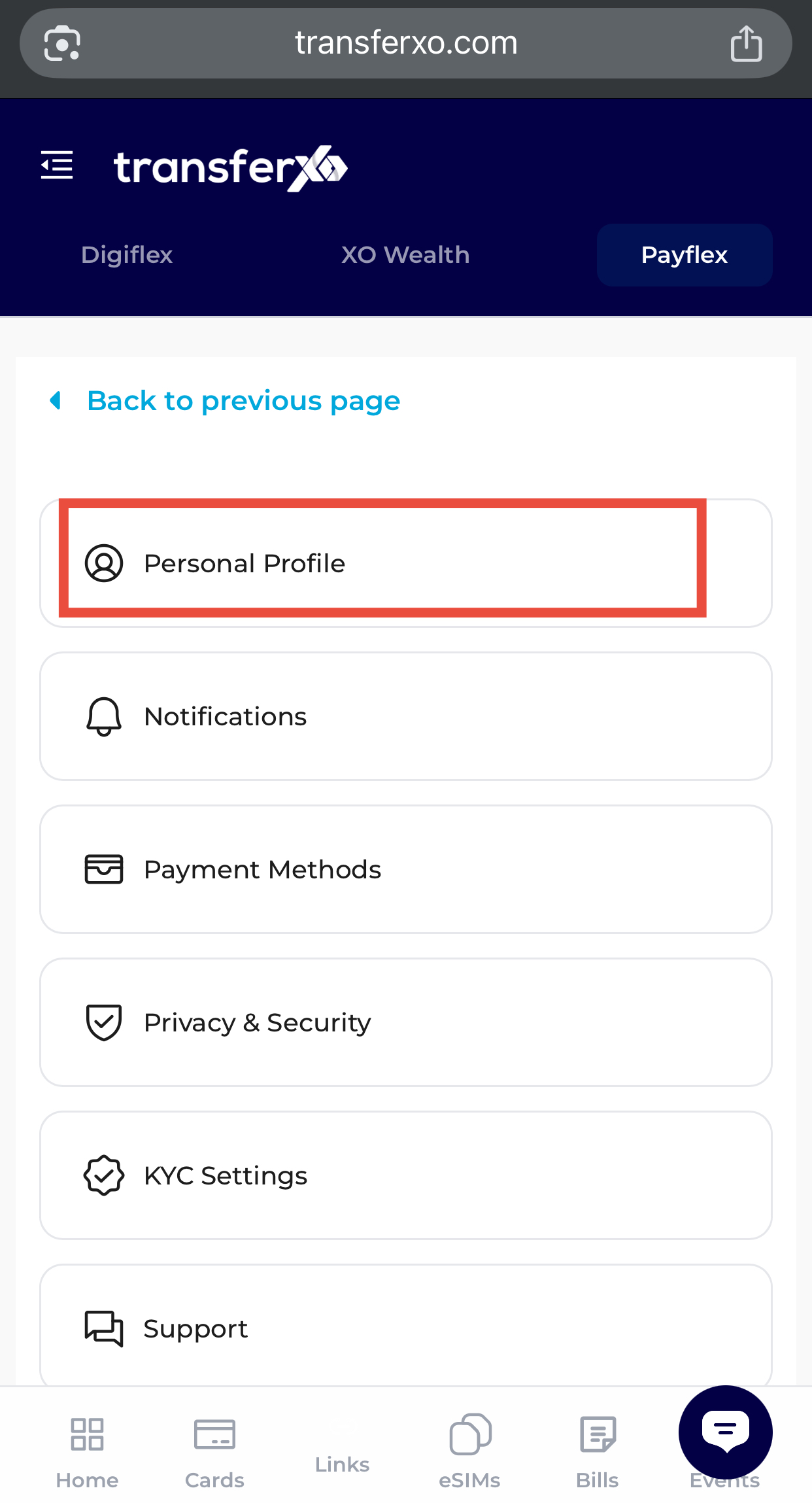
Step 5: Navigate to Personal Profile
Click on Personal Profile to choose a new picture.
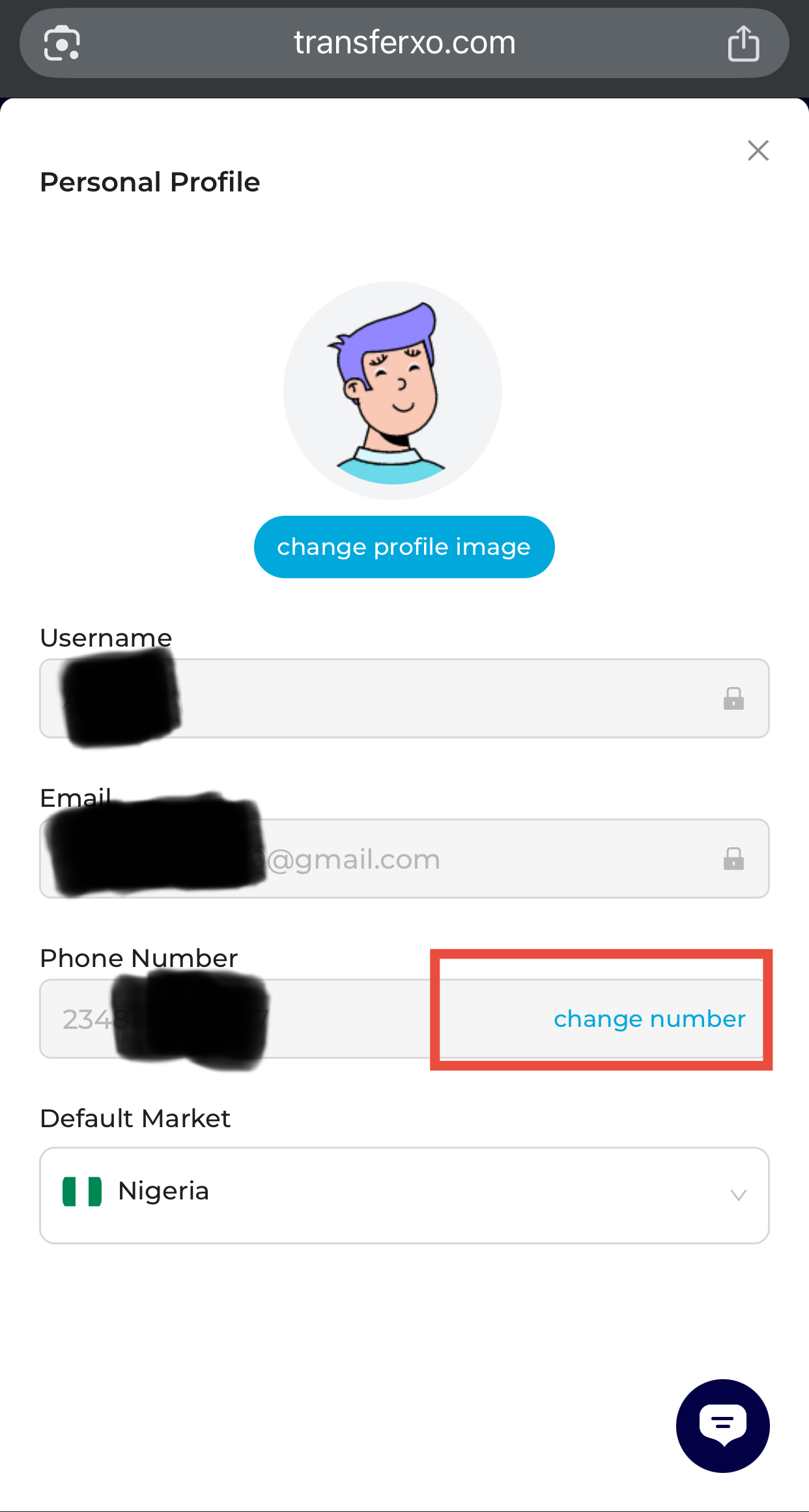
Step 6: Select Change Number
Click Change Number to start the process of updating your phone number.
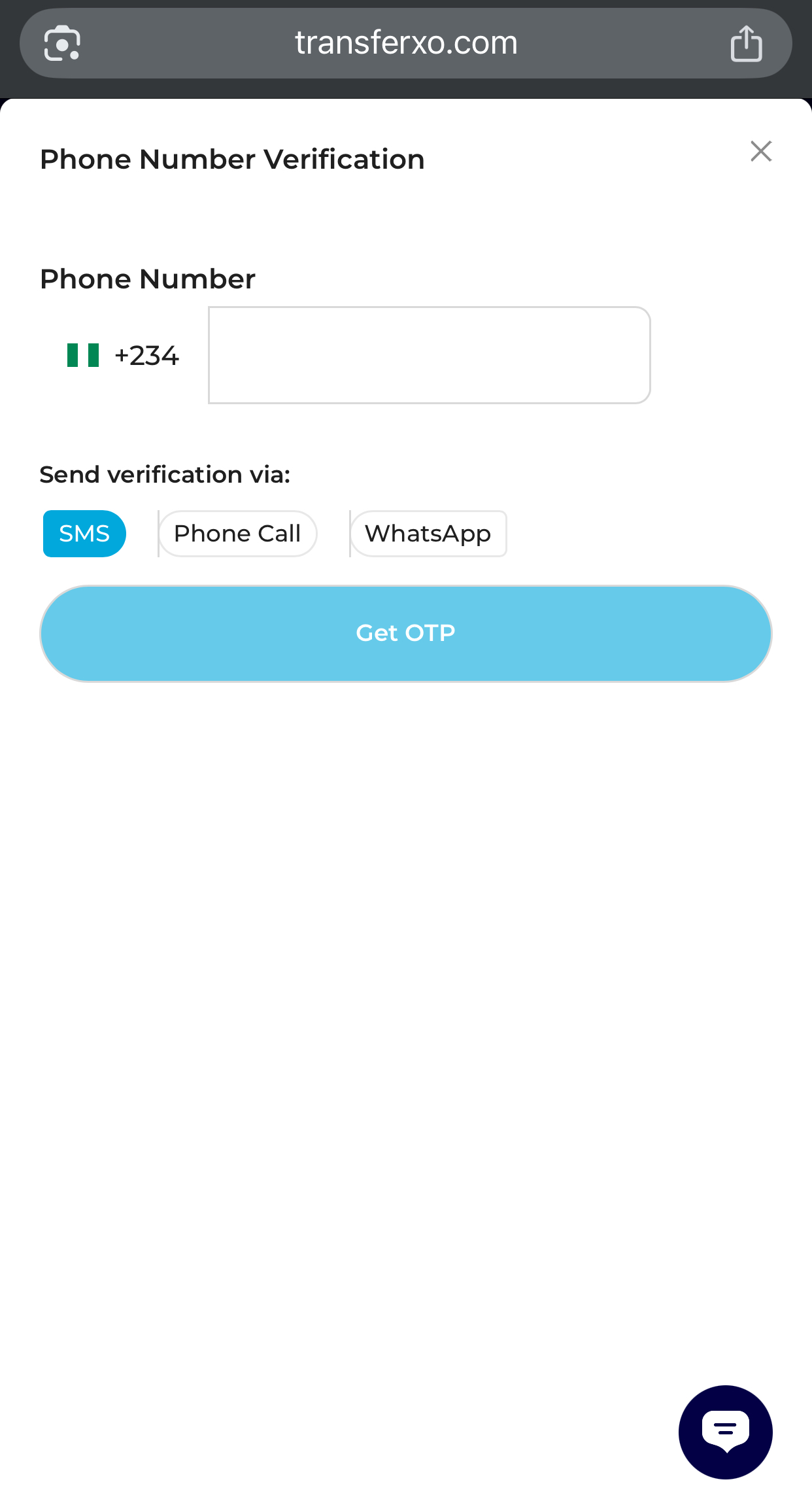
Step 7: Enter Your New Phone Number
Input your new phone number and choose your preferred verification method:
- SMS
- Phone call
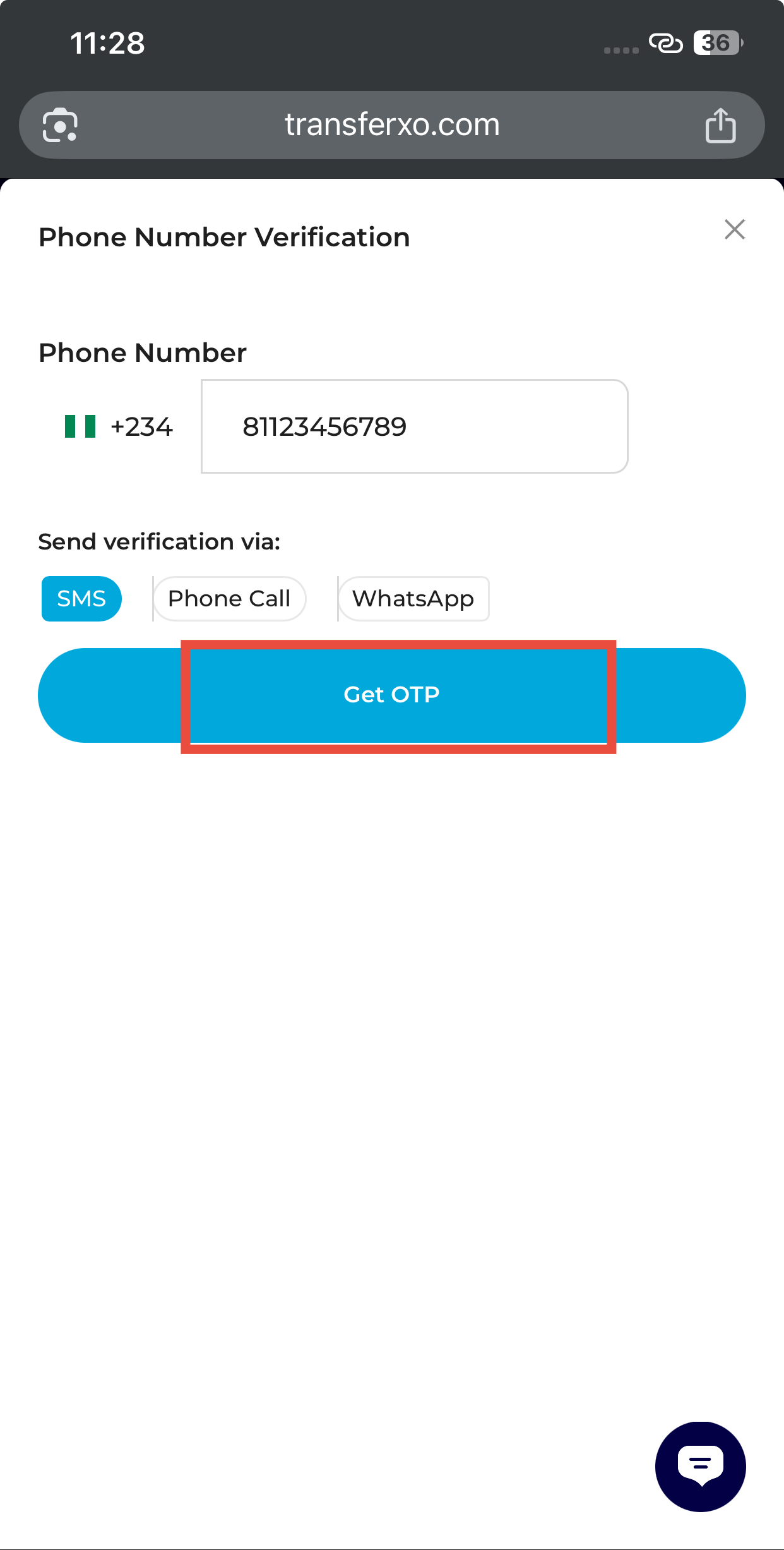
Step 8: Get OTP
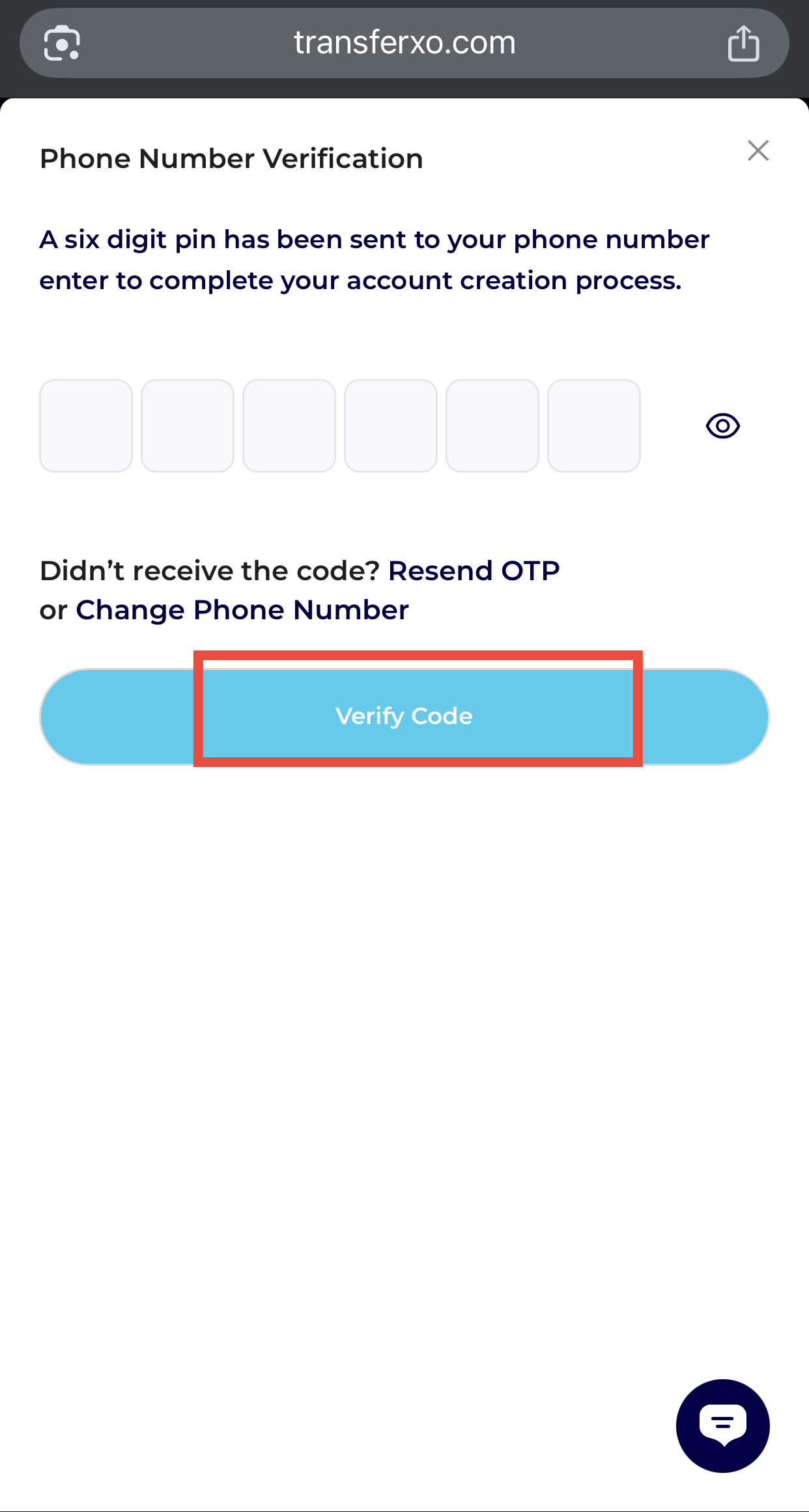
Click Get OTP to receive a six-digit verification code.
Step 9: Enter OTP
Input the six-digit code sent to your phone to confirm your new number.
Once verified, your TransferXO account will be updated with your new phone number.